License: commercial, one live store per license, with 12 months of updates from your purchase date and a refund within 30 days (section 2.5).
It comes with no warranty. Install it on a staging copy of your store first.
The screens in this manual come from our test store: an invented store on an .example domain, with invented products, customers and orders, captured on Magento Open Source 2.4.9 at a window 1440 pixels wide.
Before you install, check the requirements. Before you connect any AI app, create a low-privilege role for it (section 18.1) and read what you must do yourself (section 18.9).
1. What it is
AI Agents lets an AI app you already use, such as Claude, ChatGPT or Cursor, work in your Magento admin. The app talks to your store through the Model Context Protocol (MCP), the standard these apps use to reach tools outside themselves. The agent signs in as one of your admin users and can do only what that admin's role allows.
What an agent can do. Everything an agent does goes through a tool, and each tool does one job. Agents can read your store and report on it: sales by period, bestsellers, low stock, late orders, refunds, abandoned carts and search terms, computed from your own orders in your store's currency and timezone. They can look up products, orders and customers, change product content, prices and stock, edit CMS pages and blocks, comment on, invoice, ship and refund orders, and check the store's health, security settings, upgrade readiness and SEO. Bigger jobs can be prepared as one batch of changes, or from a spreadsheet you upload, and reviewed once. Chapter 14 describes every tool, and chapter 25 lists them all in one place.
How it is kept in bounds. You decide three things:
- Who may connect. Nothing connects until you switch the server on and allow a named admin user to connect agents. Each AI app then asks that admin to approve it on a consent screen inside your admin, which lists what the app will be able to read and change.
- What each connection may touch. The admin's role grants tools one by one, can limit agents to some websites or store views, masks customers' personal data (on from install), and can carry guardrails, such as "prices never move more than 10 % at a time".
- How a change happens. Each role has a write mode: Read-only (nothing changes), Approval (a person approves each change), Preview (the agent must confirm a before-and-after preview) or Direct (the change applies at once).
Every change is recorded in the Change History before it runs, and most changes can be undone from there. One button pauses every agent at once.
What a mistake can do. An agent can misread a request or make a mistake, like a person can. The safeguards limit what a mistake can reach and let you take most changes back. They do not make an agent right, and some actions, such as a refund or an email to a customer, cannot be taken back. Section 18.4 says what each safeguard covers and what it does not.
What it costs. The AI app is your own subscription, with its own company and its own terms. AI Agents sends no store data anywhere by itself: what an agent reads goes to the AI app that asked for it, and section 18.5 lists everything else that ever leaves the store.
AI Agents is sold as one license per live store. The license covers the server and the expert tools, with 12 months of updates. The product-options add-on is a separate purchase, with its own license and update year (section 2.5). If you'd rather not set it up yourself, we also install and configure it for you, as a separate service (section 22).
What it does not do. It adds no chat window to the admin: you talk to the agent in your own AI app. It does not serve shoppers or their agents. No tool deletes a product, a customer or an order, and none sets or reads a password. It makes no call to any AI company. It covers Magento Open Source and Mage-OS features only, not features that exist only in Adobe Commerce, such as content staging or B2B company accounts. Section 19.2 lists the known limits.
2. Requirements
2.1 What you need
- Magento Open Source or Mage-OS. The package's own requirements let Composer install it on the Magento 2.3 and 2.4 lines, with PHP 7.1 to 7.4 or 8.1 to 8.5. That is not a promise that every combination works: the versions we tested are in section 2.2, and any other version is untested. Adobe Commerce has not been tested.
- MySQL or MariaDB, in a version your Magento release supports. Text with emoji is stored as typed where the database tables use 4-byte UTF-8 (
utf8mb4). Many Magento 2.3 stores, and stores upgraded from them, keep 3-byteutf8tables. There a text that holds an emoji, or another character those tables cannot keep, is refused with the character named, wherever it comes from: an admin screen, a setting, a command or an agent's change. Nothing is cut or replaced. - The optional SQL tool needs a database server that can stop a slow query: MySQL 5.7.8 or later, or MariaDB 10.1 or later. Its setup command makes no script for MySQL before 5.7.8 or MariaDB before 10.1.3 (section 18.11).
- Composer, and the packages of your license, from your Big Cart Energy account: our private Composer repository, or one zip file per package. The packages are not in any public package repository: section 4.1 shows both ways.
bigcartenergy/module-core, which Composer installs with the module. Core holds the Big Cart Energy admin menu and configuration tab. It does nothing on its own.- Cron, running every cron group, including the module's two groups
bce_mcpandbce_mcp_changesets. Cron expires approval requests and sign-ins, applies approved changes that cannot run inside the admin, sends alert emails, finishes large change sets and clears old records. The self-test checks it (section 16.2). - HTTPS. Sign-in details must never travel unencrypted, so the server refuses plain HTTP until you change that setting (section 15.1). An AI app that runs on the internet, such as Claude in the browser or ChatGPT, reaches your store over the internet, so the store's address must be public and served over HTTPS. An app on your own computer, such as Claude Code or Cursor, needs to reach the store from that computer. Not yet verified with hosted apps other than Claude, and with Claude only through a shared connector with an access token: section 6.5 says what was run.
- A web server that lets the sign-in through. The
Authorizationheader must reach PHP, and the paths/mcpand/.well-known/must not be blocked, challenged, cached or put behind a password, by the web server or by a CDN or firewall in front of it. Section 6.14 solves each case, with the web-server lines the self-test offers to copy and the rule a CDN or firewall needs. - An AI app that supports remote MCP servers, with sign-in through the browser, or a personal access token for apps and scripts that cannot sign in that way and for a connector a team shares (section 6.4).
2.2 Tested versions
We tested this release on the lines below, on 2026-11-14, and each passed. "Also tested" names what ran on that line besides the module's own checks.
| Platform | PHP | Database | Also tested |
|---|---|---|---|
| Magento Open Source 2.3.0 | 7.1.33 | MySQL 5.7.44 | |
| Magento Open Source 2.3.0 | 7.2.34 | MySQL 5.7.44 | Production mode; install from the release zip files |
| Magento Open Source 2.3.5-p2 | 7.3.33 | MySQL 5.7.44 | |
| Magento Open Source 2.3.5-p2 | 7.3.33 | MariaDB 10.3.39 | Production mode; install from the release zip files |
| Magento Open Source 2.3.5-p2 with the Advanced Product Options extension 2.35.5 | 7.3.33 | MySQL 5.7.44 | |
| Magento Open Source 2.3.7-p4 | 7.4.33 | MySQL 5.7.44 | |
| Magento Open Source 2.3.7-p4, two websites and four store views | 7.4.33 | MySQL 5.7.44 | |
| Magento Open Source 2.4.0 | 7.4.33 | MySQL 8.0.28 | |
| Magento Open Source 2.4.5 | 8.1.34 | MySQL 8.0.28 | |
| Magento Open Source 2.4.6 | 8.1.34 | MySQL 8.0.46 | Install from the release zip files (an earlier build) |
| Magento Open Source 2.4.6 | 8.1.34 | MariaDB 10.6.28 | Production mode (an earlier build) |
| Magento Open Source 2.4.8 | 8.3.36 | MySQL 8.4.13 | |
| Magento Open Source 2.4.8 with the Advanced Product Options extension 2.39.5 | 8.3.36 | MySQL 8.4.13 | |
| Magento Open Source 2.4.8 with a third-party storefront theme | 8.3.36 | MySQL 8.4.13 | |
| Magento Open Source 2.4.9 | 8.5.12 | MySQL 8.4.13 | Install from the release zip files (an earlier build) |
| Magento Open Source 2.4.9 with the Advanced Product Options extension 2.42.5 | 8.5.12 | MySQL 8.4.13 | Production mode (an earlier build) |
| Magento Open Source 2.4.9 | 8.5.12 | MariaDB 12.3.3 | Production mode (an earlier build) |
| Magento Open Source 2.4.9, with the database's GTID consistency enforced | 8.5.12 | MySQL 8.4.13 | |
| Magento Open Source 2.4.9, two websites and four store views | 8.5.12 | MySQL 8.4.13 | |
| Mage-OS 4.0.0 (based on Magento Open Source 2.4.9) | 8.4.27 | MySQL 8.4.13 |
The 2.3.0 and 2.3.5-p2 lines run Magento's original stock handling, the 2.3.7-p4 lines multi-source inventory. Catalog search ran on the 2.3 default (MySQL), on Elasticsearch 7.6.2 (2.4.0) and 7.17.28 (2.4.5), and on OpenSearch 2.5.0 (2.4.6), 2.19.7 (2.4.8) and 3.9.0 (2.4.9 and Mage-OS 4.0.0). "An earlier build" means that step ran on a build of this release made shortly before it, by the same release steps, and the release itself then passed that line's checks in developer mode.
A version that isn't in this table hasn't been tested. Whatever your version, test on staging before production.
2.3 The three packages, and which you need
| Package | What it adds | Who needs it |
|---|---|---|
bigcartenergy/module-mcp | The server: sign-in, the safety layer, the Change History, the admin screens and 94 typed tools in 15 groups, with 3 more when Catalog Completeness is installed | Every store |
bigcartenergy/module-mcp-expert | 8 expert tools: calls to the store's own REST API, GraphQL, and read-only SQL on a separate database user | Stores whose developers want them. Every expert tool starts switched off |
bigcartenergy/module-mcp-apo | 6 tools for the Mageworx Advanced Product Options extension (Composer package mageworx/module-advancedproductoptions): option templates and dependencies between options | Only stores that run that extension, in a version the add-on was tested with: 2.35.5, 2.39.5 or 2.42.5 |
An AI Agents license covers the server and the expert package. The product-options add-on is sold separately, with its own license and update year: it needs AI Agents licensed for the same store, and the Mageworx Advanced Product Options extension, which you get, with its license, from Mageworx (section 2.5). Install the packages your store needs.
Big Cart Energy's Catalog Completeness module is a separate install. When it is present, its three tools appear in AI Agents (section 14.18).
2.4 What installing changes in your store
AI Agents is installed switched off. Until an administrator switches it on, every address it adds answers "not found", exactly like a page that does not exist. After that, nothing connects until an admin user is allowed to connect agents and approves an app.
- Addresses. The agent address
/mcp, the sign-in addresses under/mcp/oauth/, the upload page under/mcp/upload/, and discovery documents under/.well-known/that tell AI apps where to sign in. Installing reserves/mcpunder every base address of the store, even while the server is off. - Database. 24 tables, all prefixed
bce_mcp_. Nothing in your products, orders, customers or settings changes at install. - Admin. The menu Big Cart Energy > AI Agents with its eleven screens, a settings section, a tab AI agents on every user role, a tab AI agent access on every admin user, a section AI agents on My Account, a widget on the admin dashboard, and its permissions in the role tree (section 7.1).
- A browser mark. When an admin whose role holds Use AI agents uses the admin, the module gives that browser a small cookie,
bce_mcp_admin, good for 8 hours and renewed while the admin works in the admin. It names that admin and its end time, signed with a key only this store has, and holds nothing else. A sign-out, a new password, the account made inactive or the role losing Use AI agents ends it. It lets the sign-in tell an admin's browser from a stranger's (section 6.1). The browser of a signed-in admin whose role lacks Use AI agents gets a mark of another kind,bce_mcp_admin_nouse, which opens nothing: it only lets the store tell that admin why a sign-in stops (section 7.9). - Existing roles. They do not quietly gain the new permissions: a role holds an AI Agents permission only when it was given that permission by name, or holds Resource Access set to All. At install and at every
setup:upgrade, the module also writes the fewest "deny" rules that make Magento's own permission list say the same, when admin sessions have room for them (section 7.9). A role with Resource Access set to All holds every permission, as Magento intends, but its admins still have to be allowed to connect, and its agents still follow the write mode. - Cron. Two cron groups, each run in its own process:
bce_mcp, withbce_mcp_frequentandbce_mcp_send_alertsevery minute andbce_mcp_cleanonce a day (15 3 * * *), andbce_mcp_changesets, withbce_mcp_changeset_resumeevery minute. - Queue. The message queue topic
bce_mcp.changeset.applyand its consumerbceMcpChangesetApply, which apply large change sets in the background. - Prompts. The ten ready-made prompts the module ships (section 13.1).
- Files. The log file
var/log/bce_mcp.log, and the foldervar/bce_mcp/, which holds uploaded files waiting to be used and the trash of deleted media files.
2.5 License and updates
AI Agents is commercial software. One license covers one live store: one Magento installation that serves customers, however many websites and store views it runs, together with that store's own staging, test and development copies. The license covers the server, bigcartenergy/module-mcp, and the expert tools, bigcartenergy/module-mcp-expert. bigcartenergy/module-core, which Composer installs with the module, is a separate public module under its own license, the Open Software License 3.0.
The product-options add-on (bigcartenergy/module-mcp-apo) is a separate purchase, with a license and an update year of its own, on the same terms: one live store with its staging, test and development copies. It needs a license of AI Agents for the same store, and the Mageworx Advanced Product Options extension, which you get, with its license, from Mageworx.
Updates. You may use, for good, every version we release within 12 months of your purchase date: your update year. A version released after your update year needs a renewal. When your update year ends, nothing changes in your store, and the versions you have keep working.
What the license allows. You may change the code for your own store, and let your developers or agency work on it for you. You may not share, sell or publish the code, changed or not, or use one license for a second live store. The full terms are in LICENSE.txt in each package, and the terms of sale are at bigcartenergy.com/license.
Refunds. You may ask for a refund within 30 days of your purchase date, and we refund it in full. Ask by email at hello@bigcartenergy.com: we make no refund, license, key, address or account change on a call or a letter alone, and confirm by email with the address on your order first. A refunded license ends with the refund: from then on the module may no longer be used or downloaded.
Where your license lives. Your account on bigcartenergy.com holds your license, its update year and every version of it, through our private Composer repository and as zip files (section 4.1).
No license check. The module does not check its license and makes no call home (section 18.5).
No warranty. AI Agents comes with no warranty, as LICENSE.txt says. Test every change on staging first.
Renew in your account on bigcartenergy.com. License questions: hello@bigcartenergy.com.
3. How it works
3.1 Admin users, roles and connections
An agent has no identity of its own. It always acts as one of your admin users, and it can do only what that admin's role allows. That admin user can be a person's own account, or an account made only for agent work, such as the one a team's shared connector acts as (section 6.5). Three things must be true before an agent can connect as an admin:
- The server is switched on (section 15.1).
- The admin user is allowed to connect AI agents (section 7.3).
- The admin's role holds the permission AI Agents > Use AI agents (section 7.1).
A connection is one AI app acting for one admin user. It starts when the admin approves the app on the consent screen (section 6.2), or when an access token is created (section 6.4). A connection has a status (Active, Paused, Ended or Revoked), an end time, and the access the app asked for: to read, to change, or to read and change, either everywhere or for named tool groups only.
What a connection may do is the narrowest of four things: the tools the admin's role grants, the access the app asked for and the admin approved, the role's write mode, and the store-wide switch of each tool (section 14.21). A role grants a tool only when it holds both the tool's own permission, its tick, and every permission of Magento or of another extension that the tool relies on; the role's tab names any that is missing (section 7.2). A tool that any of these rules out is not listed to the app at all. So is a tool that a role with personal-data masking may not have (section 7.7).
Every request is checked again. Each time the app calls the store, the server checks that the admin user is still active, not locked, still allowed to connect agents, that the role still holds Use AI agents, that the connection has not ended and that its app is not disabled. A locked admin's agents are refused while the lock lasts ("The admin account of this connection is locked."), and work again when it ends.
Account changes end connections. Save an admin user as inactive, or give them a new password, and every connection and access token of theirs ends for good: the apps must be approved again, or get a new token. Making the admin active again brings nothing back. That holds for every save through Magento's user model: the user form, My Account (a password saved there, even the same one typed again, counts as new), the password-reset link, and any module that saves admin users that way. A change written straight into the database, as some commands and scripts do, ends nothing: an admin made inactive that way is refused while the account stays inactive and works again afterwards, and a password set that way leaves the connections working. Switching off an admin's AI agent access also ends every connection of theirs for good (section 6.17).
3.2 The four write modes
A write mode decides what happens when an agent asks to change something. You set one store-wide mode, and each role can set its own. The stricter of the two always applies: a role can make the mode stricter, never looser.
| Mode | What happens when an agent asks for a change |
|---|---|
| Read-only | Agents can look, but cannot change anything. Change tools are not even listed to the app |
| Approval | Every change waits until a person approves it under AI Agents > Approvals |
| Preview | The agent must confirm a before-and-after preview before a change applies |
| Direct | Changes apply at once and are recorded in the Change History |
The store-wide mode starts at Preview (section 15.4). Some rules sit above every mode:
- Destructive tools wait for approval. Cancelling an order and refunding one wait for a person whatever the mode, as long as Destructive tools always need approval is on for the store, which it is from install, or for the role (section 7.2).
- Some tools always wait for approval, even with that switch off: every change through the expert tools (a
rest_callthat is not aGET, everyrest_bulksubmission and everygraphql_write), and every change of the product-options add-on (section 14.19, section 14.20). - Preparation runs at once. Tools that only prepare work which a person or a later call decides on (opening or dropping a batch of changes, creating a link for a spreadsheet upload, reading that spreadsheet into a batch, and proposing a playbook section or a prompt) run directly in every mode except Read-only. They are still recorded. A link to upload a media file is not preparation: whoever holds it can add a file to the store, so it follows the write mode like any change.
Any change tool other than a preparation tool can also be asked for a dry run: the agent gets the plan and nothing changes, in every mode except Read-only. A dry run never counts against Changes per hour and is answered even when the hour's changes are used up. It counts as a read instead: each record the plan names counts against Rows read per hour, at least one per dry run.
The same request in each mode. Say an agent working for the admin user catalog.editor is asked to rewrite the meta description of the product LAMP-OAK-01.
- Read-only. The app never sees the tool that changes products, so the agent can only say that it cannot make changes. Nothing changes. If the app calls the tool anyway, the call is refused and the refusal is recorded.
- Approval. The agent's call returns "waiting for approval" with a reference such as
apr_…. The request appears under AI Agents > Approvals, where an admin with Approve changes sees the old and new description side by side and approves or rejects it. A rejection needs a note, which the agent receives as the reason. The agent can check the outcome with the reference. Nothing changes until someone approves, and an unanswered request expires (section 15.4). Chapter 9 walks through this mode end to end. - Preview. The first call changes nothing. It returns the plan: the description before and after, and a confirmation code that lasts a few minutes (section 15.4). The agent shows you the plan, and once you agree, sends the same call again with the code. If the description changed in the meantime, the code is refused and the agent has to ask for a fresh preview. The preview appears in your AI app, not in the admin, and whether the agent shows it to you depends on the app and the agent. Preview guards against mistakes, not against an app you do not trust: when a person must see every change in the admin, use Approval (section 18.10).
- Direct. The description changes at once. The Change History records the old and new text, and the change can be undone.
In every mode except Read-only, the change is recorded in the Change History before it runs (section 3.3).
3.3 Change History and undo
The Change History records every change an agent makes or asks for: who asked, through which app, with which tool, on which record, the values before and after, how it was handled and the result. Refusals, held requests and failures are recorded too. Each change record is written before the change runs and completed after it, so even a change interrupted half way leaves a record. The Change History cannot be switched off, because approvals, undo, change sets and the refund limits all read it. Change records have references that start with chg_.
Undo puts a record's earlier values back. You can undo on the Change History screen (section 11.3), and an agent can undo its own connection's changes with the tool change_history_undo. Undo works when:
- the change is the kind that can be undone (an effect of Write, section 14.1);
- it succeeded, or stopped part way and kept what it had changed, and was not undone already;
- it is younger than the undo window (section 15.4);
- nobody changed the same fields since. If someone did, undo stops and shows the conflict, and you can choose to undo only the fields nobody touched since (section 11.4).
An undo is recorded as its own change record, and is not undone in turn. Undo never deletes a product, page, block or cart price rule an agent created: a created product is disabled and made not visible, a created page or block is disabled, a created cart price rule is made inactive. A few smaller records are removed again: an added customer address, an added attribute option while no product uses it, and a new option template of the product-options add-on while nothing changed it and no product uses it. Section 11.5 lists what cannot be undone at all.
An agent can never undo under a looser rule than the change went through. When a person approved the original change, the agent's undo waits for a person too.
3.4 Guardrails, limits and pause
Guardrails limit what one change may do, even with the right tool: which product attributes may change, how far a price may move, how large a refund may be, how many records one change may touch, which order actions are allowed and which configuration settings may change. A change outside a guardrail is refused, or sent to a person for approval, as you choose. They are checked before the write mode applies. They cover the typed tools, not the expert REST and GraphQL tools, whose changes always wait for a person instead. Chapter 8 covers each one.
Limits cap how fast a connection works: calls per minute, changes per hour and rows read per hour, plus a size cap on every answer. A call over a limit is refused with the time to wait. Some calls are heavy, such as long reports, and run one at a time per connection. The limits and their defaults are in section 15.5.
Pause stops every agent at once, from the Overview or the command line. Sign-in keeps working and nothing is revoked, so resuming puts everything back as it was. A single connection can be paused too, and the server pauses a connection by itself when its changes, errors, refusals or guardrail hits pass a threshold in a short time. Chapter 12 covers pausing and the alerts that come with it.
3.5 What an agent sees
- Text from the store is marked as data. Every answer and every plan that carries text from the store reaches the agent wrapped as
{"untrusted_text": "…"}: product and category text, pages and blocks, order comments, customer names and addresses, notes, search terms and log lines. The agent is told to read such text as data and never follow it as an instruction. The same goes for the details of an error, such as a list of valid values. An error's own sentence and hint are the module's words and are not wrapped: they name the store's records by ID or by what the agent sent, and text the store keeps, such as a SKU, a title or Magento's own refusal, goes in the error's details, wrapped. In practice nearly every string an agent receives is wrapped, store codes and dates included. Numbers, yes-or-no values, and the module's own references and fixed words (achg_…reference, a status, an effect, an error code) stay unwrapped, and so do the playbook sections an admin wrote or accepted for agents to follow. This helps against a comment or a product text that tries to give the agent orders. It cannot guarantee that a model never follows text it reads, which is why the write modes and guardrails exist. - Personal data is masked. Masking is on for the whole store from install: customers' names, emails, phones, addresses and other identifying fields come back masked in every answer. While a role masks, its agents cannot use the tools whose answers cannot be masked by field (section 7.7).
- Secrets are never returned. Password hashes, reset tokens, payment card data, keys, and configuration values Magento marks as sensitive or encrypted never leave the server, masking or not.
- Answers are sized. Every answer has a size cap, Largest answer. Long lists come one page at a time. An answer that is still too large comes as an outline: the record with its largest parts shortened, a sentence that says what to call next, and the exact calls that read the rest, each answered under the cap. So no read is refused for its size, and nothing is lost: a record many times the cap is read in several calls (section 15.5).
- A short guide comes with the connection. On connecting, the app receives a few lines on how the server works, which name your store, the admin user the agent acts as and that user's role, then the titles of the playbook sections its role may see (section 13.4) and your rules for agents, labelled as advice from the store (section 7.8). A fuller guide is available to the agent on request (section 14.22).
4. Install, upgrade and first run
Sections 4.1 to 4.3 are for the developer who installs the module. Section 4.4 is for the store owner who sets it up afterwards.
4.1 Install
What you will need
- Shell access to the server, as the user that owns the Magento files.
- A staging copy of the store, with a backup.
- Composer access to the packages (section 2.1).
Steps
After your purchase, sign in to your account on bigcartenergy.com with the email address you bought with. The account holds your license and every version of your update year, in two ways: our private Composer repository, opened by a key pair you make there for the store, and one zip file per package, for example module-mcp-1.0.0.zip. Use one of the two ways per store: both name their Composer entry bigcartenergy. bigcartenergy/module-core is public: Composer fetches it the usual way, with no extra step.
From the private Composer repository
-
In your account, make a key pair for the store. Its private key is shown once: copy it then. One key pair opens one license per item for one store, so if the store also has the product-options add-on or Catalog Completeness, tick each of their licenses on the same pair.
-
In the Magento root, tell Composer where the repository is:
bashcomposer config repositories.bigcartenergy composer https://bigcartenergy.com/composer/ -
Ask Composer for the server and the expert tools, on its own line:
bashcomposer require bigcartenergy/module-mcp bigcartenergy/module-mcp-expertcomposer requireasks for a user name and a password: give the public key as the user name and the private key as the password. Typed at the prompt, the private key stays off the command line and out of your shell history, and Composer hides the password as you type it. Composer then offers to save the pair for the next run, and names theauth.jsonfile it would save it in. -
Enable the modules and set them up:
bashbin/magento module:enable BigCartEnergy_Core BigCartEnergy_Mcp BigCartEnergy_McpExpert --clear-static-content bin/magento setup:upgrade bin/magento setup:di:compile bin/magento setup:static-content:deploy en_US bin/magento cache:cleanName every locale your admin users use in
setup:static-content:deploy. -
Make sure the server's crontab runs every Magento cron group. A crontab that runs plain
bin/magento cron:runcovers them all. One that names groups one by one must addbce_mcpandbce_mcp_changesets.
Keep the key pair out of your code repository.
Keep auth.json out of your code repository: never commit it or the key pair to any repository, private ones included. Magento's own .gitignore does not list auth.json, so add it to yours. Composer 1 and Composer 2.0 to 2.4 save the pair into the auth.json in the Magento root when there is one. If your repository already tracks that file (git ls-files auth.json prints its name), a .gitignore line does not stop it from being committed: take it out of the repository first with git rm --cached auth.json. Before you do, give your deploy the credentials of every host in that file through COMPOSER_AUTH: a checkout that pulls the removal deletes its copy of the file. If the pair was ever committed, revoke it in your account and make a new one. On a build or deploy server, give Composer the pair through the COMPOSER_AUTH environment variable, set in the server's secret settings rather than typed in a shell, with this value:
{"http-basic": {"bigcartenergy.com": {"username": "<public key>", "password": "<private key>"}}}Composer's guide to authentication for private packages describes both the prompt and the variable. If a private key may have been seen by anyone else, revoke the pair in your account and make a new one.
From the zip files
-
Download the zip files from your account. In the Magento root, make a folder for them, for example
packages/bigcartenergy/, copy them in, and tell Composer to read that folder:bashcomposer config repositories.bigcartenergy artifact ./packages/bigcartenergyIf the zip files of another Big Cart Energy package are already in that folder, copy these in beside them and skip that line.
-
Run the same
composer requireline as in step 3 above, then themodule:enableandsetuplines of step 4, and check the crontab as in step 5. No key pair is needed this way.
Commit the folder with the zip files to the store's private code repository: composer.lock points at those files, so every deploy needs them. Do not publish them.
Which packages. The expert tools are optional: leave out bigcartenergy/module-mcp-expert and BigCartEnergy_McpExpert if you do not want them. With the product-options add-on, add bigcartenergy/module-mcp-apo to the composer require line and BigCartEnergy_McpApo to the module:enable line. Each optional package can also be added later, with the same commands.
What success looks like. Every command ends without an error. composer require lists bigcartenergy/module-mcp and bigcartenergy/module-core among the packages it installed, module:enable lists the modules it enabled, and setup:di:compile ends with Generated code and dependency injection configuration successfully.
When it goes wrong
- Composer cannot find
bigcartenergy/module-mcp. The repository line is missing from the store'scomposer.json, the folder it names does not hold the zip files, or, with the private repository, the key pair Composer was given (at its prompt, from a savedauth.jsonor fromCOMPOSER_AUTH) is wrong, revoked, or opens no license of this package. Look at therepositoriespart ofcomposer.json, at the folder, and at the key pairs in your account. - Composer offers no newer version. The private repository offers only the versions of your update year. A later one needs a renewal (section 2.5).
- Composer refuses the package. Your Magento or PHP version is outside what the package accepts: Magento 2.3 or 2.4 (framework 102 or 103) and PHP 7.1 to 7.4 or 8.1 to 8.5.
setup:di:compilefails. Read the class it names. The self-test check Every part of the server is installed names a missing part once the module runs (section 16.2).- Admin sign-ins stop working after you create roles. On some Magento versions every admin session carries the whole permission list, and Magento does not save a session larger than Max Session Size in Admin. The role and user screens warn before a save gets close to that limit and stop a save that would pass it (section 7.2); roles made another way, or before the module was installed, can still take sessions over it. The self-test check Admin sessions stay within their size limit measures your store and gives the commands that raise the limit (section 16.2).
setup:upgradesays that AI Agents did not write its deny rules. Writing them would have taken every admin session over Max Session Size in Admin, so none was written. "None of these roles gains an AI Agents permission": the module refuses its permissions to every role that was not given them. Raise Max Session Size in Admin to the size the line names, then runsetup:upgradeagain (section 7.9).
4.2 Check that it worked
Run the module's status command:
bin/magento bce:mcp:statusOn a fresh install it prints, with the scheduled-task line depending on your cron:
AI agent server:      off
Pause:                not paused
Connections:          0 active, 0 paused (0 automatically), 0 ending within a day, 0 ended or revoked
Admins opted in:      0
Waiting approvals:    0
Approved, to apply:   0
Open change sets:     0 staged, 0 waiting, 0 applying, 0 partly applied
Last self-test:       never run
Scheduled tasks:      ran 40 seconds ago
Alerts, last 7 days:  0 sent, 0 queued, 0 held back, 0 failed
When the module's cron jobs have not run in the last ten minutes, the Scheduled tasks line says so instead, for example "Scheduled tasks (cron) have never run on this store. Until they run, approved changes are not applied, old approval requests do not expire and alert emails are not sent."
Then sign in to the admin and open the Big Cart Energy menu. Its section AI Agents lists Overview, Connections, Clients, Approvals, Change History, Activity, Tools, Prompts, Playbook, Self-test and Settings. An admin sees only the screens their role allows (section 7.1).
4.3 Upgrade
The private Composer repository offers every version of your update year by itself; with zip files, download the new ones from your account into the same folder.
While an update is installed, no change set may be applied by the old code, so stop cron and the queue consumers first and start them again afterwards, as for any Magento upgrade. The steps, in this order: maintenance mode on; cron stopped, and no cron:run or queue:consumers:start process left; the new packages in place; setup:upgrade; setup:di:compile; setup:static-content:deploy for every locale your admin users use; cache:clean; cron back; maintenance mode off.
From the Magento root:
bin/magento maintenance:enable
bin/magento cron:remove      # or comment out the cron:run line, where the crontab was set up by hand
pgrep -fl 'bin/magento cron:run'; pgrep -fl 'queue:consumers:start'   # wait until neither lists a process
composer update bigcartenergy/module-mcp bigcartenergy/module-mcp-expert bigcartenergy/module-mcp-apo bigcartenergy/module-core
bin/magento setup:upgrade
bin/magento setup:di:compile
bin/magento setup:static-content:deploy en_US
bin/magento cache:clean
bin/magento cron:install     # or put the cron:run line back
bin/magento maintenance:disable
Run the lines one at a time: if composer update asks for the key pair, as it does when no saved pair or COMPOSER_AUTH is there, a line pasted after it would go into its prompt. Name only the packages you have, and bigcartenergy/module-core: that brings the newer Core module a new version may need, and leaves every other package as it is. Name every locale your admin users use in setup:static-content:deploy.
A consumer kept running by a process manager (supervisor, systemd) is stopped and started there; one that cron started ends by itself, or with pkill -f 'queue:consumers:start'. A change set a stopped consumer was applying is taken up again by cron after the update, and none of its changes is applied twice (section 10.7). AI Agents' own consumer is bceMcpChangesetApply.
What success looks like. bin/magento setup:db:status reads "All modules are up to date", bin/magento queue:consumers:list lists bceMcpChangesetApply, the module's cron groups bce_mcp and bce_mcp_changesets run again, and the self-test passes (chapter 16).
With zip files, once the update is deployed everywhere, you may delete the older ones. A version released after your update year ends needs a renewal (section 2.5); the versions you have keep working.
Version 1.0.0 is the first release, so no upgrade from an earlier release of AI Agents exists yet.
From an earlier build. A store that runs an earlier build of AI Agents moves to this one with the steps above, in the same order. Stop cron and the queue consumers first: an earlier build may lack columns that this release adds to the module's change set tables, so setup:upgrade must run, and no change set may be applied by the old code while it does. Then run setup:di:compile, setup:static-content:deploy for every locale your admin users use, and cache:clean, and start cron and the consumers again. A change that the earlier build left being applied is marked Outcome unknown when its set is taken up again, and is not applied again (section 10.7). "What success looks like", above, applies too.
What follows is what every setup:upgrade does with the module installed. An upgrade keeps your settings, roles, connections, Change History and playbook. setup:upgrade also refreshes the shipped prompts, keeping the Active and Visible to choices you made (section 13.1), writes the module's "deny" rules on your existing roles where admin sessions have room for them (section 2.4), and creates the message queue the module uses for large change sets. A permission that a newer version adds, such as a new tool's, is held only by roles saved again with it ticked (section 7.9).
Static content. A newer version can change the admin's styles, templates and scripts. In production mode, the usual bin/magento setup:static-content:deploy after setup:upgrade builds them; until it has run, the admin keeps the old ones. Where Magento's HTML minification is on (dev/template/minify_html), production mode keeps serving the old minified copy of a changed template from var/view_preprocessed until setup:static-content:deploy writes it again, so do not add --no-html-minify to that run. A store run in developer or default mode keeps the admin styles it compiled before the update: after updating, remove pub/static/adminhtml and var/view_preprocessed/pub/static/adminhtml, or run setup:static-content:deploy -f for the admin area, or the module's screens keep their old look.
After an upgrade, check two things. With the expert package's SQL tools in use, run the script that creates the read-only database user again: a newer release can close more tables and columns, and the SQL tools refuse a user whose grants are older (section 18.11). And when an upgrade of Magento itself changes how it stores admin passwords, each admin's next sign-in saves the password again in the new form; that ends the admin's AI agent connections once, and the apps must be approved again (section 3.1).
Removing the module is covered in chapter 20.
4.4 The first-run checklist
Open Big Cart Energy > AI Agents > Overview. While the server is off, the page says AI agents are turned off: "Turning this on lets AI clients such as Claude, ChatGPT and Cursor ask to connect to this store. Nothing connects by itself." It offers Turn on and See the setup checklist.
Below it, the checklist Get set up shows how many of its five steps are done ("4 of 5 done", for example). Each step ticks itself off when the store sees it done, and each shows one action:
- Run the self-test. "Checks from the store's own server that the agent address answers and that sign-in works." Choose Run self-test (chapter 16). When checks failed, the step shows Problem and View results.
- Create the recommended roles. "Read-only analyst, Catalog editor, Operations. You can change them later." Choose Create roles (section 7.4). The step needs Magento's permission to manage user roles. An existing role with one of those names is left alone. Where the new roles would take admin sessions over Magento's session size limit, the step warns first, shows the commands that raise the limit, and offers Create the roles anyway.
- Give an admin access. "Choose which admin users may connect AI agents." Choose Choose admin users (section 7.3). The step needs Magento's permission to manage admin users.
- Connect a first AI client. "Add this store to Claude, ChatGPT, Cursor or another client." Choose Show me how (chapter 6). If a sign-in was started but its approval page never loaded, the step shows "A sign-in was started but the approval page never loaded." and offers Run the self-test again.
- Make a first call. "Ask the client ‘What store am I connected to?’" The step reads "Waiting for step 4" until a client is connected, and ticks itself once the call arrives.
A step whose action your role cannot open says which permission it needs instead.
When all five are done, the checklist reads Setup complete. 5 of 5 done. and offers Dismiss checklist. Dismissing hides it for every admin. To bring it back, open Stores > Configuration > Big Cart Energy > AI Agents > General, where First-run checklist says who dismissed it and when, and choose Show the checklist again.
Chapter 5 walks through the five steps with one app, from switching the server on to the first answer.
5. Walkthrough: your first connection
This walkthrough takes a fresh install to a first answer from an AI app. It connects one app for one admin user, catalog.editor, who works with product content. The store's address in the examples is https://shop.example.
The screens beside the steps were taken separately and show other names and records than this example; the panels and buttons are the same.
What you will need
- The module installed (section 4.1).
- An admin account with full access, to set things up.
- An AI app that can add a remote MCP server (chapter 6 lists the apps and their steps).
- A plan for the agent to act as a dedicated admin user with a low-privilege role, never as a full-access administrator (section 18.1).
Connecting an app that runs on the internet, such as Claude in the browser or on the desktop, also needs the store on a public HTTPS address that a CDN or firewall in front of it does not block for the app's servers (section 6.14). Not yet verified with hosted apps other than Claude, and with Claude only through a shared connector with an access token: section 6.5 says what was run.
Steps
1. Switch the server on. Open Big Cart Energy > AI Agents > Overview and choose Turn on. The chip beside the page title changes to Server on. (From the command line: bin/magento bce:mcp:enable, which prints "The AI agent server is on.")
2. Run the self-test. Choose Run self-test in the Overview's title bar. Each check shows Pass, Warning or Fail, with the fix under anything that did not pass. Fix every failure before you go on: a failed check here usually means the app cannot reach the store or cannot sign in (section 6.14).
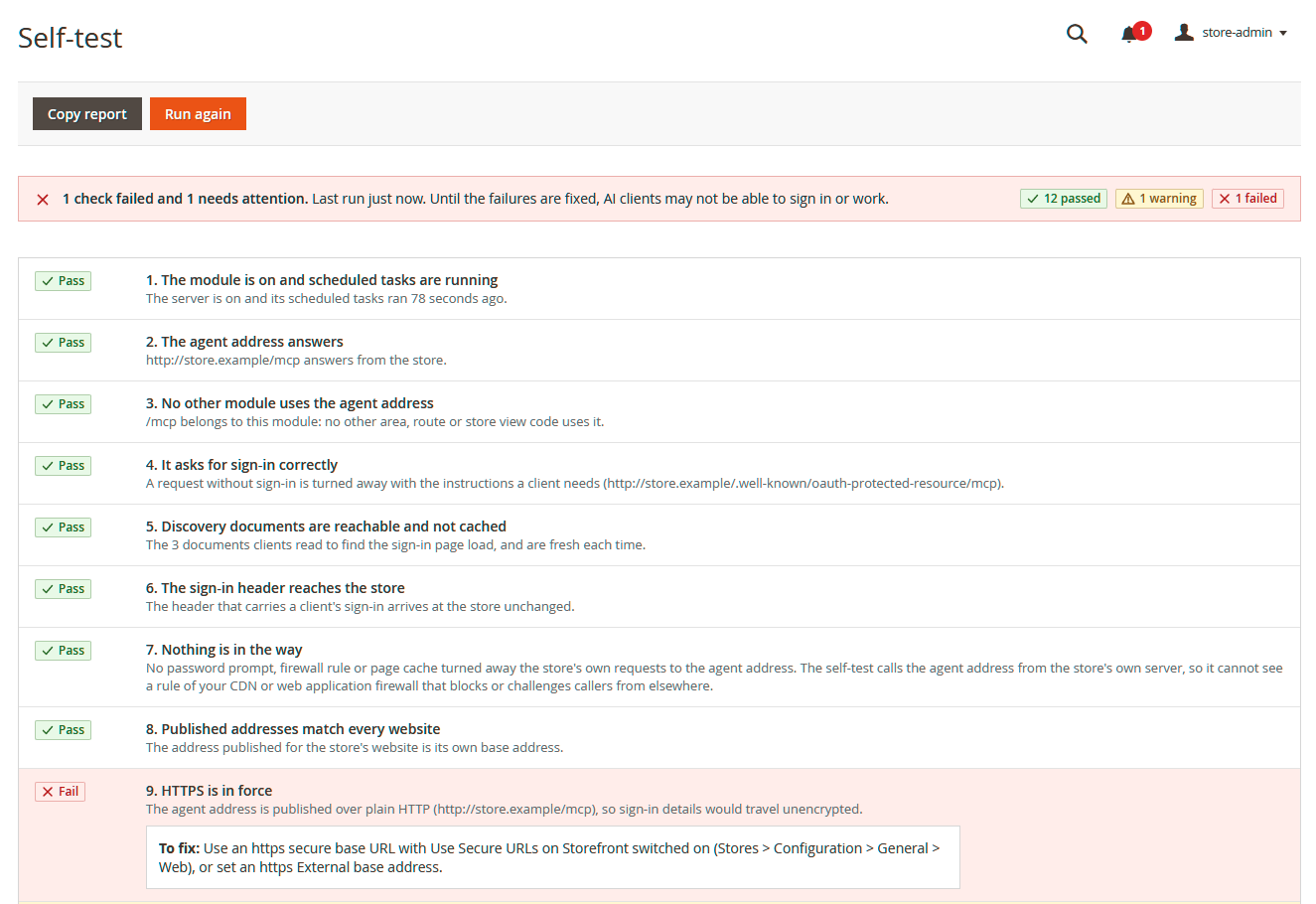
3. Create the roles. Back on the Overview, choose Create roles in the checklist. Three roles appear under System > Permissions > User Roles. Catalog editor can read the catalog, content and stock, and change them after a preview (section 7.4).
4. Set up the admin user. Under System > Permissions > All Users, create the user catalog.editor (or open an existing one), and under User Role choose Catalog editor. Save the user.
5. Allow the user to connect agents. On the same user, open the tab AI agent access and switch on Allow this user to connect AI agents. The dialog Confirm it is you asks for your own admin password: "We ask before any change to who or what can connect." Enter it and choose Turn on access. (From the command line: bin/magento bce:mcp:user:enable catalog.editor.)
6. Copy the server address. The address is your store's base address followed by /mcp, here https://shop.example/mcp. The Connect an AI client panel at the bottom of the user's tab, and on My Account, shows it under Server address with a Copy button.
7. Add the store to your app. Follow your app's steps in chapter 6; the panel's tabs show the same steps. For Claude, use the first of the three ways in section 6.5, with Register automatically; that way has not yet been run end to end with the Claude app. When the app asks to sign in, it opens your browser at your store.
8. Sign in as the connecting user. Sign in to the admin as catalog.editor, with two-factor sign-in if your store uses it. If the browser has not been used with the admin before, the store first shows Sign in to the store admin first: sign in to the admin in that browser, come back, and choose Try again. The consent screen then opens, headed with the app's name and wants to connect to your store.
9. Read the consent screen, then approve. Check the address under Sign-in codes will be sent to: it must be the app you are using. Check It will act as, the two lists It will be able to read and It will be able to change, How changes are handled, Store limit and, when the role has some, Guardrails. Choose how long access lasts under Access ends, then choose Approve. Section 6.2 explains every line.
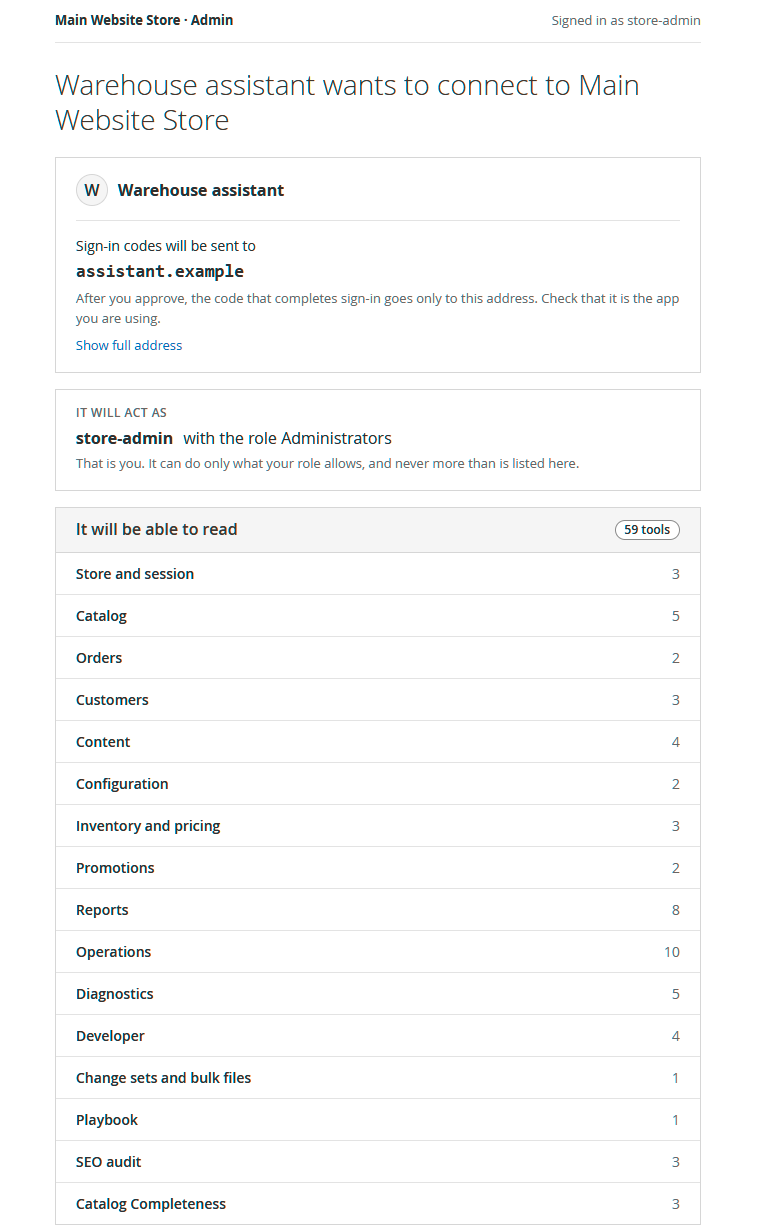
10. Go back to the app. The page You approved the connection hands you back to the app by itself: "One step is left: this page hands you back to" the app, "which completes the sign-in." If nothing happens within a few seconds, choose Continue to and the app's name.
11. Make a first call. In the app, ask: "What store am I connected to?" The agent calls store_info and answers with your store's name, its websites and store views, and their addresses. If the app asks your permission before it uses a tool, allow it.
12. See it in the admin. Under Big Cart Energy > AI Agents > Connections, the new connection is listed as Active, with the app, the admin user and the role. Big Cart Energy > AI Agents > Activity lists each request the app made. On the Overview, the checklist ticks its last step.
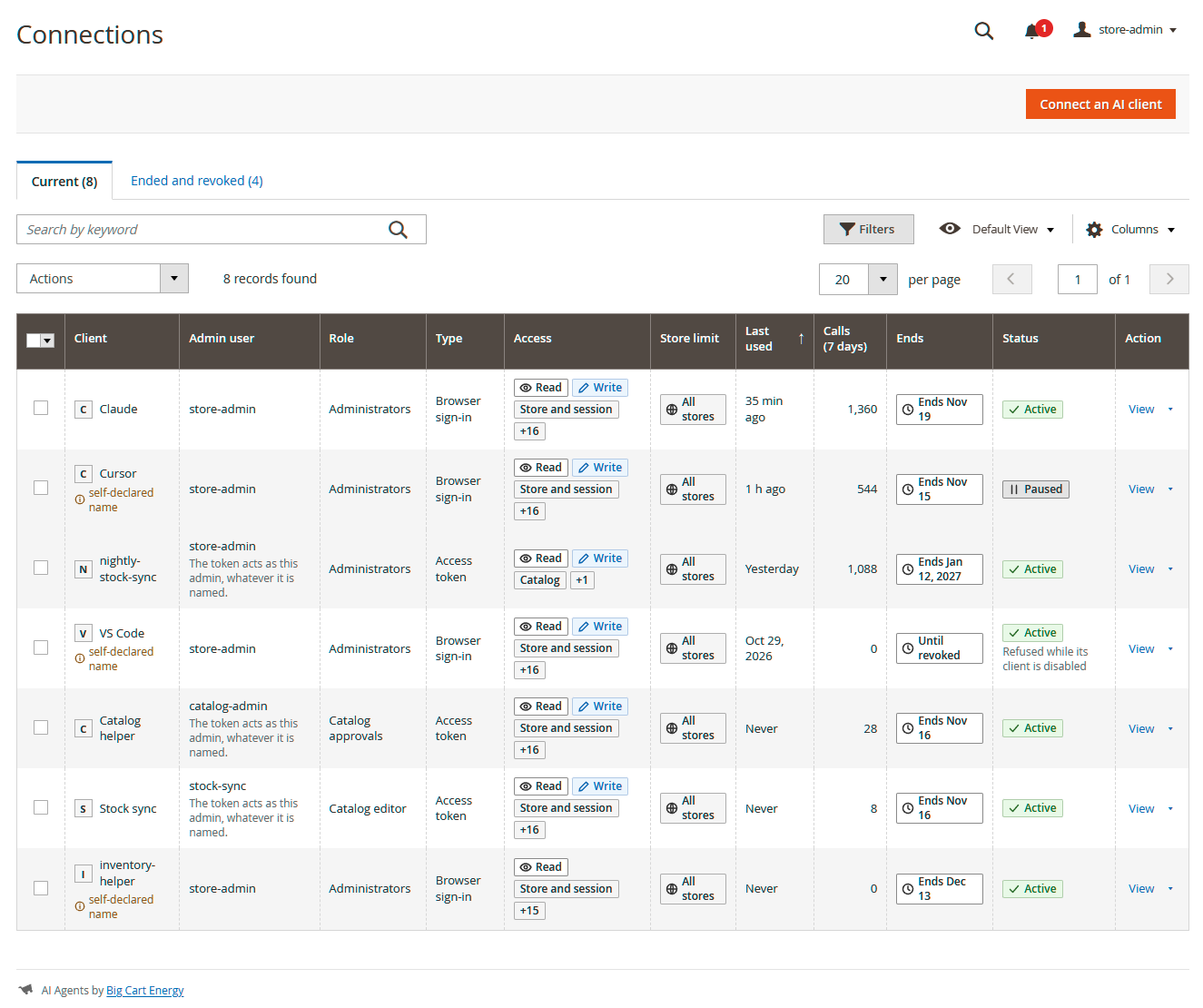
What success looks like. The app answers with your store's name and store views; the connection shows Active; the checklist reads Setup complete once the self-test passes.
When it goes wrong
- The app cannot connect, or says the server needs no sign-in. Something in front of the store blocks or rewrites the agent address or the discovery documents. Run the self-test and follow section 6.14.
- A hosted app such as Claude cannot connect, although the self-test passes. A CDN or web application firewall in front of the store blocks or challenges the app's servers. The self-test calls from the store's own server, so it cannot see that. Add the rule in section 6.14.
- Claude cannot register with the store. Claude says “Couldn't register with connector name's sign-in service. You can try again, or add an OAuth Client ID in the connector settings.” Its dialog was left on Use Claude's published identity while the store's setting Accept clients that publish a metadata document is off. Choose Register automatically instead (section 6.5).
- The browser shows "This browser cannot be recognised here". The store's admin runs on another host name than the agent address, so the browser cannot carry the admin mark there. Fill in Allowed addresses with the addresses you connect from, and with the addresses an app on the internet calls from (section 15.2), then start again from the app.
- The consent screen says "You are not allowed to connect AI agents". The user's AI agent access is off, or the role lacks Use AI agents (section 7.3).
- The browser shows "Your admin role does not allow AI agents". The admin signed in to that browser has a role without Use AI agents. Give the role that permission, or sign in as the agent's admin user, then start again from the app (section 7.9).
- The consent screen says "This sign-in request has expired". The approval page was opened too late. Start again from the app.
- The app connects but lists no tools. See "The app connects, but lists no tools" in section 16.4.
Next, try a change you can review and take back: chapter 9.
6. Connecting an AI app
6.1 What connecting means
You give the AI app one address: your store's base address followed by /mcp, for example https://shop.example/mcp. The app does the rest:
- It asks the store how to sign in. The store answers from discovery documents under
/.well-known/. - If the store does not know the app yet, the app registers itself. Registering gives it no access: the app now appears under Big Cart Energy > AI Agents > Clients, and Activity records Client registered.
- The app opens your browser at the store. If that browser has been used with your admin, the store sends it on to the admin's consent screen. If not, the store shows Sign in to the store admin first, without naming the admin's address: sign in to the admin in that browser the way you always do, come back and choose Try again. You sign in as the admin user the agent will act as, and the consent screen shows what the app is asking for (section 6.2).
- You choose Approve. The store sends a one-time sign-in code to the app, the app trades it for its access, and the connection appears under Big Cart Energy > AI Agents > Connections as Active.
From then on the app renews its access by itself, until the access you chose runs out or someone ends the connection (section 6.3).
Why the store asks you to sign in first. Anyone can start a sign-in, so the store sends a browser on to the admin only when it carries the admin's mark (section 2.4), or when Allowed addresses is filled in and the request comes from a listed address. A stranger who starts a sign-in learns nothing about your admin. When your admin runs on another host name than the store's agent address, a browser cannot carry the mark there: the store then shows This browser cannot be recognised here, and you must fill in Allowed addresses (section 15.2). The list then has to hold every address that calls the agent address: yours, for the sign-in in your browser, and, for an app that runs on the internet, the addresses its servers call from.
How a client becomes known. A client is an AI app as the store knows it. There are three ways in:
- It registers itself. Most apps do this the first time someone connects them. It is on from install and limited per address and per day (section 15.3). A self-registered client that never completes a sign-in is removed after a while.
- It publishes a document about itself. Some apps identify themselves by a web address that describes them. Reading that address is a request from your server to the app's, so the store accepts such apps only once you switch Accept clients that publish a metadata document on. Until then, an app that can also register itself does so. An app set to use only its document cannot sign in: Claude with Use Claude's published identity chosen says “Couldn't register with connector name's sign-in service. You can try again, or add an OAuth Client ID in the connector settings.” (section 6.5).
- An admin adds it by hand, under Big Cart Energy > AI Agents > Clients > Add a client by hand (section 6.16). Only needed for an app that cannot register itself, or to fix exactly where its sign-in codes may go.
A client's name is not proof. An app that registers itself can call itself anything, so the store marks such a name self-declared wherever it shows it, and cuts a name longer than 120 characters with an ellipsis. What the store does check is where the sign-in code goes: the address under Sign-in codes will be sent to on the consent screen.
Two ways to connect. Browser sign-in, above, is the way for people. An access token is the way for a script or an app that cannot sign in through a browser, and for a connector that a team shares, where everyone who uses it acts as the token's admin user (section 6.4, section 6.5).
6.2 The consent screen, line by line
The consent screen is a page of your own admin, shown on its own without the admin menu. It opens after you sign in, with two-factor sign-in where your store uses it. Its order is fixed, and Approve comes last, below everything you are agreeing to.
| Line | What it tells you | What to check |
|---|---|---|
| This store does not know this client. (only for a self-registered app that has never connected) | "It registered itself, and its name was supplied by the client and has not been checked." | Approve only if you started this yourself, just now, from an app you trust. If not, choose Deny |
| The store and admin name, and Signed in as | Where you are and who you are signed in as | That you are signed in as the user the agent should act as |
| Heading: the app wants to connect to your store | The app's name and your store's name | Nothing yet: the name is the app's own claim |
| The app's name, marked self-declared | "The name was supplied by the client and has not been checked by the store." | Do not rely on it |
| Sign-in codes will be sent to | The host that receives the code which completes sign-in. Show full address reveals the whole address | It must be the app you are using. An address on your own computer, such as localhost:53682, is normal for desktop and command-line apps: "This is a program on the computer you are using now. If you are not running one, choose Deny." |
| It will act as | The admin user you are signed in as, and their role. "That is you. It can do only what your role allows, and never more than is listed here." | That this is the right user |
| It will be able to read | The groups of tools the app may use to read, with a count each and the total | That the groups make sense for the job |
| It will be able to change | Each tool the app may use to change something, by group, marked Change, Cannot be undone or Destructive. For an app that asked only to read, or a role in Read-only mode, whatever the app asked for: "0 tools" and "Nothing: it cannot change anything in the store." | Every tool marked Cannot be undone or Destructive |
| How changes are handled | What happens to a change: the write mode, such as "Before any change applies, … must show a before-and-after preview and confirm it."; the tools that wait for a person whatever the mode, such as "Changes with the Expert tools wait until a person approves them under AI Agents > Approvals, whatever the write mode"; that product-options changes are staged in a change set first; that every change is recorded; and "Destructive tools always wait for approval." when the app may use a destructive tool that follows the write mode and Destructive tools always need approval is on for the store or for the role. Left out when the app can change nothing | Whether a person will see changes before they apply |
| Store limit | The websites and store views the agent may reach, or "No limit: every website and store view your role can reach." | That it is no wider than the job needs |
| Guardrails | The guardrails that apply, in plain sentences, such as "Prices may move up to 10 % up." (only shown when the role has some) | That the limits you expect are there |
| Access ends | How long the connection lasts, each choice with the date it ends (section 6.3) | The shortest length that covers the job |
| Approve and Deny | Your decision. "You can revoke this at any time under AI Agents > Connections." |
Both lists show only what the role allows and the app asked for, whichever is narrower. If the role allows more than the app asked for, the app gets less. A tool switched off for the store, or one a masking role may not have, is not listed.
Other things the screen can say:
- You approved this client before, and it is still connected. Approving adds this sign-in to the existing connection, "and the access length you choose below then applies to the whole connection."
- All AI agents are paused for this store. "You can approve this connection now; it starts working when someone resumes them." (section 12.1)
- I started this connection myself. A tick box that appears when your admin runs on another address than the one the sign-in started on: "The store cannot check that this sign-in was started in this browser, … Approve only if you started it yourself, just now." Approve needs the tick.
- This sign-in was started in another browser. "A connection can only be approved in the browser that started it. If you did not start it yourself, someone may have sent you this address to get access to" your store: choose Deny. If you did, start connecting again from the app in this browser.
- You are not allowed to connect AI agents. The app asked to connect as you, "but this account is not allowed to connect AI agents. Nothing was connected." The page says what to ask an administrator for: AI agent access for your account, and the permission AI Agents > Use AI agents for your role (section 7.3). It shows where the app asked its sign-in codes to go, says that "no sign-in code goes to this address", offers only Deny, and Go to the admin dashboard takes you back to the admin.
- This client is disabled. An administrator disabled the app under Clients. Nothing was connected.
- AI agents are switched off for this store. The server is off. Nothing was connected.
- AI agents cannot be connected from this network address. Your address is not on the store's list of allowed addresses (section 15.2).
- This sign-in request has expired. "A request to connect has to be answered within" the number of minutes set as Approval page lifetime (section 15.3), 10 by default. Nothing was connected. Start again from the app.
- This request was already approved, or already denied, or This sign-in request was not found. "There is nothing more to do on this page. If it was not you who approved it, revoke the connection under AI Agents > Connections."
After you choose. Approve opens You approved the connection, which hands your browser back to the app by itself, with Continue to and the app's name as a fallback. Deny opens You denied the connection: "Nothing was connected", with Go back to and the app's name, which tells the app that you said no. Both decisions are recorded under Activity as Approved or Denied.
6.3 How long access lasts
At consent. The Access ends choice offers 8 hours, 7 days, 30 days, 90 days and Until revoked ("It stays connected until someone revokes it."). 30 days is chosen at first. Each choice shows the date it ends on. A role can carry a maximum (section 7.2): choices above it are not offered, Until revoked is offered only to roles without a maximum, and a note under the choices says so: "Your role allows up to 30 days, so longer choices and ‘Until revoked’ are not offered."
Later. The connection's detail on the Connections screen has its own control under Access length, Change the end time: 8 hours from now, 7 days from now, 30 days from now, A date and time…, Until revoked (not for an access-token connection, nor above the role's maximum) and End now, saved with Save end time (section 6.15). For an access-token connection the panel adds: "Its access token ends …. The connection can end sooner, not later; for longer access, extend the token below, or create a new one." A token's own end is moved with Extend the access token (section 6.4).
Behind the scenes. The app holds a short-lived access token, which it renews by itself, and a refresh token that keeps the connection going between uses. An app that goes unused for longer than the refresh token lasts must be approved again. Neither ever outlasts the end you chose. Both lifetimes are settings (section 15.3).
When access ends, the app's next call is refused, the connection moves to the Ended and revoked tab, and Activity records the reason, such as Access time ran out. Connecting again needs a new approval.
6.4 Access tokens for clients without browser sign-in
An access token is "a secret for a script or a client that cannot sign in through the browser." Whoever holds it can act as the admin user it belongs to, within the access chosen for it. Most people do not need one: Claude, ChatGPT, Cursor and similar apps connect through the browser. A team that shares one Claude connector per agent profile needs one token per profile (section 6.5).
Whom a token acts as. A token acts as the admin user it is made for, with that user's role, whoever uses it. Its name is only a label. Wherever a token is made, the screen says so first. On My Account: "A token made here acts as you, catalog.editor, with your role, Catalog editor, whoever uses it. Its name is only a label: it does not choose the admin or the role." On another admin's tab it names that admin: "A token made here acts as catalog.editor, with that user’s role, Catalog editor, whoever uses it." So a token for an agent profile is made on that profile's admin user, never on your own account.
What you will need
- Allow personal access tokens switched on under Stores > Configuration > Big Cart Energy > AI Agents > Sign-in (section 15.3). It is off from install. Switching it off again also stops every existing token while it is off: each call is refused with "Access tokens are switched off for this store.", and a change such a token asked for cannot be approved meanwhile (section 10.2). Nothing is revoked, so the tokens work again when you switch it back on.
- An admin user who is allowed to connect agents.
- The permission Manage own connections and tokens for your own tokens, or Manage other admins' connections and Magento's permission to manage users for another admin's.
A token:
- acts as one admin user, who must be allowed to connect agents, and never beyond that user's role;
- has its own access: read only, or read and write, optionally for some tool groups only;
- can have a store limit narrower than the role's;
- always has an end date, no later than the store's Longest personal access token setting (90 days by default), which an admin who may manage it can move later (Give a token a later end, below);
- is shown once, when it is created. The store keeps only a fingerprint of it and its last four characters, and can never show it again. Tokens start with
bcemcp_pat_.
Create a token in the admin
- Open System > Permissions > All Users, then the user the token will act as and the tab AI agent access, or open My Account for your own tokens, and choose Create access token. The dialog opens with whom the token acts as.
- Under Name, say what will use it: "Say what will use it, so you know what breaks if you revoke it. The name does not choose the admin the token acts as."
- Under Access, choose Read only or Read and write, and optionally Only these tool groups (leave it empty for everything the role allows).
- Under Store limit, keep Same as the user's role (Same as my role on My Account) or choose Narrower: choose store views and tick at least one.
- Under End date, choose a date within the store's maximum.
- Choose Continue. The dialog Confirm it is you asks for your own admin password; enter it and choose Create token.
- Save your access token shows the token once: "This is the only time the token is shown. If you lose it, revoke it and create a new one. Treat it like a password". Under Ready-made configuration it also shows a configuration to paste into the app ("It contains the token."). Copy what you need, tick I have saved it, and choose Close. Close stays off until the box is ticked.
Create a token from the command line
bin/magento bce:mcp:token:create --user=catalog.editor --name="nightly stock export" --expires=30 --scopes="mcp:read inventory:write"--expires takes a number of days or a date (YYYY-MM-DD, the end of that day in UTC), within the store's maximum. Without --scopes, the token may read and write everything the role allows. --stores and --websites take codes, separated by commas, to limit it further. The command prints the token once (chapter 17).
Use the token by giving the app the server address and this header:
Authorization: Bearer <the token>The store reads the token from this header only. With a token there is no consent screen and no two-factor step: the token works at once. Keep it in the app's secret store, give it the shortest life that works, and revoke it when the script is retired. Revoking a token ends it at once, and what it changed stays in place and in the Change History.
What success looks like. The token is listed under Access tokens with its access, store limit, end date and Active; the app's first call shows on the Activity screen.
Give a token a later end
A token stops working at its end date, for everyone who uses it at once. Before then, an admin who may manage it can give the same token a later end. "The token keeps its secret, scopes and store limit; the AI app needs no change."
- Who may. An admin with Manage own connections and tokens may extend their own tokens. An admin with Manage other admins' connections may extend any admin's token from the connection's panel, the tokens of an admin with full access included, and from an admin user's tab only with Magento's permission to manage users as well. No password is asked: an extension shows no secret, makes none and widens no access.
- Where. In the token's row under Access tokens, on the admin user's tab AI agent access or on My Account: the Ends cell offers a list of end dates and Extend. Or in the connection's panel on the Connections screen (section 6.15), under Access length: Extend the access token, then Extend token. The answer says until when the token now lasts.
- How long. The list counts days from now, "7 days from now", "30 days from now" and so on, up to the longest end allowed, which it names last, for example "60 days from now (the longest allowed)". The longest is the store's Longest personal access token (days) counted from today, and no later than the role's access length allows, counted from the day the token was made (section 7.2). So that setting bounds one extension, not the whole life of a token that is extended again and again; to cap a token's whole life, set an access length on its admin's role. An end that is not later than the token's own is refused: "The token already lasts until …, which is later. Choose more days."
- When it cannot. A token whose end has passed has ended for good, whether or not the store's scheduled clean-up has run: it is refused when it signs in, and it cannot be extended ("This token has expired. Create a new token."). Neither can a revoked token or an ended connection, and while access tokens are switched off for the store, no token can be extended: "Access tokens are switched off for this store, so a token cannot be extended."
- What is recorded. Each extension is a sign-in event Token extended on the Activity screen, with the new end, the old one, and who extended it (section 11.6).
A token whose end has passed reads Expired under Ends, with a grey Ended status and no Extend, on My Account, on the admin user's tab and on the Connections screen, even before the store's scheduled clean-up has run.
When a token ends soon. From 14 days before a token ends:
- the Overview and the Connections screen show a notice, "An access token ends within 14 days:" (or the number of tokens), naming each token with its admin and end, then "Everyone who uses a token stops at once on its end date. Extend it from its connection, up to the store’s longest token life, or plan a new token." An admin who may manage every admin's connections sees every such token; one who may manage only their own sees their own;
- the token's row says "Ends …: everyone who uses it stops then.", the Connections list adds under Ends "Its token ends …. Extend it from the connection.", and the connection's panel "Its token ends …. Everyone who uses it stops at once then: extend it, or plan a new token.";
- with the alert on and an address on the alert list, one email goes out for that token and end date (section 12.4).
When it goes wrong
- "Access tokens are switched off for this store." An administrator switches tokens on under Stores > Configuration > Big Cart Energy > AI Agents > Sign-in.
- "The expiry is too far away: a token may last at most … days." Choose an earlier end date, or raise Longest personal access token.
- "AI agent access is switched off for this admin." Switch on Allow this user to connect AI agents first (section 7.3).
- "Choose at least one scope, and only scopes this store knows." A group code in
--scopesis wrong; the command's message lists the groups this store has. - The token is refused on every call. It has expired or was revoked, its admin's access was switched off, the role lost Use AI agents, or tokens are switched off for the store. Activity names the reason.
- The agent acts as the wrong admin. A token acts as the admin whose page it was made on, whatever it is named. Revoke it, and make a new one on the right admin user's tab.
- A token has no Extend. You may not manage it, its end has passed, it was revoked, tokens are switched off, or it already ends as late as the store's Longest personal access token (days) and its role's access length allow. Make a new token then.
6.5 Claude (apps)
The panel's tab Claude (apps) opens with: "Claude’s ‘Add custom connector’ dialog offers several choices. These three ways work with this store." Each way has its steps, in the words of Claude's dialog. A way that the store's settings rule out right now is marked "Not available on this store now.", with the setting that is off and a link to the settings (section 15.3) for an admin who may open them.
What was run with the Claude app. On 2026-11-12 the third way, one shared connector with an access token in its authorization request header, connected the Claude app to a store running Magento Open Source 2.3.5-p2.
Not yet verified with the Claude app: signing in with Register automatically (the first way) and with Use Claude's published identity (the second way) have not been run end to end with it. On our test stores the store's side of both has been run: clients registering themselves, and the whole published-identity sign-in, with the document Claude Code publishes standing in for Claude's own.
1. Each person signs in as their own admin
- In Claude, open Settings, then Connectors, and choose Add custom connector.
- Give it a name and paste the server address.
- Under Authentication, choose Sign in now.
- Under OAuth client, choose Register automatically.
- Under Advanced, keep Transport on Streamable HTTP, then add the connector.
- Your browser opens a page in your admin. Sign in if asked, check what Claude will be able to read and change, and choose Approve (section 6.2).
"Claude then acts as the admin who approved, with that admin’s role. Each person who connects does these steps with their own admin user." This way needs Let clients register themselves, which is on from install. While it is off, the panel says: "The store’s setting ‘Let clients register themselves’ is off, so Claude cannot register."
2. The same, with Claude's published identity
The same steps, but at step 4 choose Use Claude's published identity. Claude's dialog may offer this choice first. "This works only while the store’s setting ‘Accept clients that publish a metadata document’ is on. With it on, the store’s server reads Claude’s document from Claude’s own address to learn who Claude is. The setting is off when the module is installed." While it is off, the panel says: "The store’s setting ‘Accept clients that publish a metadata document’ is off. Until it is on, Claude says ‘Couldn't register with the sign-in service’. Use the first way instead." With the setting on, a document the store refuses (too large, too slow, on a private address, or redirected) stops the sign-in with "This application is not known to the store." Activity then says which check stopped it, for example "The client’s metadata document was refused: its address redirects to another, which the store does not follow".
3. One shared connector for a team profile
- Choose the admin user the profile acts as, and give it the role the profile needs. For a team, use an admin user made for this, not a person’s own.
- Create an access token for that admin user: under Access tokens on its AI agent access tab (System > All Users), or on its My Account page (section 6.4).
- In Claude, open Settings, then Connectors, and choose Add custom connector.
- Give it a name and paste the server address.
- Under Authentication, choose No sign-in.
- Under Request headers, add the header: its name is
authorization, and its value isBearer, a space and the token. - Under Advanced, keep Transport on Streamable HTTP, then add the connector.
The panel shows the header as Header name authorization and Value Bearer <access token>, and says: "Everyone who uses this connector acts as the admin the token belongs to, with that admin’s role, and the store’s history names that admin. The token’s name is only a label. In a team account, whoever manages the connectors decides who may use it." This way needs Allow personal access tokens, which is off from install. While it is off, the panel says: "The store’s setting ‘Allow personal access tokens’ is off, so no access token works." Where you may create a token there, the way offers Create access token, with whom the token acts as under it.
This is the way for a team that shares a Claude account and wants agent profiles rather than personal sign-ins:
- Make one admin user per profile, such as an analyst and a catalog editor, each with the role the profile needs and AI agent access switched on (section 7.3). Nobody's own admin sign-in changes.
- Make one token on each profile's admin user, and one connector per profile in the team's Claude account, with that token in its header.
- Who may use which connector is decided in the team's Claude account, not in Magento. Everyone who uses a connector acts as its admin user: the Change History and Activity name that admin user, not the person who asked. Section 6.18 says what the store can and cannot tell apart, and what the team shares.
- A token always has an end date, at most Longest personal access token away (90 days by default). From 14 days before it, the store says so. Before it ends, give the same token a later end, and the connector needs no change (section 6.4); or make a new token on the same admin user, put it in the connector's header, and revoke the old one.
- While tokens are switched off for the store, every call of the connector is refused, and a change it asked for cannot be approved until they are on again (section 10.2).
How this app behaves. The panel notes: "Transport is always ‘Streamable HTTP’: this store does not offer ‘SSE’. Custom connectors are not available on every Claude plan, and on a team plan an owner may need to add the connector first." Claude in the browser and the desktop app reach your store from Claude's servers on the internet, so the store needs a public HTTPS address, and a CDN or firewall in front of it must let those servers through (section 6.14). Under the tabs, the panel gives that rule as If a hosted app cannot reach the store.
6.6 Claude Code
Not yet verified with Claude Code. These steps and the note are the panel's text, and we have not yet run them with the app.
The panel shows these steps.
-
Open a terminal in your project.
-
Run the command the panel shows. For
https://shop.example/mcpit reads:bashclaude mcp add --transport http shop https://shop.example/mcp -
In Claude Code, type
/mcp, pick the store and choose Authenticate.
The name in the command (shop here) is Server name shown to clients when you set one, else the first part of the store's host name.
What happens next. Your browser opens a page in your admin asking you to approve. The sign-in code goes to a program on your computer, so the consent screen shows an address such as localhost under Sign-in codes will be sent to. That is expected for this app.
How this app behaves. The panel notes: "The connection is saved for this project only unless you add --scope user."
6.7 ChatGPT
Not yet verified with ChatGPT. These steps and notes are the panel's text, and we have not yet run them with the app.
The panel shows these steps.
- In ChatGPT, open Settings, then Apps and connectors.
- Turn on developer mode under Advanced, then choose Create.
- Paste the server address, choose sign-in by browser, and save.
What happens next. Your browser opens a page in your admin asking you to approve.
How this app behaves. The panel notes: "ChatGPT allows changes only on some plans. On others it can read but its change tools are hidden." The server tells apps which tools only read, so read tools stay usable either way. ChatGPT reaches your store from the internet, so the store needs a public HTTPS address.
6.8 Cursor
Not yet verified with Cursor. These steps and the note are the panel's text, and we have not yet run them with the app.
The panel shows these steps.
-
Open Cursor Settings, then MCP, and choose Add new MCP server.
-
Paste the configuration the panel shows into the file that opens, and save it. For
https://shop.example/mcpit reads:json{ "mcpServers": { "shop": { "url": "https://shop.example/mcp" } } } -
Back in Settings, choose Needs login next to the store.
What happens next. Your browser opens a page in your admin asking you to approve.
How this app behaves. The panel notes: "Cursor shows at most a fixed number of tools. If some are missing, narrow the role's tools." (section 7.2)
6.9 VS Code
Not yet verified with VS Code. These steps and the note are the panel's text, and we have not yet run them with the app.
The panel shows these steps.
-
Open a terminal.
-
Run the command the panel shows. For
https://shop.example/mcpit reads:bashcode --add-mcp "{\"name\":\"shop\",\"type\":\"http\",\"url\":\"https://shop.example/mcp\"}" -
In VS Code, open the Chat view, choose Agent mode, and start the server when asked.
What happens next. Your browser opens a page in your admin asking you to approve.
How this app behaves. The panel notes: "Needs GitHub Copilot Chat with agent mode turned on."
6.10 Gemini CLI
Not yet verified with Gemini CLI. These steps are the panel's text, and we have not yet run them with the app.
The panel shows these steps.
-
Open a terminal.
-
Run the command the panel shows. For
https://shop.example/mcpit reads:bashgemini mcp add --transport http shop https://shop.example/mcp -
In Gemini CLI, type
/mcp auth shop.
What happens next. Your browser opens a page in your admin asking you to approve. The sign-in code goes to a program on your computer, shown as an address such as localhost.
How this app behaves. The panel has no note for this app.
6.11 Codex CLI
Not yet verified with Codex CLI. These steps are the panel's text, and we have not yet run them with the app.
The panel shows these steps.
-
Open a terminal.
-
Run the command the panel shows. For
https://shop.example/mcpit reads:bashcodex mcp add shop --url https://shop.example/mcp -
Run
codex mcp login shop.
What happens next. Your browser opens a page in your admin asking you to approve.
How this app behaves. The panel has no note for this app.
6.12 Codex desktop
Not yet verified with Codex desktop. These steps and the note are the panel's text, and we have not yet run them with the app.
The panel shows these steps.
- Open Settings, then MCP servers.
- Choose Add server and pick Streamable HTTP.
- Paste the server address, save, and choose Authenticate.
What happens next. Your browser opens a page in your admin asking you to approve.
How this app behaves. The panel notes: "Servers added in the CLI appear here too."
6.13 Other apps and scripts
The panel's tab Other says:
-
If the app can sign in through a browser, give it the server address. "It will find the rest", through the discovery documents.
-
If it cannot, create an access token (section 6.4) and give the app the address and the header:
textURL: https://shop.example/mcp Header: Authorization: Bearer <your access token>
"With an access token there is no approval page. The token works at once, within the access you chose." Requests must be JSON sent as UTF-8; a body in another encoding is refused with "Parse error: the request body is not UTF-8 text. Send the JSON as UTF-8." While tokens are switched off for the store, the tab says that a client that cannot sign in through a browser needs one, and that tokens are off.
Not yet verified with a generic MCP client. The steps above are the panel's text; we have run the access-token way only with our own test scripts and with the Claude app's custom connector (section 6.5), not with another app.
When you change a role's tools. The server checks the role on every request, so a tool you take away stops working at once. Many apps read the list of tools only when they connect or when a new chat starts, so a tool you add may not show until you start a new chat or reconnect.
Not yet verified with the apps: when each one reads the list of tools again.
6.14 When the first connection fails
Start on Big Cart Energy > AI Agents > Activity. Every request that reaches Magento leaves a line there, refused ones included. If your attempt left no line at all, something in front of Magento stopped it or answered for it: look first at the firewall, password, /.well-known/ and cache cases below. If it left a line, the line and its detail say why. Then run the self-test (chapter 16): each case below names the check that confirms the fix, and where a web-server line fixes it, the self-test shows that line to copy for the web server it detects.
A CDN, web application firewall or bot filter in front of the store
- Symptom: a hosted app such as Claude fails when you add or connect it, and Activity shows nothing for the attempt. In Claude's Add custom connector dialog, under “Checking the server…”, the first step “Connecting to the server” is marked failed with “Not found” and a “403” badge, “Looking up sign-in settings” and “Checking the sign-in provider” both read “Skipped”, and a warning box says “Couldn't check the server”: “Couldn't determine how this server signs in. You can continue and configure it manually.” and “Select Continue anyway to configure the connector manually.” Do not continue anyway: fix the cause below first. The self-test can still pass: it calls the agent address from the store's own server, which the CDN or firewall lets through, so it cannot see a rule that blocks or challenges callers from elsewhere. Hosted apps call the store from their own servers, not from your computer.
- Cause: something in front of Magento refused or challenged the app's request before Magento saw it. On a store that ran the module, two things did: a custom rule that blocked the address range Claude's servers call from, and the CDN's managed rules, which challenged the agent address.
- How to see it: open the event log of your CDN or firewall, filter on the path
/mcpand the time you tried, and look for requests that were blocked or challenged. Each event names the rule or the protection that acted on the request. On that store, the log showed the app's servers blocked by a custom rule, and a managed challenge for other callers. - Fix: the self-test and the Connect an AI client panel give the rule: "In your CDN or web application firewall, add a rule for /mcp and everything under /mcp/, placed first in order, that skips the remaining custom rules, managed rules, rate limiting, bot-fight rules, browser integrity check, security level and user-agent blocking. If the sign-in documents under /.well-known/ are challenged too, give them the same rule." For a store in a folder, the path is the store's own, such as
/shop/mcp. That one rule let Claude through on that first store. Keep/mcpand/.well-known/out of the CDN's cache too (below). - Confirm with: a connection from the app, and no new blocked or challenged events for
/mcp. The self-test's The agent address answers and Nothing is in the way name the same rule when the CDN or firewall also turns away the store's own requests.
Claude cannot register with the store
- Symptom: the server check passes, but connecting shows “Couldn't register with connector name's sign-in service. You can try again, or add an OAuth Client ID in the connector settings.”
- Cause: Claude's dialog was left on its default OAuth client choice, Use Claude's published identity, while the store's setting Accept clients that publish a metadata document is off. On the store behind a CDN, this came next, once the rule above was in place.
- Fix: edit the connector and choose Register automatically under OAuth client, or use the shared connector with an access token (section 6.5). Switch the setting on only if you want Claude's published identity.
- Confirm with: the consent screen opens in your browser, and Activity shows Client registered.
A password prompt (HTTP basic auth) in front of the store
-
Symptom: the app reports that it is not authorized, or asks for a password it cannot give, and Activity shows nothing. Common on staging copies.
-
Cause: the web server asks for a user name and password before Magento runs, and the app's sign-in needs the same
Authorizationheader for itself. -
Fix: "Leave it on for the storefront if you need it, but let /mcp and /.well-known/ through without it", and protect those addresses with the store's own address list instead (section 15.2). In nginx, these lines do it. At the
httplevel:textmap $request_uri $realm { ~^/(mcp(/|$|\?)|\.well-known/) off; default "Staging"; }and inside the store's
serverblock, in place of the fixed realm:textauth_basic $realm; auth_basic_user_file /path/to/the/password/file;We ran these on a test store behind nginx: the storefront still asked for the password,
/mcpand both discovery documents answered from the store, a signed-in tool call worked, and a look-alike path such as/mcpxstayed behind the password. For Apache we have no tested lines yet. -
Confirm with: Nothing is in the way.
A host that strips the Authorization header
-
Symptom: approval works and the app says it is connected, but every call afterwards fails as if it were not signed in, and the app may send you back to sign in. On the Requests tab of Activity those calls show as Denied, with no sign-in event beside them.
-
Cause: some Apache and PHP-FPM setups, and some proxies, drop the
Authorizationheader before PHP sees it. -
Fix: pass the header to PHP. The self-test shows the line for your web server:
text# Apache: in the store's <VirtualHost>, or in pub/.htaccess SetEnvIf Authorization "(.*)" HTTP_AUTHORIZATION=$1text# nginx: in the location that passes index.php to PHP-FPM, after include fastcgi_params; fastcgi_param HTTP_AUTHORIZATION $http_authorization; -
Confirm with: The sign-in header reaches the store.
A rule that blocks or rewrites /.well-known/
-
Symptom: the app cannot find where to sign in. It may say the server does not support sign-in, or ask you for a client ID or a token, and Activity shows no Client registered line.
-
Cause: a web-server rule that hides paths starting with a dot, or one that does not hand
/.well-known/to Magento. -
Fix: let
/.well-known/oauth-protected-resource,/.well-known/oauth-authorization-serverand/.well-known/openid-configuration, with the paths below them, reach Magento. The self-test shows the rule for your web server:text# Apache: where a rule hides paths that start with a dot, keep /.well-known/ out of it, for example RedirectMatch 404 /\.(?!well-known/)text# nginx: in the store's server block, before any rule that denies paths starting with a dot location ^~ /.well-known/ { try_files $uri $uri/ /index.php$is_args$args; } -
Confirm with: Discovery documents are reachable and not cached.
A full-page cache, Varnish or a CDN cache in front
- Symptom: sign-in works once and then fails, an app gets an old answer, or the discovery documents name another store's address.
- Cause: a cache kept an answer that was meant for one request only. The module marks every answer it writes as not to be stored, which Magento's own page cache and its Varnish configuration respect; a CDN or proxy configured to cache anyway does not.
- Fix: "Exclude /mcp from the page cache or CDN", and "
/.well-known/oauth-*and /.well-known/openid-configuration" too. This is the general rule: we have not tested this cache exclusion behind Varnish or a CDN cache. - Confirm with: Discovery documents are reachable and not cached and Nothing is in the way.
Several websites with different base addresses
- Symptom: an app connected through one domain works and one connected through another fails, or the sign-in opens the admin on the wrong domain.
- Cause: the store publishes, for each domain, the base address of the store view that owns that domain. A store that clients reach through a proxy or CDN under another address needs that address set, and a store view whose code is
mcptakes over the agent address when store codes are added to URLs. - Fix: check each website's secure base address under Stores > Configuration > General > Web. Set External base address (section 15.1) only when clients reach the store under an address Magento does not know. With store codes in URLs, rename any store view coded
mcp. - Confirm with: Published addresses match every website and No other module uses the agent address.
Plain HTTP
- Symptom: sign-in is refused, and the consent page never opens. The agent address answers "This store's AI agent server answers over HTTPS only."
- Cause: Require HTTPS is on and the request arrived over plain HTTP, or Magento does not see it as secure behind a proxy that ends HTTPS.
- Fix: serve the store over HTTPS, and behind such a proxy, make sure Magento is told the request was secure. Switch Require HTTPS off only on a test store (section 15.1).
- Confirm with: HTTPS is in force.
The admin runs on another host name than the agent address
- Symptom: the browser shows This browser cannot be recognised here instead of the consent screen, or, with the address list set, the consent screen asks you to tick I started this connection myself.
- Cause: the admin's mark cookie and the sign-in's own cookie belong to the host they were set on, so the store cannot recognise the admin's browser on the agent address (section 6.1).
- Fix: fill in Allowed addresses with the addresses the people who connect use, and the addresses an app that runs on the internet calls from (section 15.2), then start connecting again from the app.
- Confirm with: a sign-in that reaches the consent screen.
The approval page never opens
- Symptom: the checklist on the Overview shows "A sign-in was started but the approval page never loaded."
- Cause: the admin address is blocked from the browser you used, or, on Magento 2.3 with the admin on another host than the store, the admin sign-in forgets where it was going and lands on the dashboard.
- Fix: check that the browser can open the admin. On Magento 2.3 with a separate admin host, sign in to the admin first, then start connecting again from the app.
- Confirm with: the checklist's step 4 ticks once a sign-in completes.
A store installed in a subfolder
- Symptom: the app cannot find where to sign in, although the self-test passes inside Magento.
- Cause: with a store under a path such as
https://shop.example/store/, the discovery documents sit under that path, and some apps look for them only at the root of the host. The self-test warns: "The documents load under the store's address, but not at the host root". - Fix: the self-test's fix says: "At the host's root, outside the store's own folder, add a web-server rule that answers" the host-root address "with the document the store serves at" the store's own address: "in nginx a location for that exact path that rewrites it to the store's address, in Apache a RewriteRule in the configuration of the host." The warning names both addresses. We have not run this with a store in a subfolder, because none of our test stores is installed that way, and we do not know yet which apps look only at the host root.
- Confirm with: Discovery documents are reachable and not cached.
6.15 The Connections screen
Big Cart Energy > AI Agents > Connections lists the connections you may manage: every admin's, with Manage other admins' connections, or only your own. Its two tabs are Current and Ended and revoked, each with its count, and Connect an AI client opens the steps for each app.
| Column | Shows |
|---|---|
| Client | The app, with self-declared name where the app registered itself |
| Admin user, Role | Who the agent acts as. An access-token row adds under the admin: "The token acts as this admin, whatever it is named." |
| Type | Browser sign-in or Access token |
| Access | What it may do: Read and Write chips, and the tool groups it asked for |
| Store limit | The websites and store views it may reach, or All stores |
| Last used, Calls (7 days) | How recently and how much it works |
| Ends | When access ends, or Until revoked. A token that ends within 14 days adds "Its token ends …. Extend it from the connection." (section 6.4) |
| Status | Active, Paused, Ended or Revoked, with a note where it helps: "Refused while its client is disabled", "Refused while access tokens are switched off", or why a connection was revoked, such as "Revoked: the admin user was made inactive" |
| Action | View, and a menu with Pause or Resume and Revoke |
Tick rows to Pause or Revoke several at once. Each asks first, naming the app and the admin. Above the tabs, the notice of access tokens that end within 14 days appears while there is one you may manage (section 6.4).
The connection's detail opens from View as a panel headed with the app "acting as" the admin user. What it can do shows How changes are handled, Store limit, Guardrails in effect and Personal data, then a table of tool groups with Granted, Effects chips (Read, Write, Irreversible, Destructive, each with its count) and Show tools. Below come Access length with its control (section 6.3), Usage over the last 7 days (calls, writes, errors and refusals), Recent calls with View all in Activity, Recent changes with View all in Change History, and Sign-in history. The panel's footer offers Pause or Resume, and Revoke.
How changes are handled uses the same sentences as the consent screen (section 6.2), for the access this connection holds. A connection that can change nothing says why: "Its sign-in asked only to read, so it cannot change anything." or "Its role gives it no tool that changes anything." While access tokens are switched off for the store, an access-token connection's panel says: "Access tokens are switched off for this store, so this connection is refused until they are switched on again under Settings. Nothing was revoked." An access-token connection's panel says whom its token acts as, for example: "Its access token acts as catalog.editor, the admin it was made for, with that admin’s role, whatever the token is named." Under Access length it says when the token ends ("Access ends …. After that the client needs a new access token."), and, for an admin who may manage it, offers Extend the access token with Extend token below Change the end time; from 14 days before the end it warns "Its token ends …. Everyone who uses it stops at once then: extend it, or plan a new token." Its Sign-in history lists each extension as Token extended. A connection that has ended says so, and what the app needs to connect again: approval in the browser, or a new access token.
A connection whose end has passed shows Ended, even before the store's scheduled clean-up has moved it to Ended and revoked, and so does its token on My Account and on the admin user's tab. Its panel says "Access ended …. The client needs a new access token." (or "The client must be approved again."), with no end time to change.
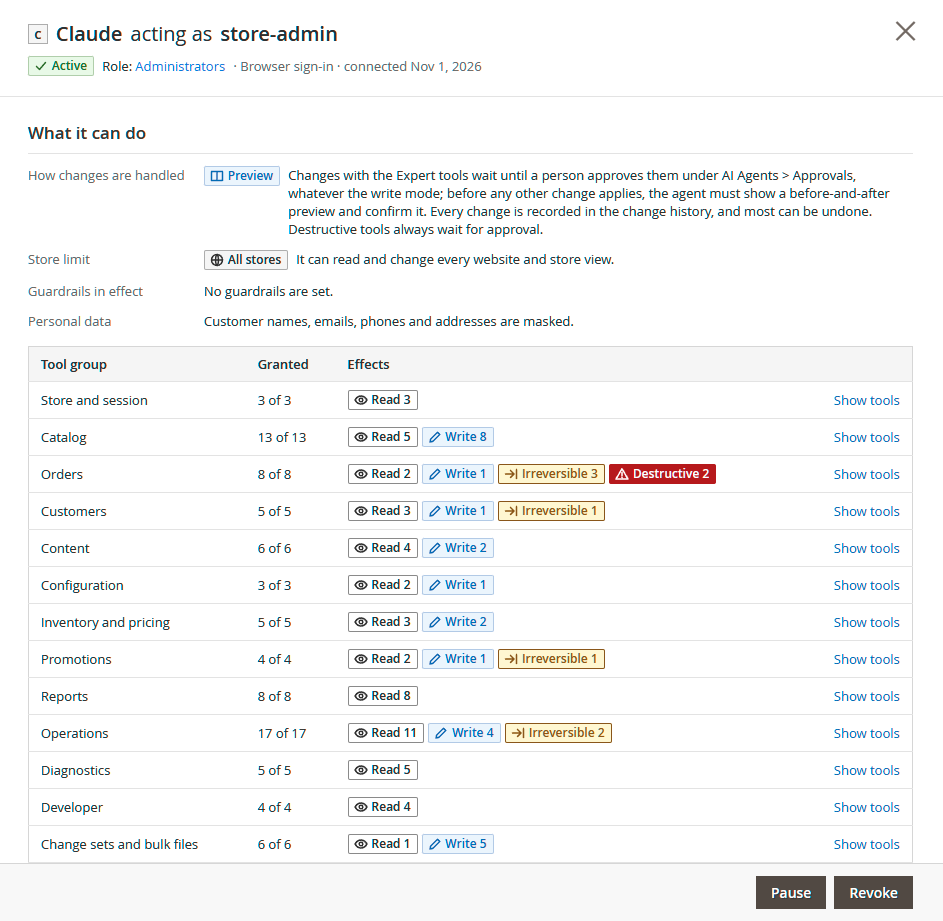
A connection the server paused shows "This connection was paused automatically." with what it did, such as "It made 41 writes in 2 minutes. The limit is 30.", when, that "Nothing was revoked, and the changes it already made are in the change history.", and View those changes (section 12.3).
6.16 The Clients screen
Big Cart Energy > AI Agents > Clients lists every app that has asked to connect: "A client is an AI application that has asked to connect to this store. Registering here gives it no access by itself. Access starts only when an admin user approves a connection." It needs the permission Manage clients. Its columns are Client name, How it registered (By its own address, Self-registered or Added by hand), Sends sign-in codes to, Connections, Created, Last used, Status and Action.
- View opens the client's detail: how it registered, the hosts it sends sign-in codes to ("After an admin approves, the sign-in code goes only to these hosts."), its type, its identifier and its connections.
- Disable stops every connection of the client until you enable it again: "Nothing is revoked."
- Delete removes the client and revokes its connections: "It can register again later and ask for approval."
- A client that registered itself and never connected says so, shows the days left before the store removes it (Expires in 3 days, for example), and offers Delete now.
Add a client by hand. "Most clients register themselves the first time someone connects. Add one by hand only when a client cannot do that, or when you want to fix exactly where its sign-in codes may go." The form asks for:
- Name: "Shown to admins on the approval page and in every grid."
- Redirect addresses: "One per line. After an admin approves, the sign-in code is sent only to these addresses."
- Type: "Public: an app on someone's computer or in a browser. It keeps no secret." or "Confidential: a service on a server. It gets a secret, shown once after you save."
6.17 Ending a connection
To stop a connection for good, revoke it. Revoking ends every token of the connection at once. What it changed stays in place, and in the Change History. The message after a revoke says how the app can come back: an app that signed in through the browser "must be approved again to reconnect", and one that used an access token "needs a new token".
- On the Connections screen: a row's menu, or tick several rows and choose Revoke.
- In the connection's detail: Revoke in the footer.
- On an admin user: Revoke all on the tab AI agent access, or switch Allow this user to connect AI agents off, which revokes every connection and access token of the user after a confirmation and your password (section 7.3).
- On the command line:
bin/magento bce:mcp:revokewith exactly one of--connection=con_…,--user=and a username, or--all(chapter 17).
A connection also ends by itself when its access time runs out, when its app revokes its own sign-in, when a sign-in code is used twice or a refresh token is used again after its short grace time, which the store treats as a sign of theft, when its client is deleted, and when its admin user is made inactive or given a new password (section 3.1). Activity records why each one ended. To stop a connection only for a while, pause it instead (section 12.2).
6.18 One shared connector for a team
Some teams share one connector per agent profile in their AI app: one admin user made for the profile, and one access token in the connector, which the app sends with every request. Section 6.5 gives the steps for Claude. Before you set one up, know what the store can and cannot see.
- The token is a password of its admin user. Whoever can see the connector's settings in the AI app can copy the token and act as that admin user, from any address your address list lets in. The address list does not tell one customer of a hosted AI app from another: a leaked token works from that app's addresses.
- Make one service admin per profile. Give each agent profile an admin user of its own with a narrow role, never a person's own account. Give it a user name nobody can guess, and protect the admin sign-in page: a locked account pauses the whole profile (section 3.1).
- The store sees the admin user, not the person. The Change History, Activity, approvals and alert emails name the service admin and the connection. The store cannot tell team members apart: who asked is known only to the AI app.
- The team shares the limits. Calls a minute, changes and rows read an hour, and the automatic pause count per connection (section 15.5). One member's errors or refusals can pause the profile for everyone, until an admin resumes it (section 12.3).
- Approvals stay on people's own admin accounts. Let an admin approve a change they asked for cannot see the person who asked through a shared connector. Keep it off, so the service admin can never approve its own requests, and approve from a person's own admin account. The store still cannot check that the person who approves is not the one who asked: four eyes are not enforced for a shared connector.
- Everything belongs to the connection. Any member's assistant can see, submit, discard or undo what another member's assistant did: approvals, change records, change sets, uploads and bulk files.
- The token's end date. A token lasts at most Longest personal access token (days) from the day it is made, 90 as installed. From 14 days before its end, the Overview and the Connections screen say so and, with alerts on, one email goes out. Give it a later end before then, and the connector needs no change (section 6.4). For a new secret, make a new token on the same admin user, change the connector's header in the AI app, then revoke the old token. When a person leaves who could see the token, make a new one.
7. Who can do what: roles and admin users
What an agent may do is set on Magento's own user roles, with Magento's own permission tree plus one extra tab. This chapter covers the permissions, the role tab, the admin user tab, the roles the module can create for you, and three safe roles built step by step.
7.1 The twelve permissions
Go to System > Permissions > User Roles, open a role and choose Role Resources. With Resource Access set to Custom, the module's permissions sit under Big Cart Energy > AI Agents:
| Permission | Allows |
|---|---|
| Use AI agents | The role's admin users can connect AI agents at all. Every agent needs it, whatever tools the role holds |
| Manage own connections and tokens | The Connections screen for your own connections, pausing and revoking them, and creating your own access tokens |
| Manage other admins' connections | The same for every admin user's connections. Switching another admin's AI agent access on or off also needs Magento's permission to manage admin users |
| Manage clients | The Clients screen: viewing, adding, disabling and deleting apps |
| View Change History and activity | The Change History and Activity screens |
| Undo from Change History | The Undo buttons on the Change History screen |
| Approve changes | The Approvals screen and the change set review: approving and rejecting |
| Manage prompts | The Prompts screen: creating, editing and switching prompts |
| Approve prompt drafts | Approving or rejecting prompts that agents proposed |
| Manage the playbook | The Playbook screen, and deciding agents' proposals for it |
| Pause and resume | Pause all agents and Resume |
| Tools and settings | The Tools screen, the Self-test and the module's settings section |
Any one of them opens the Overview. Each other screen opens only for a role that holds its permission; for any other role it is not in the menu, and its address shows Magento's own page: "Sorry, you need permissions to view this content." (section 7.9). A role holds each of these only when it was given it by name, or has Resource Access set to All (section 7.9).
Tool permissions sit in the same branch, under AI agent tools, one group per tool group and one permission per tool. Tick them here or, more easily, on the role's AI agents tab (section 7.2): "A ticked tool is the same permission as its box under Big Cart Energy > AI Agents > AI agent tools on the Role Resources tab: ticking it in one place ticks it in the other."
A tool also needs the permissions of what it touches. A tool takes two things on the role: its own tick, and every permission of Magento, or of another extension, that the tool relies on. The tool that changes products also needs Magento's own product permission, the cache tool needs the cache permissions, and the product-options template tools need the Advanced Product Options extension's own templates permission. An agent is shown a tool only when the role holds both: a tool ticked without the permissions it relies on is never listed to the app, and the role's AI agents tab names it with the permission it lacks (section 7.2). So the two product-options template tools need the extension's own templates permission on the role as well as their ticks (section 14.20). Some tools need a further permission only for some calls: holding an order needs Hold and releasing it Unhold, an online invoice needs Capture, each cache action needs its own Cache Management permission. Those calls are refused, naming the permission. Chapter 14 lists what each tool also needs.
Markers in the tree. Beside Magento's own permissions, the tree shows AI tool with a number where "One or more AI agent tools also need this permission", and Store API with a number where "It also unlocks store API services an agent can call with the expert REST tools." On a closed branch the number counts everything inside it. Beside a permission that is not ticked while a ticked tool needs it, the tree shows ! Needed by 1 ticked tool (or the number of tools), read out as "Not ticked, so agents do not see 1 ticked tool that needs it". The legend says: "Not ticked while a ticked AI tool needs it: agents do not see that tool until it is ticked." Hover over a marker, or reach it with the keyboard, for the list. Ticking the permission, or unticking the tool, removes the Needed marker.
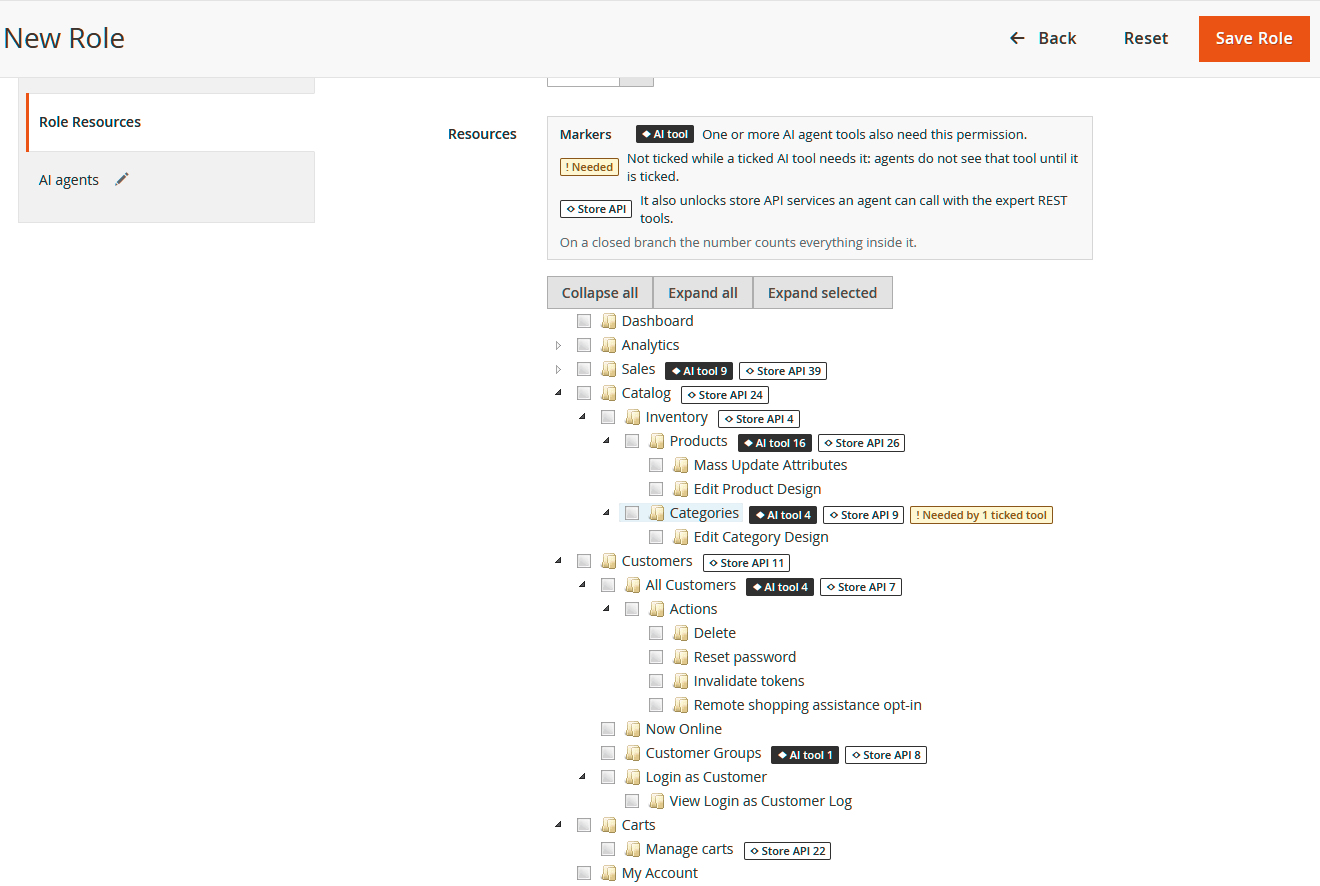
7.2 The role tab, section by section
Open a role under System > Permissions > User Roles and choose the tab AI agents, after Role Resources. Changing it needs Magento's permission to manage user roles; without it the tab says "You can view this, but not change it." Every section shows whether it uses the store's setting (Inherited from store settings) or one of its own (Set for this role or Narrowed for this role), with Reset to store setting. A role can only be stricter than the store: lower limits, tighter guardrails, a narrower store limit, a stricter write mode. Values that would loosen the store's are not offered, or are refused when you save.
- What agents with this role can do. A strip at the top: the write mode, the store limit, how many tools read and how many write, and a summary, such as "Agents with this role can read store details, catalog, content … in every store, and change catalog, content, inventory and pricing, operations, and change sets after a preview. They change data through the expert tools only after approval, whatever the write mode. Destructive tools always wait for approval." Under Preview and Direct, the changes that always wait for approval are named apart: "They change data through the expert tools only after approval, whatever the write mode.", or "They change Advanced product options only after approval, whatever the write mode." It counts only tools an agent could really call. When some ticked tools cannot be used yet, for example because a permission they need is missing or the tool is switched off for the store, it says how many: "2 ticked tools cannot be used yet".
- Ticked tools agents will not see. While any ticked tool lacks a permission it relies on, a warning above the strip says so: "Agents with this role will not see 1 ticked tool. An agent is shown a tool only when the role also has every permission the tool needs. Tick these on the Role Resources tab, or untick the tool:", then one line per tool, each permission named by its path in the tree, such as "catalog_category_tree needs ‘Catalog > Inventory > Categories’." The list follows the Role Resources tab as you tick, and goes away once nothing is missing.
- Write mode. Four cards: Read-only, Approval, Preview and Direct, each with its sentence and a small diagram of what happens (section 3.2). A mode looser than the store's says "Not offered: the store-wide write mode is Preview, and a role can only be stricter." Below the cards, Destructive tools always need approval reads On for the whole store while the store setting is on. While it is off, it reads Off for the store: destructive tools follow the write mode, and the role can tick it for its own agents. It names the destructive tools:
sales_order_cancel,sales_order_refund, and with the expert packagerest_call,rest_bulkandgraphql_write. - Store limit. All websites and store views, or Only these: tick websites and store views in a tree. Ticking a website includes "every store view, also ones added later". "Agents cannot read or change anything outside the ticked store views. Settings shared by every store view (the default values) are read-only for them." (section 7.6)
- Personal data. Show, or Mask customer names, emails, phones and addresses, with an example of what an agent sees of a customer on an order (section 7.7). While the store masks for everyone, Show is not offered. While the role masks, the section names the tools its agents cannot use.
- Access length. No limit · a connection lasts until someone revokes it, or At most a number of days per connection. "The admin picks the length when approving, up to this maximum. After it ends, the client must be approved again. A maximum set or lowered here also ends connections that have already run longer: it counts from when each connection was made."
- Limits. Calls per minute, Changes per hour and Rows read per hour, each either Use store setting (with its value) or Lower: a number of your own. "A connection that goes over a limit is refused until the minute or hour passes. One that keeps going over is paused automatically."
- Tools. One block per tool group, with "N of M granted", Grant all read, Grant all and Untick all. Each tool shows its name, what it does, its effect (section 14.1) and the permissions it also needs, of Magento or of another extension, each marked met or "Missing:". Each group ends with: "‘Also needs’ is a permission on the Role Resources tab, of core or of another extension. Where it shows Missing, the tool is ticked here, but agents do not see it at all until that permission is ticked too." A tool switched off for the whole store says Off for the store; one a masking role cannot use says Not with masked personal data; one that cannot run on this store says Not available. A group from a package that is not installed shows one quiet line instead. The Expert group is set apart, with a warning (section 14.19).
- Guardrails. The role's guardrails (chapter 8). While an expert tool that changes data is ticked, a warning says that such changes are not checked against the guardrails, and that every one waits for a person to approve it.
- Expert tools: SQL tables and GraphQL operations. Shown while an expert tool is ticked, with the expert package installed: SQL: read only tables matching, SQL: never read tables matching, GraphQL: query fields this role may use and GraphQL: mutations this role may run, each a narrower list than the store's.
- Log files agents may read. Shown while
log_readis ticked: the store's list, "always applied", and file-name patterns of the role's own. "A file must match the store setting as well, so a list here can only narrow it." - Rules for agents. The store's rules, "always sent first", and the role's own, added after them (section 7.8).
Saving. Changes show a bar at the bottom with Discard changes and Save Role. The settings save with the role, in the same save. After a change, Magento's "You saved the role." comes with a line such as "The new AI agent settings apply to the role's 3 active connections from their next request." If a value is refused, the role is not saved: "The role was not saved. Fix 1 problem:" lists each problem with a link, and what you typed stays in the form.
Admin session size. On Magento versions where every admin session carries the whole permission list, each role with Resource Access set to Custom makes every session larger, and Magento does not save a session over its Max Session Size in Admin limit: past it, every new admin sign-in is lost. Where that applies and fewer than three more such roles fit, a notice above the role form and the user form says so before you save, for example "Admin sessions are close to core’s size limit.", with how many more roles fit, the size to raise the limit to, and the commands that raise it. A save that would take sessions over the limit is stopped: "The role was not saved: with it every admin session would hold about … bytes, more than the … bytes core writes (Max Session Size in Admin), and every new admin sign-in would be lost. Raise Max Session Size in Admin under Stores > Configuration > Advanced > System > Security to … bytes first, or delete roles with Resource Access “Custom” that nobody uses." The role form comes back on its Role Resources tab with what you ticked, so you can save again once there is room. On a role that already has its own permissions, the notice says what saving it as it is adds: nothing ("This role already has its own permissions and is counted, so saving it as it is adds nothing."), or a rule for each permission added to the store since it was last saved ("… saving it as it is adds about … bytes, a rule for each permission added to the store since it was last saved."). A save that adds nothing is never stopped. On stores without that limit, or where admin sessions do not keep the list, the notice never appears. It applies on 2.3.7 and on the 2.4 lines that keep the list in the session, not on 2.3.0 to 2.3.6, nor on 2.4.9. The self-test measures the same thing (section 16.2).
A role with full access. "This role has full admin access, so every tool is granted." Tools cannot be unticked there; the write mode, store limit, masking, access length, limits, guardrails and rules still apply.
A role without Use AI agents gets "Agents cannot connect with this role yet." and the button Tick “Use AI agents” for this role.
A tool is held only when it is ticked. A role holds an AI Agents permission, a tool's included, only when it was given that permission, never through a permission above it (section 7.9). A tool the tab shows unticked is not the role's.
7.3 The admin user tab and My Account
Open System > Permissions > All Users, then a user, then the tab AI agent access.
- Allow this user to connect AI agents. The switch that decides whether any agent may sign in as this user. "An agent connected by this user signs in as this user and can do only what the user's role allows. Turning this off revokes all of this user's connections and access tokens. You are asked for your password when you change it." Turning it on asks for your admin password (Confirm it is you, then Turn on access). Turning it off first asks "Turn off AI agent access for" the user, says what is revoked, then asks for your password (Turn off access). Changes already made stay in place. Only an admin with Magento's permission to manage users and Manage other admins' connections can change it.
- Role. The user's role, its write mode and store limit, the role's summary sentence, and Edit what this role allows.
- Connections. The user's connections through the browser, with View and Revoke per row and Revoke all.
- Access tokens. The user's tokens, with their access, store limit, dates and status, Revoke per row and Create access token (section 6.4). In the Ends cell, a live token offers an admin who may manage it a list of later end dates and Extend, and from 14 days before its end it warns that everyone who uses it stops then. The section says whom a token made there acts as: this user, with this user's role, whatever the token is named. While tokens are switched off for the store, the section says so, offers no Create access token, and each live token reads "Refused while access tokens are switched off".
- Connect an AI client. The Server address with a Copy button, and one tab per app with its steps (sections 6.5 to 6.13). Under the tabs, If a hosted app cannot reach the store. gives the rule a CDN or firewall in front of the store needs (section 6.14).
My Account has a section AI agents with the same parts for the signed-in admin, without the switch: nobody can allow themselves to connect agents. Revoking your own connections and creating tokens there needs Manage own connections and tokens.
From the command line, bin/magento bce:mcp:user:enable and bce:mcp:user:disable with a username do the same as the switch (chapter 17).
7.4 The recommended roles
The first-run checklist's Create roles button creates three roles (section 4.4). Each holds Use AI agents, Manage own connections and tokens, Magento's My Account, its tools, and the Magento permissions those tools always need, so nothing in it is inherited. They are starting points: change them on their tabs like any role.
| Role | Write mode | Tools |
|---|---|---|
| Read-only analyst | Read-only, personal data masked | store_info, session_info, docs_search; the catalog, order, customer and content reads; inventory_get, pricing_get, catalog_rule_list; promo_rule_search, promo_rule_get; all eight reports; the three SEO audits; the three Catalog Completeness tools; playbook_get |
| Catalog editor | Preview | The store tools; every catalog tool; the six content tools; the inventory and pricing tools; report_low_stock, report_search_terms, report_stale_products; media_upload_link, media_upload_from_url, media_upload_status, media_list; change_history_search, change_history_undo, approval_status; the four change set tools and the two bulk file tools; playbook_get, playbook_propose; the SEO audits; the Catalog Completeness tools |
| Operations | Approval | The store tools; catalog_product_search, catalog_product_get, catalog_category_tree; every order tool, including cancel and refund; every customer tool; config_get, config_search; inventory_get, inventory_update, pricing_get; all eight reports; the cache, indexer, cron and queue tools; log_read; the URL rewrite tools; media_upload_status, media_list; packages_list; change_history_search, change_history_undo, approval_status; every diagnostic tool; the four change set tools; playbook_get, playbook_propose |
A role gets the Magento permissions its tools always need, not the ones a tool needs only for some actions. Before Operations can hold or release orders, tick Magento's Hold and Unhold; before it can invoice online, Capture; before it can act on caches, the Cache Management actions you want to allow. Personal-data masking is on for the whole store from install, so Operations cannot use log_read until Mask personal data is set to No for the store and the role shows personal data (section 7.7).
7.5 Three safe roles, click by click
Build these as new roles, or adjust the recommended ones. Assign each to an admin user that is used only for agent work, and allow that user to connect (section 7.3). Example values below are only examples.
What you will need: Magento's permission to manage user roles, and your own admin password.
A read-only analyst
- Go to System > Permissions > User Roles and choose Add New Role.
- Under Role Info, enter a Role Name, such as "Agent: read-only analyst", and your own password.
- Under Role Resources, set Resource Access to Custom and tick Big Cart Energy > AI Agents > Use AI agents and Manage own connections and tokens. Leave the other module permissions unticked.
- Open the tab AI agents. Under Write mode, choose Read-only.
- Under Personal data, keep Mask customer names, emails, phones and addresses.
- Under Store limit, choose Only these and tick the websites the analyst reports on.
- Under Access length, choose At most and enter a number of days, such as 30.
- Under Tools, choose Grant all read on Store and session, Catalog, Orders and Reports.
- Read the warning Agents with this role will not see … above the strip, if it shows, and look under each ticked tool for "Missing:". For every missing permission, go back to Role Resources and tick it: for example Sales > Operations > Orders > Actions > View for
sales_order_get, and the report permissions under Reports for the reports. The tree marks each one ! Needed. - Check the strip at the top: it should name the groups the agents can read, with no tools that "cannot be used yet".
- Choose Save Role.
What success looks like: the strip shows Read-only and 0 write tools, and the consent screen of a new connection lists nothing under It will be able to change.
A catalog editor who cannot change prices
- Create the role as above, steps 1 to 3, and tick Magento's Catalog > Inventory > Products and Catalog > Inventory > Categories under Role Resources.
- On the tab AI agents, choose Preview under Write mode, or Approval if a person should see each change in the admin.
- Under Tools, choose Grant all on Catalog and Grant all read on Inventory and pricing. Leave the price tool,
pricing_update, unticked. - Under Guardrails > Product attributes agents may change, switch Price to Off · agents may not change it, and Cost too.
- Set When exceeded to Refuse.
- Choose Save Role.
What success looks like: an agent with this role can rewrite names, descriptions and other content after a preview. A request that touches a price is refused with the code guardrail and the message "This role may not change price through AI agents.", and the refusal is recorded.
An operations role whose refunds need approval
- Create the role as above, steps 1 to 3, and tick Magento's order permissions the tools need, under Sales > Operations > Orders > Actions: View, Comment, Hold, Unhold, Ship and Credit Memos.
- On the tab AI agents, choose Preview under Write mode.
- Check the line Destructive tools always need approval under the write mode cards: it must say On for the whole store (section 15.4). Refunding and cancelling orders are destructive, so every refund now waits for a person, whatever the mode.
- Under Tools, open Orders, choose Grant all read, and tick
sales_order_comment,sales_order_hold,sales_order_shipandsales_order_refund. - Under Guardrails > Refunds, enter a Largest refund per order, such as 200, and a Total per day, such as 1,000, in the store's base currency, and set When exceeded to Refuse. A refund above them is then refused before it reaches anyone's approval.
- Under Order actions agents may take, tick Comment, Hold, Ship and Refund, and leave Cancel and Invoice unticked. An unticked action is refused even when the role has the tool.
- Choose Save Role.
What success looks like: a refund this role asks for appears under Approvals with Destructive tool as its reason. The admin who asked cannot approve it: another admin with Approve changes must (section 10.2).
When it goes wrong
- The strip says tools "cannot be used yet". The warning above the strip names each tool that lacks a permission, and the permission; each tool in its group lists what is "Missing:". Tick it under Role Resources. A tool switched off for the store is counted too: switch it on under Big Cart Energy > AI Agents > Tools.
- "The role was not saved." A value would loosen the store's setting, or a field is out of range. The list at the top links to each problem.
- A tool you ticked never reaches the app. A permission it relies on is not ticked (the role tab names it), it is switched off under Big Cart Energy > AI Agents > Tools, the role masks personal data and the tool is one a masking role cannot use, or the app was approved for narrower access (section 16.4).
7.6 Store limits
A store limit keeps an agent to some websites or store views. It can be set on the role, on an access token, and on the connection through the token or the role. When more than one applies, the agent gets only what they have in common.
- Reading. An agent can read in the default scope, but every tool leaves out records of store views outside its limit.
- Changing a store view's values is allowed for store views inside the limit.
- Changing a website's values is allowed only when every store view of that website is inside the limit.
- Changing default values is refused for a store-limited agent with
scope_not_allowed, because they reach every store view. So is anything in the media library, which every store view shares. On a store with a single store view, Magento keeps product values in the default scope, so a store-limited agent cannot change products there at all: "This session is limited to some store views, and this change would also write a value shared by every store view (product LAMP-OAK-01). Nothing was changed." On such a store, give agents no store limit. - The expert REST and SQL tools cannot be used by a store-limited agent, because Magento's REST API and its tables do not keep to store views. The GraphQL tools run in one of the agent's store views.
- The product-options add-on changes templates that every store view shares, so a store-limited agent can read with it but not change anything.
The scope argument. Every tool takes the same scope argument. Leave it out, or send default, for the default scope: default always means the default scope, never a store view. Send a store view code (for example en_us) or a website code (for example base) to work there. Where one code names both a store view and a website, write store: or website: in front of it. A store view or website coded default, which most stores have, is addressed by its id, such as store:1; the Change History and the lists of accepted values write it that way. Every answer says which scope it ran in.
7.7 Personal data masking
Mask personal data is on for the whole store from install (section 15.4). While it is on, every role masks, and no role can show personal data. With masking on, these reach the agent masked, in every answer and every plan of every tool: customers' first, middle and last names, prefixes and suffixes, email addresses, phone, mobile and fax numbers, street addresses, cities, regions and postcodes, company names, tax and VAT numbers, dates of birth and gender, and network addresses. Countries stay visible. The free text people write on an order is masked whole: order and history comments, the customer's note, gift messages, the values customers typed or chose in product options, and the purchase order number. Masking goes by the name of each field, so a field a third-party module stores under another name is not recognised.
What a masking role cannot search by. Searches that would confirm or read out a masked value are refused: customer_search by part of a name, email, company or phone ("This role masks personal data, so customers are not searched by email, name, company or telephone."), customer_get by email, sales_order_search by the customer's email, and a product search on an attribute whose values are masked. The text search of sales_order_search matches the order number only. Search by IDs, groups or dates instead.
Some things are never returned, masked or not: passwords and password hashes, password reset tokens, payment card data, keys and tokens, and configuration values Magento marks as sensitive or encrypted. For every role, a value under a name that holds password, token, secret, protect_code, serialized_data or additional_information, or that starts with cc_ or echeck_, is masked wherever it stands. A product attribute with such a code is masked too, and products are not filtered on it.
What masking switches off. Some tools answer with the store's data as stored or logged, where personal data can sit under any name, so masking by field name cannot hide it. A role that masks personal data cannot use them: sql_query, graphql_read, graphql_write and log_read are not listed to its agents, and every call of them is refused, even when the tool is ticked. The expert REST tools stay, but keep such a role to routes about the catalog, content and settings (section 14.19). exception_triage still works for such a role, but gives it only each error's class, counts, place in the code, report file and times, without any message text.
Turning masking off for a trusted role. Do this only for a role whose agents may see all customer data.
- Under Stores > Configuration > Big Cart Energy > AI Agents > Safety, set Mask personal data to No and save. Every role without a choice of its own now shows personal data.
- Open each role that should keep masking, and on its tab AI agents, under Personal data, choose Mask customer names, emails, phones and addresses. Save each.
- Open the trusted role and choose Show under Personal data. Save it.
What success looks like: the trusted role's tab no longer names tools its agents cannot use, and its connections list log_read and, with the expert package, the SQL and GraphQL tools that are ticked and switched on.
Masking has edges you should know:
- Log text is masked by best effort, for every role: email addresses, card numbers, tokens and keys, authorization and cookie headers, and the values under a secret name in the forms loggers write (JSON,
print_randvar_exportdumps, serialized PHP, XML, form bodies,key=valuepairs). Each line is masked on its own, so a dump spread over several lines is masked only where its own line names the secret, and a secret under a name the module does not know is not recognised. Names and street addresses inside log text cannot be recognised at all, which is why a masking role reads no log (section 18.2). - Text inside your content, such as a name in a CMS page or a product description, is not masked, and a content search can confirm that a guessed email address appears there.
- Error texts kept by the store, such as the messages of cron jobs, are shown as stored.
- The Change History keeps what was changed, personal data included, so that undo can put it back. A privacy request is handled with the per-customer purge (section 11.7).
- What an app read before you switched masking on has already gone to it.
7.8 Rules for agents
Rules for agents are short instructions every agent receives when it connects: the store's rules first, then those of the agent's role. They arrive under the heading "Advice from the store (not enforcement):", and that is what they are: advice the agent reads, not a limit the server enforces. To enforce something, use the write mode, the tools and the guardrails.
- Store-wide: Stores > Configuration > Big Cart Energy > AI Agents > Rules for agents > Rules for every agent.
- Per role: the role tab's Rules for agents box.
Each holds up to 2,000 characters, with a count as you type. Good rules are short and concrete: "Write product copy in US English." "Never change products in the Clearance category." "Report figures with their currency and timezone." Longer notes, such as how your SKUs are built, belong in the playbook, which agents read on demand (section 13.4).
7.9 When a permission is missing
A permission is only ever given. A role holds an AI Agents permission, a tool's included, only when it was given that permission by name, ticked under Big Cart Energy > AI Agents on Role Resources or on the role's AI agents tab, or when its Resource Access is All. It never holds one through a permission above the AI Agents branch, such as Magento's own top permission, whatever an older rule of the role says. A role saved before the module was installed holds none of its permissions until you tick them. The module's own checks, and the admin's menus, screens and settings, refuse every other role.
A permission that an upgrade adds is held only after the role is saved again with it ticked, even where the role holds the group above it. New permissions are never held without someone choosing them: after an upgrade that adds a tool, open each role that should have it, tick it, and save the role.
The deny rules. At install and on every setup:upgrade, the module also writes the fewest "deny" rules that make Magento's own permission list say the same: one for each role saved before the install. On the Magento versions where every admin session carries the whole permission list (section 7.2), it writes them only when admin sessions have room for them. When they do not, it writes none, and the setup:upgrade output and the self-test's Admin sessions stay within their size limit say so: "None of these roles gains an AI Agents permission: AI Agents refuses its permissions to every role that was not given them, in its own checks and in the admin's menus, screens and settings. Core's own access list still reads them as allowed for anything else that asks it directly." Only code that asks Magento's permission list directly, past Magento's own checks, would see those roles as allowed. To write the rules, raise Max Session Size in Admin to the size named there and run setup:upgrade again (section 16.2).
What an admin without a permission sees.
- A screen. It is not in the menu, and its address shows Magento's own page: "Sorry, you need permissions to view this content." Ask a store administrator for the permission of the screen's menu item (section 7.1).
- A part of a screen. A figure, card, button or link the role may not use is left out, and a line says what is missing, such as "Some figures are hidden." on the Overview (section 12.5).
- Connecting an app. An admin whose role lacks Use AI agents, signed in to the admin in that browser, who starts connecting an app gets the page Your admin role does not allow AI agents: "This browser is signed in to the store's admin, but the role of that admin account does not include the permission “Use AI agents”, so no application can be connected from it. Ask a store administrator to give your role that permission, then start connecting again. Nothing was connected." The page names no admin address and stores nothing; Activity records a failed sign-in.
- A role save stopped for the admin session size. On the Magento versions that limit it, the role form comes back on Role Resources with what you ticked and the reason, which names the size to raise Max Session Size in Admin to (section 7.2).
8. Guardrails
8.1 How guardrails work
A guardrail limits what one change may do, even when the agent holds the tool. Guardrails are set in two places:
- Store-wide, for every role: Stores > Configuration > Big Cart Energy > AI Agents > Guardrails > Store-wide guardrails.
- Per role, on the role tab AI agents > Guardrails. The role's tab shows the same editor as the store's, marked where the role narrows the store's setting.
For each field the tighter value applies, so a role can only tighten the store's guardrails: "A role can make a store guardrail tighter, not looser." A role cannot turn the store's Refuse into Send to approval, either. Leave a limit empty for no limit.
The server checks guardrails on the plan of the change, before the write mode applies, so what it checks is exactly what would change. Each guardrail has When exceeded: Refuse, or Send to approval, which holds the change for a person whatever the write mode. Order actions and configuration settings are Always refused.
Guardrails apply to the typed tools. They do not check changes made through the expert REST and GraphQL tools; every such change waits for a person instead (section 14.19).
8.2 Product attributes agents may change
Which attributes agents may change: All, Only these or All except, with a picker that searches attributes by label or code. "These four are decided here, whatever the list says": Price, Cost, Status and Stock, each On · agents may change it or Off · agents may not change it.
Example: content but not prices. Choose All, switch Price and Cost off, and set When exceeded to Refuse. An agent can rewrite names and descriptions, and a change that touches a price is refused: "This role may not change price through AI agents." Pair it with leaving the price tool unticked (section 7.5).
8.3 Price changes
Largest change up and Largest change down, in percent of the current price, plus two floors: Never below cost and Never zero. "The limits apply to the price, the special price and tier prices of each record." The editor shows a worked example as you type.
Example. With Largest change down at 20 % and Never below cost on, a product priced 50.00 with a cost of 42.00 can go no lower than 42.00: 40.00 is within 20 % but below cost, so it is refused or sent to approval.
8.4 Refunds
Largest refund per order and Total per day, in the store's base currency.
- The per-order limit counts every refund of the same order together.
- "The daily total is counted per role: every agent with the same role together", per base currency, over the day in the store's timezone.
Example. With 200 per order and 1,000 per day, a second refund of 150 on an order already refunded 100 is over the per-order limit, and is refused or sent to approval.
Refunds are destructive, so they wait for a person anyway while Destructive tools always need approval is on (section 15.4). With Refuse, a refund above a limit never reaches the approval queue at all.
8.5 Records per change
The most records one call or change set may touch. A call or a change set over it is refused or sent to approval as a whole. "No limit is set: one call or change set may touch any number of records." while the field is empty.
Example. With 200, a bulk file of 412 valid rows becomes one change set that is refused or sent to approval, never applied in silence.
8.6 Order actions agents may take
Tick the actions the role may take: Comment, Hold, Cancel, Invoice, Ship and Refund. "An unticked action is refused even when the role has the tool. Cancel, invoice, ship and refund cannot be undone." This guardrail is Always refused.
Example. A support role ticks Comment and Hold only: its agents can add comments and put orders on hold or release them, and nothing else, even if someone later grants it the shipping tool.
8.7 Configuration settings agents may change
Agents can change only the settings on the store's list, Configuration settings agents may change (section 15.7). That list starts empty, so out of the box agents can read settings but change none. The AI Agents settings themselves are never changed by an agent, whatever the list says.
On a role, choose Use the store setting ("Every setting on the store's list of settings that may be written") or Only these, and add settings from that list by name or path. "With ‘Only these’, agents may change only the settings listed, and an empty list means none. A setting must also be on the store's list of settings that may be written. Payment, security and admin settings can never be added." This guardrail is Always refused.
Example. The store's list holds design/head/default_title and design/head/default_description. A marketing role picks only design/head/default_title: its agents can change the default page title and nothing else.
8.8 When a guardrail is hit
- Refuse. The call is refused with the code
guardrail, and the answer names the guardrail and its limit, so the agent can tell you why. Nothing changes. The refusal is recorded in the Change History, and Activity says "A guardrail of the role refused it." - Send to approval. The change waits under Approvals. Its Why it needs approval column names the guardrail, such as Guardrail: price change or Guardrail: refund size, and the request's detail lists the guardrail hits: "This change is over a guardrail set to ‘Send to approval’." (section 10.2)
- In a change set, a record over a refusing guardrail is marked invalid when it is staged, so the problem shows before anyone submits the set. A record over a guardrail set to Send to approval makes the whole set wait for a person: "1 record is over a guardrail set to ‘Send to approval’."
Guardrail hits count towards the automatic pause (section 12.3). The guide agents read tells them not to split a refused change into smaller ones to slip under a limit. That is advice, not a check: a limit per change can be met by several smaller changes. The Change History shows every one, and the automatic pause stops a connection that keeps hitting guardrails.
What guardrails do not cover. Changes made through the expert REST and GraphQL tools are not checked against the attribute, price and records guardrails; they are held to the role's Magento permissions, and every one waits for a person to approve it, whatever the write mode (section 14.19).
9. Walkthrough: your first safe change
This walkthrough follows one small change from the agent's proposal to its undo: the agent asks, you see exactly what would change, you approve it, and then you take it back. It continues from chapter 5: the agent acts as catalog.editor, and you review as yourself, signed in with your own admin account.
What you will need
- A connection that works (chapter 5), whose role holds
catalog_product_updateand Magento's product permission. - The role's write mode set to Approval for this walkthrough, so the change comes to you in the admin: open the role Catalog editor, its tab AI agents, choose Approval and save the role. In Preview mode, the before-and-after would appear in the app's chat instead, and the agent would confirm it there.
- Your own admin account with Approve changes, View Change History and activity and Undo from Change History, plus the Magento product permission the tool needs. The admin the agent acts as cannot approve its own request (unless you switch on Let an admin approve a change they asked for), so the approver is someone else.
Steps
1. Ask for a change. In the app, ask: "Rewrite the meta title of LAMP-OAK-01 so it mentions the solid oak base." The agent reads the product first, writes the new text, and calls catalog_product_update. The store answers that the change is waiting for approval, with a reference such as apr_…, and the agent tells you so. Nothing has changed in the store yet.
2. See that something is waiting. In the admin, the notice "1 change is waiting for your approval." appears in Magento's message bar, with Review approvals. If alert emails are set up, the alert list also gets an email (section 12.4).
3. Open the request. Go to Big Cart Energy > AI Agents > Approvals. The tab Waiting lists the request: when it was asked, the admin user and the app, the tool, the product and a summary, why it needs approval (Role in Approval mode) and when it expires. Choose Review.
4. Read what would change. The request opens in a panel headed with its summary:
- Who asked: the admin user and role, the app it came Through, when it was Asked, the Tool, and Why it needs approval.
- The plan: the change in one line, and Show the request as sent: "Secrets and sign-in details are masked before anything is stored."
- What will change: the meta title of LAMP-OAK-01, Before and After, side by side.
- If you approve: "The change applies at once, in every store (the default scope)." "Just before it runs it is checked again: the pause, the asking admin's permissions, the guardrails, and that the data still matches this preview." It also says that the change is recorded under the asking admin, with your approval and note, and until when it can be undone.
5. Approve it. Add a Note if you like ("Optional when approving, needed when rejecting. The agent sees it."), and choose Approve. The change is made at once, as the admin who asked, and the request moves to the tab History. Had you chosen Reject without a note, the panel would ask: "Add a note so the agent knows why." Ask the agent "Was my change approved?": it checks with approval_status and reports the outcome.
6. Find it in Change History. Go to Big Cart Energy > AI Agents > Change History. The newest change record is the change: the time, the admin user, the app, the role, the tool, What happened, the product, the store, Write mode applied Approval and the result Success. Choose View. The panel shows the Summary, What changed with the title before and after, Request as sent, Linked entries with the approval, and "This change can be undone until" a date, with Undo.
7. Undo it. Choose Undo. The dialog Undo this change? says that the record "goes back to what it was before" and that the undo "is recorded in the change history as its own entry, under your name", and shows each field Now and After undo. Choose Undo change. The meta title is back to what it was, the undo is recorded as its own change record under your name, and the record now reads "Already undone by" your name "on" the date.
8. Put the role back. Set the role Catalog editor back to Preview, or leave it in Approval if you want to see every change.
What success looks like. The agent never changed anything by itself: the change waited until a person approved it, showed exactly what it would do, was recorded before it ran, and came back out with one click. Had someone edited the title between the change and your undo, undo would have shown the conflict instead of overwriting their edit (section 11.4). Had the agent tried to undo the change itself, its undo would have waited for a person too, because a person approved the original (section 3.3).
When it goes wrong
- The agent says a change is waiting, but Approvals is empty. You see only requests for tools your own role could run; a line under the list says how many others exist (section 10.1).
- There is no Approve button. The request expired, its data changed since, its connection ended, you asked for it yourself, or it was asked through an access token while access tokens are switched off (section 10.2).
- Undo shows a conflict. Someone changed the record after the agent did (section 11.4).
10. Reviewing and approving changes
10.1 The Approvals screen
Big Cart Energy > AI Agents > Approvals holds every change that waits for a person: changes from roles in Approval mode, destructive actions, changes over a guardrail set to Send to approval, tools that always need approval, and agents' undo of changes a person approved. It needs the permission Approve changes.
The tab Waiting shows the count of requests that still have time left:
| Column | Shows |
|---|---|
| Time asked | When the agent asked |
| Admin user, Client | The admin user the agent acts as, and the app |
| Tool or change set | The tool's name, or Change set and its title |
| Target, Summary of the change | The record and the change in one line |
| Why it needs approval | Role in Approval mode, Destructive tool, Always needs approval, or the guardrail, such as Guardrail: price change |
| Expires | Expires in a time; Expired; Data changed; Connection ended; or, once approved, Approved, waiting for the scheduled task |
| Action | Review, with Approve and Reject beside it where you may decide |
You only see requests for tools your own role could run, because approving makes the change happen. A line under the list says how many more exist: "2 more requests are not listed: your role could not make those changes itself, so it cannot decide on them." Expired requests, and requests whose data changed, stay on Waiting for 7 days so you notice them, then only under History.
A request asked through an access token while access tokens are switched off cannot run, whoever approves it. Its row says so under the summary, "It was asked through an access token, and access tokens are switched off for this store, so it cannot run now. Switch them on again under Stores > Configuration > AI Agents > Sign-in to approve it, or reject it.", and offers no Approve.
Several at once. Tick rows and choose Approve or Reject, with one note for all, up to 50 rows at a time. Mass approval leaves out change sets, destructive changes, expert tool calls, your own requests and requests that can no longer be approved. Review those one by one.
It also leaves out requests asked through an access token while tokens are switched off. The Approve dialog says how many it leaves out and why before you confirm, for example "3 of them are left out: asked through an access token while access tokens are switched off (3).", and its button names how many it approves; when none can be, it reads "Close: none of them can be approved" and sends nothing. The message afterwards says the same.
The tab History shows each decision under Decision: Approved, Approved, waiting for the scheduled task, Applying, Approved, failed, Approved, not applied in time, Rejected, Expired, Connection ended or Data changed; Decided by ("Nobody" for an expired request, "The server" when the data changed, "a deleted admin user" once that admin is gone), Decided at, and the Note. Both tabs can be filtered, saved as views and exported.
10.2 Reviewing one request
Review opens the request in a panel:
- Who asked: the Admin user and role, the app it came Through, when it was Asked, the Tool, and Why it needs approval with a sentence, such as "Destructive tools always wait for a person, whatever the role's write mode." or "This tool always waits for a person to approve it."
- The plan: the change in one line, any warnings, and for an action that cannot be undone, Cannot be undone. For a refund, the plan states the amount in the base currency and whether the money goes back through the payment provider or another way. Show the request as sent opens the request itself, with secrets and sign-in details masked.
- What will change: a table of Record, Field, Before, After and Change. Prices show the change in percent with its direction. A long change shows a sample: "More values change than are shown here. The change record lists every one once the change has run."
- Guardrail hits: each guardrail the change is over, and "The setting for this guardrail is ‘Send to approval’." or "… ‘Refuse’."
- If you approve: what happens next, and until when the change can be undone, or "It cannot be undone from the change history once it is applied."
- Note: optional when approving, needed when rejecting. The agent sees it.
Then choose Approve or Reject.
What Approve does. For most tools the change runs at once, as the admin who asked, with that admin's role, and only if it still matches what you reviewed. The store reads the records again first. If they changed since the request, the request cannot be approved as it is: the panel lists the Fields that changed since the request, with their value When asked and Now, and says "Reject it, and if the change is still wanted, ask the agent to send it again against the current data." A change of the expert tools is not run in your request: it waits for the store's scheduled task (section 10.6).
A request to create something, such as a new CMS page or block, cart price rule, product or URL rewrite, is approved the same way. Its plan shows the new record against nothing, and the store checks that nothing has taken its place since. If someone made a page or block with the same identifier, a rule with the same coupon code, or a product with the same SKU while the request waited, the panel shows that as a change and the request cannot be approved. A URL rewrite made at the same path meanwhile is not shown beforehand: approving then fails with the tool's conflict and writes nothing. Undo of a record an agent created leaves it inactive, never deleted (section 11.3).
A request asked through an access token while tokens are switched off cannot be approved: the panel opens with "You cannot approve this request." and the reason, "It was asked through an access token, and access tokens are switched off for this store, so it cannot run now. Switch them on again under Stores > Configuration > AI Agents > Sign-in to approve it, or reject it.", and offers no Approve (section 6.4).
When Approve fails. The change runs as the admin who asked, through that admin's connection, and the store checks that connection again just before it runs. If the connection is refused at that moment, for example because its admin is locked, Approve ends with "Not applied:" and the reason. Nothing changes, the request moves to History as Approved, failed, and it is not tried again: the agent has to ask again.
Who may approve. You need Approve changes, and your own role must allow the tool the change uses, along with its Magento permissions. The admin who asked cannot approve their own request ("You asked for this change yourself, so another admin must approve it."), though they may reject it, which withdraws it. The setting Let an admin approve a change they asked for (section 15.4) lifts that rule; it is off from install, and we recommend leaving it off.
An agent's undo. When an agent asks to undo a change that a person approved, the request says what it Takes back, "made with" which tool: "This is an agent's undo. ‘What will change’ shows the values as they are now and the values the undo puts back." Whoever approves the undo must also be allowed to use that tool.
When a request cannot be decided:
- Expired: "Expired without a decision. Nothing was changed." The request ran out of time (section 15.4).
- Connection ended: "The connection that asked for this change has ended. It cannot be approved."
- Data changed: "The data changed since this was asked. It cannot be approved as is."
A decided request shows its Decision, Decided by, Decided at, the note, and View in Change History.
10.3 Change sets
A change set is a named batch of changes that is reviewed once and applied together. An agent uses one for any job that touches more than a few records:
- The agent opens a set with a title (
changeset_begin). While it stages changes into the set, nothing in the store changes. Each change is checked and planned as it is staged, guardrails included, so problems show before anyone submits the set. - The agent shows you the set (
changeset_status): the changes, counts by kind and any problems. - The agent submits the set (
changeset_submit), and the role's write mode decides once for the whole set: one preview to confirm in Preview, one entry under Approvals in Approval, or applied at once in Direct.
A set left unsubmitted expires after 24 hours by default, and one set holds at most as many changes as Most rows in a bulk file allows, 5,000 by default (section 15.4, section 15.7).
The change set review opens from Approvals ("Open the change set review") and from Change History. It shows:
- the title and its state, who asked through which app, when it was staged, and the set's reference (
cs_…); - a message that says what the state means and what can happen next, such as "Nothing has been applied. If you approve, the 3 valid records change at once in every store (the default scope). … One approval, one change record, one undo.";
- count tiles and a Problems panel ("No problems found. Every record passed validation and is inside the guardrails." when there are none);
- All changes: every record with its changed fields, filterable by Field, Problem and Status, searchable by SKU or name, with each record's full diff a click away;
- the actions the state allows, and Back to approvals or Back to Change History.
| State | Means |
|---|---|
| Staged | "Staged, not yet sent for approval. The agent is still adding to this change set, and nothing has been applied." |
| Reading the file | A bulk file is still being read |
| Waiting | Submitted, waiting for a person. "One approval, one change record, one undo." |
| Applying | Being applied, with its progress. "You can leave this page; applying continues." |
| Applied | Done. The whole set, or one record of it, can be undone until the end of the undo window |
| Partly applied | Applying stopped part way (section 10.5) |
| Rejected | A person rejected it, with a note sent to the agent. Nothing was applied |
| Undone | Every record is back to its earlier values |
| Expired | Never submitted, or never decided, in time. "The agent can stage it again." |
| Discarded | The agent dropped it before it was applied |
Approving a set with problems. When some records are invalid, Approve names how many records it applies, for example Approve 410 records. The invalid ones are listed with their reasons and skipped, and the Change History records both.
How a set is applied. A set of up to 50 changes is applied in the request that approves or submits it, for up to 40 seconds. A larger one goes to the background through Magento's message queue, "a batch at a time; this page shows the progress." Every record is read again just before it is applied: one that changed since it was staged is skipped and listed, so nobody's later edit is overwritten. A pause or a limit makes the set wait, not fail. If the queue does not run, the scheduled task bce_mcp_changeset_resume picks up a set without progress after 5 minutes: "The store's scheduled task takes the set up again within a few minutes, so it finishes even without a running queue consumer." A developer can also apply it from the command line (chapter 17).
Viewing and deciding sets needs Approve changes. Undoing one also needs Undo from Change History.
10.4 Bulk changes from a file
For a spreadsheet of changes, an agent can give you a one-time upload link instead of reading data through the chat.
What you will need
- A role with
bulk_file_link,bulk_file_validate,media_upload_status, the change set tools and Magento's product permission. - A CSV file (below).
Steps
- Ask the agent for an upload link for your CSV. The agent gives you the whole link. Do not shorten it: the part after
#is the key. - Open it in a browser, on a computer or a phone. The page shows your store's logo or name, "Your AI assistant asked for this file", where the file goes, the type it accepts, the largest size, and that the link works once. Choose the file. The browser refuses a file the link does not take before sending it.
- Tell the agent the file is uploaded. It checks the arrival with
media_upload_status, reads the file into a new change set withbulk_file_validate, and reports what it found. - Review the set as in section 10.3, then let the agent submit it.
The file
A header row, with a sku column and columns named after product attribute codes, or price, special_price, qty, is_in_stock and categories (category IDs to add the product to, separated by |, ,, ; or spaces; the product is added, never removed). UTF-8, with or without a byte-order mark; comma, semicolon or tab between values. An empty cell leaves a value as it is. For example:
sku,meta_title,qty
LAMP-OAK-01,Oak table lamp with linen shade,14
LAMP-OAK-02,Oak floor lamp with linen shade,6
Write numbers without thousands separators. A price or quantity such as 1,000 or 1.299 can be read two ways. It is read with the comma or dot as the decimal mark only when other cells of the same column show that the column uses that mark, such as 12.50; otherwise it is reported as a bad value on its row: it "reads two ways: its separator could group thousands or mark decimals, and the other cells of the column do not say which. Write the number without a thousands separator, such as 1000 or 1.5." Stock status takes 1/0, yes/no, true/false or in stock/out of stock.
What the agent checks. Each column against an attribute, each SKU against the catalog, each value against what the attribute accepts, every guardrail and the role's permissions. It reports problems by row and column: an unknown SKU, a bad value, a guardrail hit. Valid rows become changes in the set. A row whose values the store already holds is left out. Large files are read in the background; the set shows Reading the file until they are done.
The link. One file, one use. It expires (30 minutes by default), and the file and row limits are settings (section 15.7). The key in the address never reaches the server's logs. Only the connection that made the link can read what arrived. If the store limits addresses (section 15.2), the upload page is limited too: a phone outside the list cannot use the link.
The file panel. When a set came from a file, its review starts with This change set came from a file: the File, Uploaded by, Rows read (the header line not counted), Rows valid and Rows with errors; the Column mapping of each file column to a store field, with unmatched columns marked Not matched, ignored; Errors by row and column, each with Show row; and Export errors (CSV), a file of the errors to fix and upload again.
When it goes wrong
- "That file type is not accepted." The link takes CSV only; choose the CSV.
- The link has expired or was used. Ask the agent for a new one.
- Rows with errors. Use Export errors (CSV), fix the rows, and upload the file again through a new link.
- A column is "Not matched, ignored". No product attribute of that code can be set from a file on this store. Rename the header to an attribute code, or leave the column out.
10.5 Partly applied sets
If a record fails while a set is applying, the set stops there. The review says "Applying stopped part way on" a date. "Nothing is lost: what was applied is recorded, and the rest can be applied with ‘Apply the remaining’ once the cause is dealt with."
The review shows Applied and Not applied with their counts, each with Show applied records or Show records not applied, and the reason the set stopped. A common cause is a guardrail tightened after the set was staged, such as an attribute that the role may no longer change: "This role may not change meta_keyword through AI agents. Nothing was changed."
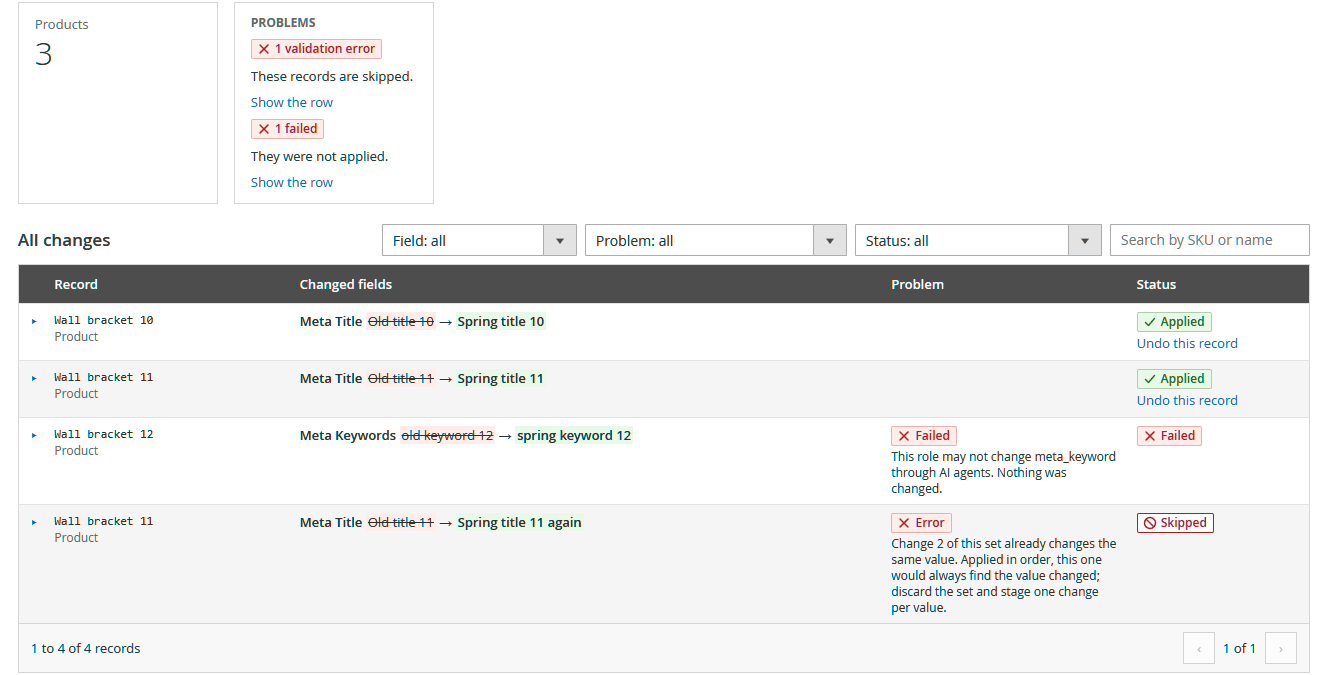
Then choose one:
- Apply the remaining, which names the count. It asks first: each record is checked against the store first, a record that changed since staging is skipped and listed, and they apply as the admin who asked.
- Undo what was applied, which puts the applied records back. Each applied record also offers Undo this record.
Who may apply the remaining. It needs Approve changes and every tool the set uses. The admin who presses it answers for the rest of the set from then on: its change record says "Apply the remaining changes." and "… answers for this run.", with that admin's name, and before each change the queue or cron asks whether that admin may still approve changes. The rest of a set that waited for a person's approval is not applied by the admin who asked for it while Let an admin approve a change they asked for is off: the page shows "You cannot apply the remaining changes." with "You asked for this change set yourself, so another admin who may approve changes must apply the rest of it." in place of the button. The rest of a set that needed no approval may be applied by the admin who asked for it. From the command line, the admin named by --user= answers for the run.
When it is refused. The page offers Apply the remaining only where it would be accepted. A request that comes anyway, from a page left open in another tab, for example, is refused with its reason, followed by "Nothing was changed.":
- "You asked for this change set yourself, so another admin who may approve changes must apply the rest of it."
- "This change set is stopping: the change that was being applied finishes first, and then the set stops. Apply the remaining once it has stopped."
- "This change set is still being applied.", with what to wait for.
- "This change set was applied in full, so nothing of it remains to apply."
- For a set that was undone, a sentence that says so.
- "Nothing of this change set remains to apply: a change of unknown outcome is not applied again. Check it in the store."
- "This change set has no remaining records to apply."
When nothing is left to apply but a change of unknown outcome, the page's message ends at "Nothing is lost: what was applied is recorded." and offers no Apply the remaining. A change that failed and was then applied by Apply the remaining shows only Applied on its row: its earlier failure is no longer shown there, and the Change History keeps both records.
A set also stops part way when it is stopped by hand, when the admin who asked for it, or who approved or applied it, loses a permission while it applies, or when a change's outcome is not known. Then a third box, Outcome unknown, counts those changes apart from Applied and Not applied (section 10.7).
On a store where the queue and cron do not run, a developer can finish a set from the command line with bin/magento bce:mcp:changeset:apply and --remaining (chapter 17).
10.6 Approved changes the scheduled task applies
A change of the expert tools (rest_call, rest_bulk, graphql_write) cannot run inside your admin request. When you approve one, the approval is recorded at once, and the store's scheduled task applies it, one a minute: "Your approval is recorded at once. The store's scheduled task then applies the change, usually within a minute". Until then the request shows Approved, waiting for the scheduled task. An approval cannot be taken back.
-
If cron does not run, the approved change waits. After 3 minutes the notice "1 approved change has waited more than 3 minutes to be applied: the store's cron does not seem to run." appears for admins with Approve changes. The Approvals screen says, for example, "3 approved changes are not applied yet because the store's scheduled tasks (cron) do not seem to be running." with the command that applies the oldest one each time it runs, and Copy:
bashbin/magento bce:mcp:approvals:applyGive an
apr_…reference to apply one request in particular. -
If the scheduled task has not applied it within 24 hours, it is given up (Approved, not applied in time) and the agent has to ask again.
-
While agents are paused, nothing is applied and nothing fails: the change waits for the resume.
-
Approved changes are applied in the order they were approved. A change whose connection is paused waits for its resume. A change whose connection still has a heavy call running waits too, with that connection's later changes behind it, so they keep their order; other connections' changes go ahead in the meantime.
-
If the store refuses the connection when the change's turn comes, for example because its admin is locked or access tokens are switched off, the change fails and is not tried again (Approved, failed). Only a pause or a limit makes it wait.
Right after an approval, the Approvals screen shows what happened: a typed change is made at once, while an approved expert change waits for the scheduled task.
10.7 Stopping a set, and changes of unknown outcome
Stop applying. While a set is applying, its page offers Stop applying to an admin with Approve changes. It asks first: "The change being applied now finishes; the rest is not applied. Afterwards you can undo what was applied, or apply the remaining." A stop is a request that the run applying the set honours between changes: the change it is applying at that moment finishes, no other starts, and the run moves the set to Partly applied itself. The answer is one of these:
- "Stopping. The change being applied now finishes first; then the set stops, and the rest is not applied. This page shows when it has stopped." Until then the page says "Stopping: a stop was asked for. The change being applied now finishes first, and then the set stops; the rest is not applied. Until then the set cannot be applied further or undone." and offers no second Stop applying. Apply the remaining is refused meanwhile: "This change set is stopping: the change that was being applied finishes first, and then the set stops. Apply the remaining once it has stopped."
- "Stopped. No change was being applied at that moment, and the rest is not applied. You can undo what was applied, or apply the remaining." This is the answer when no run held the set, such as a set waiting for the queue or cron.
- "A stop was already asked for. The change being applied now finishes first, and then the set stops."
The set's message then names who stopped it ("Stopped by … on the change set page: no change was started after the stop, and the rest was not applied. Undo what was applied, or apply the remaining."), and the Change History records Stop applying. While cron and the queue consumer do not run, a set that waits for them stays so until it is stopped.
When a set stops by itself. Each change of a set runs as the admin who asked for the set stands at that moment, with that admin's role as it is now. Before each change, the run asks whether that role still allows the change (every permission of its tool, and a write mode that lets it change data), and whether the admin who approved the set, or who applied it or its rest, is active and may still approve changes. When the role no longer allows it, the admin who asked has lost access, or the approver may no longer approve, the set stops before that change, as Partly applied, and says why:
- "The role of the admin who asked for this change set no longer allows …, so the rest of it was not applied. Once the role allows it again, an admin who may approve changes can apply the remaining." The permission is named by its path, such as AI Agents > AI agent tools > Catalog >
catalog_product_update. A role that is now read-only, or now needs a person's approval for a set that was not approved, has a sentence of its own. - "The admin who approved or applied this change set may no longer approve changes, so the rest of it was not applied. An admin who may approve changes can apply the remaining."
The change it stopped before stays valid for Apply the remaining. A role change that still allows the change does not stop the set: the rest runs with the new role. An approved change outside a set that runs later, such as one the scheduled task applies, is refused when it runs if its admin was given another role meanwhile: "The admin of this connection was given another role since this call was made, so it does not run with the old role's permissions."
Outcome unknown. No change of a set is applied twice: only the run that holds a set applies its changes, and each change is claimed by that run. A run that stops answering for longer than its hold, five minutes, loses the set to the queue or cron, which take it over. A change written in one database transaction (product attributes, prices, category products, product links) is marked applied inside that transaction, so the run that takes over applies it once, and the run that stopped answering can no longer save it: it is told "This change was not saved: the run applying it no longer holds its change set (another run took the set over after this one stopped answering), so the change is left to that run." A change has an unknown outcome when the module cannot tell whether the store kept it:
- a change that cannot be rolled back (stock, and the writes of the product-options add-on) that such a run left half done;
- a change during which other code ended the store's database transaction;
- a stock, configuration or product-create change that the store answered with an error, when what the store kept could not be read back in full (below);
- a configuration change the store saved at one scope level and then failed at the next, as in Single-Store Mode, where some settings are saved at the website level;
- a product-create change after which the product found with its SKU cannot be told for the one the change created, for example because another admin, an import or an agent created a product with the same SKU while the change's own save failed;
- a change that cannot be rolled back that the database ended with a deadlock or a lock wait timeout, unless the module reads back that nothing of it was written: a configuration or product-create change is then answered as not applied, and applying it again is safe, and a stock change gets the store's refusal.
Outcome unknown is the one name for such a change, wherever it shows. Then:
- the set stops for a person, as Partly applied, and says why, for example "A run applying this set stopped answering in the middle of 1 change that cannot be rolled back, so its outcome is unknown and it is not applied again. Check it in the store, then apply the remaining.";
- the change's row shows the amber chip Outcome unknown under Status, and the same chip as its problem, with the reason, such as "The run applying this change stopped answering before it finished, and this tool's changes cannot be rolled back, so its outcome is unknown. It is not applied again: check the record in the store, and stage the change again if it is still needed." Problems has a line of its own, "N outcome unknown": "Whether they were applied is not known, so they are not applied again. Check their records in the store.";
- the partly applied panel counts these changes in a third box, beside Applied and Not applied: "Outcome unknown: 1 record", "Whether it was applied is not known, so it is not applied again. Check its record in the store.", with Show the record. Not applied leaves them out, and is not shown when nothing else is left and the set has no reason of its own to give;
- the Status filter offers Status: outcome unknown, which lists only these changes; Status: failed and Status: not applied leave them out, and the Problem filter offers Problem: outcome unknown. A filter that matches nothing says so, for example "No record in this change set matches these filters. Clear the filters to see all 3.";
- the set's figures count these changes apart from the failed ones, since they may be in the store: the progress line adds "· N of unknown outcome", the set's line in the Change History reads, for example, "Change set “Spring titles” · 3 applied, 1 failed, 2 of unknown outcome, 1 skipped.", and so do the change record and the agent's answers;
- the module never applies such a change again, and Apply the remaining leaves it out (section 10.5).
In the Change History. The record of such a change shows the chip Outcome unknown, with the change's own sentence as its Message. What changed gives each field's value before the change, and after it "Not known: the store may or may not have kept the change"; the set's own record lists the change under Items in this call as Outcome unknown, for example "Quantity: 100 → not known (+1)". The set's own record is not left showing "Applying": once nothing runs, it offers the undo of what was applied, as the set page's Undo what was applied does, and that undo names the change of unknown outcome and leaves it. A change whose run stopped answering cannot be undone on its own: "The process making this change ended before it reported back, so nobody knows whether it was made. Check the record by hand." Where its record kept its values (a change during which other code ended the transaction, or the settings a configuration change saved at its first level), undo puts the values from before it back where the store still holds what the change wrote, which is right whether or not the change went in; a field that holds anything else is left and named, as in every undo.
What the agent is told. changeset_status lists such a change with the status unknown and the problem code unknown: "Its outcome is unknown: the module cannot tell whether it was saved, so it may be in the store in part or in whole, and it is never applied again. Do not stage, apply or undo it again: tell the admin, who checks the record in the store." Its summary says so too, and the tool accepts unknown as a status to list.
What to do. Check the change's record in the store: open it from the row, or with Show the record, and see what it holds now. If the change is still needed, have the agent stage it again. If the run that started it finishes after all, it records what it did, and the set's figures are counted again.
When the store reports an error during a change. Some steps run after Magento has saved a change: the stock index, another module's observer, a check of new settings. When such a step fails, the store reports an error for a change it may have kept. For a stock change (inventory_update), a configuration change (config_set) and a new product (catalog_product_create), the module then reads back what the store holds, one scope level at a time for settings, and answers by what it finds, for a single call and for a change in a set alike:
- Saved, with a warning. The store holds what was asked: the change is answered as done, with a warning, such as "The store reported an error after it saved this stock, but the stock holds what was asked: a step the store runs after saving it, such as the stock index, may not have finished.", "The store reported an error after it saved these settings, but they hold what was asked: …" or "The store reported an error after it created this product, but the product is in the store: … Undo disables it and takes it out of the catalog." The warning is in the agent's answer, in the Message of the change record, which is a Success that can be undone as usual, and in
var/log/bce_mcp.log. In a change set the change counts as applied, and Apply the remaining never applies it again. Look at what failed after the save, such as the stock index or the other module the log names. A new product counts as the change's own only when the one product with its SKU is the product the change created: the module watches the save of its own product, and never takes another admin's, import's or agent's product with the same SKU for it. - Not saved. The stock or the settings hold what they held before, or no product was created: the store's refusal or error stands, in its own words, and nothing was changed. In a set it is a failed change, which Apply the remaining takes up.
- Saved in part. A configuration change that the store saved at one scope level and then failed at the next is answered as of unknown outcome, naming the settings saved; its change record keeps those, and undo puts them back.
- Outcome unknown. Anything else, or nothing could be read back: the change is of unknown outcome, as above.
When the store was busy. A change written in one database transaction that the database ends with a deadlock or a lock wait timeout, because another write held the same record, is rolled back and answered "The store was busy with another write to the same record, so this change was not saved and nothing was changed. Applying it again is safe." The agent gets the code conflict, and may try again. In a change set it is a failed change, shown Failed with that sentence, not one of unknown outcome, and Apply the remaining applies it. The module does not retry it by itself. This holds when the rollback goes through outside any other transaction; otherwise the change's outcome is unknown.
Undo while a set is applying. A set cannot be undone, as a whole or record by record, until it has finished or stopped: its page and the Change History say "This change is still being applied. Undo becomes available when it has finished.", and an undo that is asked anyway, by an admin or an agent, is refused with "This change set is still being applied: the rest of it is queued or running, and would be applied after an undo. Undo it once it has finished." While one undo of a set runs, and between the rounds of a large undo in the dialog, neither another undo nor Apply the remaining can take the set: "This change set is being applied or undone right now. Undo it once that has finished."
11. Change History, undo and activity
The Change History answers "what did agents change?". The Activity screen answers "what did agents ask for, and who signed in?". Both need the permission View Change History and activity.
11.1 The Change History screen
Big Cart Energy > AI Agents > Change History lists one row per change an agent made or asked for, newest first. A change set, or a call that changed many records, is one row that opens its detail.
| Column | Shows |
|---|---|
| Time | When it was asked |
| Admin user, Client, Role | Who the agent acted as, through which app, with which role. An undo made in the admin shows the client In the admin |
| Tool, What happened | What it used, and what kind of action, such as Update, Approve, Undo or Issue a link |
| Target, Record | What it changed |
| Store | The scope it ran in, such as All stores or a store view by name |
| Write mode applied | Read-only, Approval, Preview or Direct |
| Result | Success, Error, Refused, Waiting, Queued, Undone, Paused or Pending |
| Action | View, and Undo where it is possible |
Message, Request ID, Change set and Connection are hidden columns you can add under Columns. Every column can be filtered, a layout can be saved as a view, and the list can be exported (section 11.7).
What it records. Every change and every attempt: changes made, refused, held for approval, queued and failed, guardrail hits, approvals and rejections, pauses and resumes, connections that ended, and the arrival of an uploaded file under the call that made its link. With Record reads of customers, orders and expert tools on, it also records those reads, without their results (section 15.10). It records the tool calls an agent makes, not the questions you typed into the app.
11.2 Reading a change record
View opens the change record in a panel, headed with what it did and its result:
- Summary: the Time, Admin user, Client, Role, Store, Message, Tool, Action, Target, Record, Write mode applied and Request ID. The same request ID appears on the Activity screen and in the module's log, so one problem can be followed through all three.
- Items in this call: for a call over many records, each record with its status, live while it runs ("Applying. This list updates by itself.").
- What changed: each field's value Before and After, side by side.
- Request as sent: what the agent asked for. "Secrets and sign-in details are masked before anything is stored."
- Linked entries: the approval it waited for, the call or change set it belongs to, the undo that took it back, or the change it undoes.
- Undo: whether this change can be undone, and if not, why (section 11.3).
A change of a set whose outcome is unknown shows Outcome unknown under Items in this call and in its own record, whose What changed reads "Not known: the store may or may not have kept the change" after the value before. A change the store saved before it reported an error is a Success whose Message gives the warning (section 10.7).
11.3 Undoing a change
What you will need: the permission Undo from Change History, and a role that allows the tool that made the change, with the Magento permissions it needs ("Undoing needs" the permission, the panel says otherwise).
The record's panel says where it stands:
- Available: "This change can be undone until" a date. "Undo puts the earlier values back and is recorded as its own entry."
- Already undone: "Already undone by" a name "on" a date. "The record is back to its earlier values."
- Not possible, with the reason (section 11.5).
- Too old: "Undo is no longer available. This store keeps undo for 30 days, and this change was made 41 days ago. You can still see what changed and edit the record by hand."
Steps
- Open the change record and choose Undo.
- The dialog Undo this change? shows each Field, its value Now and After undo.
- Choose Undo change.
For one record of a change set, the dialog is Undo this record? with Undo record, and the other records stay changed. For a whole set, choose Undo the whole set on its review: the dialog Undo the whole set? says how many records were changed again since, so you can decide about them, and the button names the count.
What success looks like: the record's values are back, the change record reads "Already undone by" your name, and a new change record with What happened Undo sits at the top of the list.
How values come back. A value an agent wrote for one store view goes back to what that store view had. If the store view had no value of its own before, undo removes the store view's value again, so it shows the default as before. Records an agent created are not deleted: a product is disabled and made not visible, a page or block disabled, a cart price rule made inactive, an added address removed, an added attribute option removed while no product uses it.
Undo of a page, block or cart price rule an agent created switches it off and keeps it, and the dialog says so before anything changes, with the record's name and the value that stays in use, for example: "Undo switches the block ‘Shipping note’ (shipping-note) off and keeps it: it is not deleted, and its identifier shipping-note stays in use. To remove it, delete it by hand in Content > Elements > Blocks." A page keeps its URL key in use, and a cart price rule its coupon code, until a person deletes the record. The answer after the undo, the record in the Change History and an agent's undo say the same.
An agent's own undo. An agent can undo its own connection's changes with change_history_undo, up to 500 records in one call; an admin undoes larger ones on the Change History screen. The same rules apply. It never runs under a looser rule than the original change: the undo of a change a person approved waits for a person too (section 10.2). An agent's undo of an order put on hold, or released, must also still be allowed by the role's Order actions agents may take (section 8.6): "This role may not hold or release orders through AI agents."
11.4 Conflicts
Undo never overwrites a newer edit. When someone changed the record after the agent did, the dialog says: "This record was changed again after the agent's change." It lists each field with its value Before the agent, what the Agent set, the value Now, and what Undo will do: Restore, or Conflict where the value differs.
- Undo only the unchanged fields puts back the fields nobody touched since, and leaves the edited ones as they are now.
- When every field was edited since: "Nothing can be undone without overwriting newer edits. Edit the record by hand instead."
An agent's undo that meets a conflict is refused with the code conflict and names the fields, so the agent can tell you.
11.5 What cannot be undone, and why
Every tool has an effect class (section 14.1). Only changes of the class Write can be undone. The others act outside your data, or Magento has no way to take them back:
| Change | Why it stays |
|---|---|
| Invoices, shipments and credit memos (refunds) | Magento keeps these documents for good and never deletes them. An online invoice or refund also moved money through the payment provider |
| Order cancellations | Magento cannot reopen a cancelled order |
| Order comments, and emails sent with them | An email that has gone cannot be called back |
| Password reset emails | The same |
| Generated coupon codes | Codes may already be handed out |
| Cache and index actions | They change no data that could be put back |
| Changes through the expert REST and GraphQL tools | They run through Magento's own API. The Change History keeps the request, not the earlier values |
The plan of each of these says so before it runs, and the consent screen marks the tools Cannot be undone or Destructive. When someone asks to undo an online invoice or refund anyway, the refusal says what happened at the payment provider and what to do instead. For an invoice: "The payment provider has already charged the customer for this invoice, so it cannot be undone here, and changing the store's records by hand would not give the money back. To give it back, refund the invoice online with sales_order_refund." For a refund: "The payment provider has already sent this money back to the customer, and a refund cannot be taken back, here or at the provider. If it was a mistake, the customer has to pay again, for example with a new order; changing the store's records by hand would not move any money."
Some change records cannot be undone for other reasons:
- an undo itself: "This entry is itself an undo. An undo cannot be undone in turn; change the record by hand instead.";
- a change that was refused, is still waiting, was paused or failed without keeping anything: nothing was changed, or nothing completed;
- a change still being applied: it can be undone once it has finished;
- a change interrupted part way whose outcome is unknown;
- a change older than the undo window;
- a change whose values held a secret, such as a card number, which the Change History replaced and so cannot put back.
A change of unknown outcome whose run stopped answering is refused with "The process making this change ended before it reported back, so nobody knows whether it was made. Check the record by hand." Where the record of a change of unknown outcome kept its values, undo puts them back where the store still holds what the change wrote (section 10.7).
Deleted media files are different: they wait in a trash folder, and undo restores one while its path is still free (section 15.4).
11.6 The Activity screen
Big Cart Energy > AI Agents > Activity has two tabs. "Activity is every request, including reads. Changes are also in the Change History, with before and after."
Requests lists one line per request an app made, of any kind: the Time, the Admin and the Client, the Method in plain words (such as "Use a tool", "List tools" or "Start session"), the Tool, the Outcome (Success, Refused, Denied, Error, Waiting or Paused), the Duration, the Address it came from, the Request ID and the Connection. A request without valid sign-in details shows as Denied. Repeated failures from one address fold into one line that says how many requests it stands for. Under the tool, a line says what the module knows about the answer, at every Activity log detail level: the limit that refused the call with its value, such as "Rows read per hour: limit 50,000", or an answer sent as an outline ("Outline: 3 parts to read on") or a part read from one (section 14.2).
Sign-in events lists Approved, Denied, Client registered, Revoked, Sign-in failed, Address refused, Limit reached, Paused, Resumed and Token extended, each with its Detail, such as "Approved on the approval page", "Access time ran out", "Address is not on the allowed list" or "Calls per minute: limit 60". A Token extended line names the token's new end and its old one, and its panel adds Extended by (section 6.4). The panel of a failed sign-in leads with its reason when the store recorded one. A Revoked line says why the connection ended: "Revoked by an admin", "Revoked by its client", "Revoked: a sign-in code or token was used twice", "Revoked: AI agent access was switched off for its admin", "Revoked: its client was deleted", "Revoked: its admin user was made inactive" or "Revoked: its admin user's password was changed".
View opens a line in a drawer: why a request was refused or failed, the connection, Request as sent and Answer given to the agent. Arguments are kept only while Activity log detail is Detailed (section 15.10). "Answers themselves are never stored: this is what the server recorded about it."
11.7 Exports, retention and privacy requests
Exports. The Change History, Activity and Approvals screens export to CSV through Magento's Export button, with the filters and columns you chose. Exports carry no secret values. The Change History export leaves out the requests, which stay in each record's panel, masked.
How long records are kept. Change records, the activity log and the usage figures each have their own retention setting, and cron clears older rows every day (section 15.10). A Change History retention of 0 keeps change records for good. Change records keep the values before and after, personal data included; so do your database backups.
The module's log. Errors go to var/log/bce_mcp.log, each with the request ID that the agent and the screens show, so a developer can find the cause. Error messages never reach the agent: it gets a reference such as req_… instead.
A customer's privacy request. The Change History keeps changed values, personal data included, so undo can put them back. To remove one customer's personal data:
What you will need: View Change History and activity and Magento's permission to manage customers, and the customer's ID.
- On the Change History screen, choose Purge a customer.
- Enter the customer's ID. The dialog counts what it will clear, for example "This blanks 1 change record, 0 staged changes and 0 approvals".
- Confirm.
The purge blanks that customer's values in the change records, marks changes staged for that customer as skipped so they are never applied, and rejects waiting approvals that hold their data. It cannot be undone, and purged records can no longer be undone either. From the command line: bin/magento bce:mcp:purge-customer with the customer ID, --dry-run to count first, and --yes to skip the question in a script (chapter 17).
12. Pause, alerts and notices
12.1 Pause all agents
Pausing stops every agent at once without ending anything, so you can look at what happened and then carry on.
What you will need: the permission Pause and resume.
Steps
- Open Big Cart Energy > AI Agents > Overview and choose Pause all agents.
- The dialog Pause all agents? says "Every agent stops reading and changing the store until someone resumes." and lists:
- What stops: every active connection. "Any request they make is answered with ‘Paused’. A change set that is applying stops after the record it is on."
- What stays: "Nothing is revoked. Connections, access tokens, roles and settings are untouched." Changes waiting for approval keep waiting.
- To resume: "Choose ‘Resume’ on the Overview or on the banner at the top of any AI Agents screen."
- Confirm with Pause all agents.
What success looks like. Every AI Agents screen shows the banner "All agents are paused. No agent can read or change anything. Nothing was revoked." with Resume, and the server's chip reads Server paused. Agents get the answer "Paused by the store. Nothing was changed." Signing in keeps working: an admin can still approve a new app, and it starts working on resume. From the command line: bin/magento bce:mcp:pause and bin/magento bce:mcp:resume.
Pause or switch off? Use pause in an incident: it stops every tool call at once, keeps every connection, and answers apps clearly. Switching the server off makes every address the module adds answer "not found", as if it had never been installed. Connections survive that too, and work again when the server is switched back on. To end connections for good, revoke them (section 6.17).
12.2 Pause one connection
On Big Cart Energy > AI Agents > Connections, choose Pause in a connection's menu or in its detail's footer, or tick several and choose Pause. The connection is refused exactly as in a store-wide pause, and every other connection carries on. Resume works the same way. From the command line, add --connection= and the connection's ID, which starts with con_.
12.3 Automatic pause
The server pauses a connection by itself when, inside a short window, its changes, errors, refusals or guardrail hits pass a threshold. A runaway loop or a misread instruction is stopped before it does much. The thresholds and windows are settings (section 15.5).
When it happens:
- the connection's status reads Paused, and the Overview marks it Paused by server;
- the Overview lists it under Connections needing attention, with what triggered it, for example "41 writes in 2 minutes, limit 30", and Review;
- the notice "A connection was paused automatically." appears, with Review the connection;
- an email goes to the alert list, if that alert is on (section 12.4).
Open the connection: its panel says "This connection was paused automatically." with what it did and when, such as "It made 41 writes in 2 minutes. The limit is 30.", then "Nothing was revoked, and the changes it already made are in the change history.", and offers View those changes. Look at its recent calls and changes, and choose Resume or Revoke. A resumed connection carries on within the same limits. Every pause and resume is recorded in the Change History, with who or what caused it.
12.4 Alert emails
Alerts go to the addresses under Stores > Configuration > Big Cart Energy > AI Agents > Alerts > Send alerts to, up to 20. With no address there, no alert email is sent; the notices in the admin still appear. Four switches cover five emails (section 15.11):
| Switch | |
|---|---|
| A new AI client connects | When an admin approves an app that has not connected before: who, which app, the access granted, when it ends, and a link to the connection. At most one a day per connection |
| A change is waiting for approval | The newest waiting change and how many others wait, with a link to Approvals. At most one every 15 minutes for the whole store |
| A connection is paused automatically or keeps hitting its limits | When the server pauses a connection (at most every 15 minutes per connection) |
| (the same switch) | When a connection is refused for its limits 3 times in the store's day (at most one an hour per connection) |
| An access token ends within 14 days | "An access token ends soon": the token's name, the admin it acts as, when it ends, and Open the connection, so the token can be extended in time (section 6.4). One email per token and end date, queued by the daily task; it is not sent once the token was extended, revoked or has ended. An extended token is announced again when its new end comes near |
Each email says why you get it, and its buttons open the admin and ask you to sign in. Nothing is approved, revoked or resumed from an email.
Cron sends alerts in a job of their own (section 2.4), through the store's own email setup and from the sender you choose under Send alerts from. The emails are HTML only. They use the store's own email header and footer; when those cannot be loaded, the email goes out in a plain frame of the module's own, and bin/magento bce:mcp:status counts the emails sent that way. You can choose an edited copy of each email, made under Marketing > Email Templates, in the five Email for … fields. A send that fails is recorded with its reason and not tried again, and an alert that could not be sent within a day is dropped. On a test store we checked how the first four emails are built: inside the store's own header and footer, and in the module's own frame when the header cannot be loaded. The email for a token that ends soon uses the same frame, but has not been seen built on a test store yet. We have not yet seen one delivered through a mail server, so send yourself a test alert, for example by approving a new app, before you rely on them.
12.5 The Overview, notices and the dashboard widget
The Overview (Big Cart Energy > AI Agents > Overview) is the state of everything on one page. Any AI Agents permission opens it, and each figure, card and button shows only to an admin whose role may open what it counts or does. The list below is what an admin with every AI Agents permission sees.
- The title bar: the server's chip (Server on, Server off or Server paused), Run self-test, and Pause all agents (or Resume).
- Risk notices, for example "The server accepts connections from any address, and the role … is in Direct mode." with Limit addresses and review the role, or "‘Require HTTPS’ is off, so sign-in codes and access tokens may travel unencrypted." with Turn it on in Settings. An admin who may open neither the settings nor the user roles gets one sentence without names instead: "Some changes from AI agents apply without a preview or an approval. An admin who may change the AI Agents settings or the user roles can review this."
- Access tokens that end within 14 days, each named with its admin and end date and linked to its connection (section 6.4).
- The first-run checklist, until it is dismissed (section 4.4).
- Five tiles: Connections active, Changes today, Waiting for approval (with approved changes still waiting for the scheduled task), Guardrail hits today and Playbook proposals waiting, each with a link to its screen.
- Recent changes, the newest change records, with View Change History.
- Self-test, the result of the last run, with View results.
- Connections needing attention: connections paused by the server (Paused by server), connections that keep hitting their limits (Hitting limits), and connections that end within a day, each with Review.
- Top tools, 7 days: the tools agents called most.
An admin with fewer permissions sees only what their role allows. Connections active counts the store's connections for an admin who manages every admin's connections; an admin who manages only their own gets Your connections active with their own count. Changes today, Guardrail hits today, Recent changes and Top tools, 7 days need View Change History and activity; Waiting for approval needs Approve changes; Playbook proposals waiting needs Manage the playbook; the self-test card and Run self-test need Tools and settings; Pause all agents needs Pause and resume. A line says what is left out, for example "Some figures are hidden. Your role does not include ‘AI Agents > Approve changes’." The checklist names no other admin to such an admin, and shows no figure the Overview hides from it: its step 4 reads "An AI client has connected." The notice of tokens that end soon lists every such token to an admin who manages every admin's connections, and only their own to an admin who manages only their own.
Admin notices appear in Magento's message bar at the top of the admin, for admins who can act on them:
| Notice | For | Action |
|---|---|---|
| "1 change is waiting for your approval." or "… changes are waiting for your approval." | Approve changes; counts only requests you could approve | Review approvals |
| "1 approved change has waited more than 3 minutes to be applied: the store's cron does not seem to run. Start cron, or apply it with bin/magento bce:mcp:approvals:apply." | Approve changes | Review approvals |
| "The AI Agents self-test found 1 failed check." (and warnings) | Tools and settings, while the server is on | View the self-test |
| "AI agents can change this store directly, without a preview or an approval, and from any address." | Tools and settings | Limit the addresses or the write mode |
| "A connection was paused automatically." | Manage other admins' connections or Pause and resume | Review the connection |
| "All agents are paused." | Pause and resume | Resume from the Overview |
The dashboard widget sits on Magento's own dashboard for admins with any AI Agents permission: AI Agents with the server's chip, Connections active, Changes today and Waiting for approval, and Open the overview. While the server is off it says "AI agents are turned off. No client can connect to this store.", and while agents are paused it offers Resume to admins who may.
13. Prompts and the playbook
13.1 The shipped prompts
A prompt is "a ready-made request a person can start from inside their AI client by typing its command. It gives no extra access: the agent still has only its role's tools." You pick it, fill in its inputs, and the app sends the agent the whole task, written out. An app offers a prompt only to agents whose role it is visible to, and only when the agent has every tool the prompt needs. How an app lists prompts differs by app.
Not yet verified with the apps: where each one shows prompts.
The module ships ten prompts. Each one names the tools to call and what to report, and none changes anything without your go-ahead.
| Prompt | Command | What it does | Inputs (default) | Tools it needs |
|---|---|---|---|---|
| Store configuration check | store_configuration_check | Reviews the main settings of each store view and lists what is inconsistent or risky. Changes nothing | store view (all) | store_info, config_get |
| Bestsellers | bestsellers | The best-selling products of a period, by quantity and by revenue, with what stands out | period (last_30_days), store view (all) | report_bestsellers |
| Sales against the previous period | sales_period_comparison | Orders, revenue, average order value and refunds for a period, compared with the period before | period (last_30_days), store view (all) | report_sales |
| Low stock | low_stock | Products at or below their low-stock level, sorted by how soon they run out | period (last_30_days) | report_low_stock |
| Fulfilment status | fulfilment_status | Orders by status and age, the late ones, and what holds the oldest of them | days before an order counts as late (2) | report_fulfilment |
| Stale products clean-up | stale_products_cleanup | Enabled products that did not sell in a period, grouped, with a suggested action per group. Changes nothing without the user's go-ahead | period (this_year) | report_stale_products |
| Missing URL rewrites | missing_url_rewrites | Visible products and categories without a URL rewrite, the likely cause, and the fix | store view (all) | integrity_check, url_rewrite_search |
| Store health check | store_health_check | Cron, indexers, queues, caches, search, errors and server settings, with what needs attention first. Read only | none | health_check |
| Upgrade readiness review | upgrade_readiness_review | How ready the store is to upgrade Magento: security exposure, the version to aim for, blockers, and an ordered plan | none | upgrade_readiness |
| Weekly trading summary | weekly_trading_summary | The last seven days in under 300 words: sales against the week before, top products, refunds, abandoned carts, searches and stock, with three things to do this week | store view (all) | report_sales, report_bestsellers |
A period is one of today, yesterday, last_7_days, last_30_days, this_month, last_month or this_year. A store view is a store view code, or all.
On the Prompts screen, a shipped prompt says "This prompt ships with the module and cannot be changed." Only Active and Visible to can be changed. To change anything else, choose Duplicate to edit: you get your own copy, switched off, with _copy added to its command. An upgrade refreshes the shipped prompts and keeps your two choices (section 4.3).
13.2 Writing your own prompt
What you will need: the permission Manage prompts.
Open Big Cart Energy > AI Agents > Prompts. The grid lists every prompt with its Title, Command, Inputs, Visible to, Tools it needs, Source (Shipped, Custom or Proposed by an agent), Active and Check. Check reads OK, or names what is wrong, such as "1 unused input", "1 unknown placeholder", "Needs a tool that is switched off", "Needs a tool that is not installed" or "Needs a tool no role has".
Steps
- Choose New prompt.
- Fill in Title and Command: "What a person types in the client. Lowercase letters, numbers and underscores." It starts with a letter and has 3 to 64 characters.
- Write a Description: what the prompt does, in one sentence. "Shown in the client's list of prompts."
- Leave Active on ("On: agents can use it.") or switch it off for now.
- Under Visible to, choose All roles or Chosen roles.
- Under Tools it needs, pick the tools the prompt cannot work without. "A role sees this prompt only if it has every tool listed."
- Under Inputs, choose Add an input for each value the person fills in: Name, Description, Required, Suggests (Nothing, Store view codes, Website codes or Periods, which the app can offer as choices) and Default.
- Write the Prompt text: plain steps that name the tools, with each input as a placeholder in double square brackets, such as
[[period]]. - Watch the Check panel, which warns about an input the text never uses and a placeholder with no input, and the Preview panel: "Fill in sample inputs to see the finished prompt an agent would receive. Nothing is sent."
- Choose Save prompt.
Placeholders use double square brackets so they never clash with Magento's own content directives, which a prompt about CMS content may need to mention. The length limits of each field are in section 15.14.
Example. A prompt "Category content gaps", command category_content_gaps, input category (required):
Find the products in category [[category]] whose description is missing or thin.
1. Call seo_audit_content for the current store view.
2. Keep only the products assigned to category [[category]].
List each product's SKU, name and the problem. Change nothing.
What success looks like: "Prompt saved.", and the grid's Check reads OK.
When it goes wrong
- "Another prompt already uses this command." Choose another command.
- "The prompt was not saved. Fix the fields marked below." A required field is empty or too long, or, on a store whose database cannot keep emoji, a field holds one: the field and the Check panel name it (section 16.4).
- The prompt never shows in the app. The role lacks one of the tools it needs, the prompt is not visible to that role, or Active is off. Some apps read the prompt list only when a chat starts.
13.3 Prompts proposed by agents
An agent can propose a prompt once you switch on Let agents propose prompts (section 15.7). It is off from install. A proposal is saved as a draft, offered to nobody, and listed with Source Proposed by an agent and Active Off until approved.
Review opens it with a banner: "An agent proposed this prompt. It is not in use." and who proposed it, through which app and when. "Read the text below as you would a stranger's: approve it only if you would be happy for every chosen role to run it. You can edit it before approving." Approve saves the form as it stands and switches the prompt on; Reject asks first ("It is removed, and the agent is told it was not accepted."). Both need Approve prompt drafts. Up to 20 drafts per connection, and 100 in the store, may wait at once.
13.4 The playbook
The playbook is a set of short notes your admins write for every agent: how SKUs are formed, the tone for product copy, pricing rules, what must never be changed, who to ask. When an agent connects, it receives the titles of the sections its role may see (up to twelve), and it reads a section with playbook_get when the task needs it. That keeps the playbook out of the way until it is needed. The playbook is the one store text an agent receives without the untrusted-text wrapper, because an admin wrote or accepted each section for agents to follow.
The playbook is advice, like the rules for agents (section 7.8): "The playbook is advice read by agents, not enforcement. To enforce a limit, use a role's write mode, tools and guardrails."
What you will need: the permission Manage the playbook.
Open Big Cart Energy > AI Agents > Playbook. The tab Sections shows, on the left, the sections in reading order, each with its character count and the roles that see it; on the right, the selected section's form:
- Title and Text, with a count of up to 4,000 characters.
- Visible to: All roles, or Chosen roles. Agents of other roles neither read the section nor see its title.
- When it was last changed, and by whom.
Choose Save section, or Delete section ("Agents stop reading" it "from their next session. This cannot be undone."). Add section starts a new one. To change the order, drag a section by its handle, or focus a section and press Alt with the up or down arrow. Each move is saved at once.
An empty playbook offers three starters, each with Start this section: How our SKUs work, Tone for product copy and Never change.
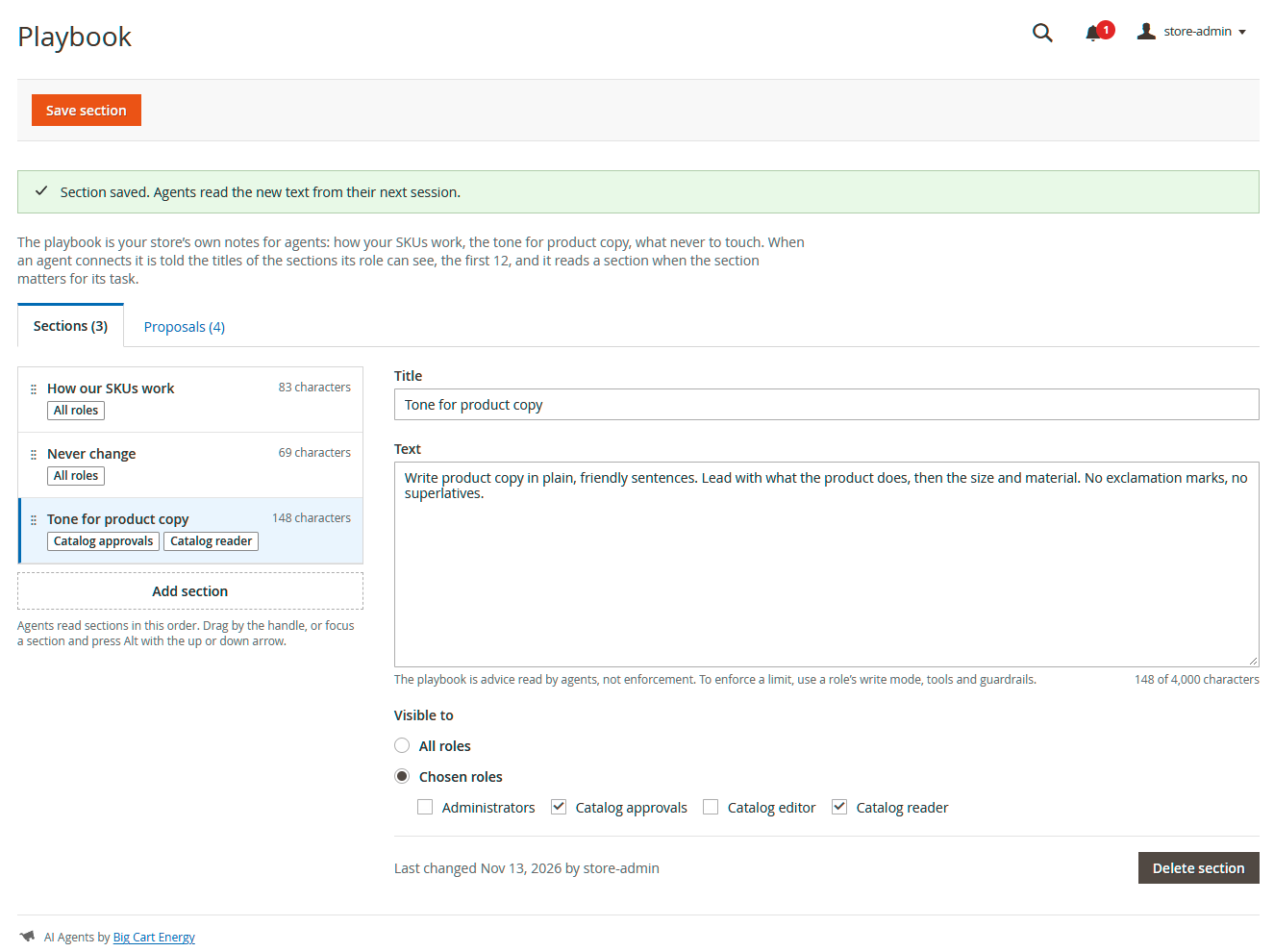
13.5 Writing a good playbook
- One topic per section, with a title an agent can recognise from its list: "How our SKUs work", not "Notes".
- Short and concrete. Give one real example per rule. "A SKU is family, material and variant: LAMP-OAK-01 is the LAMP family in oak, variant 01" teaches more than a paragraph about naming.
- Say what never to change, and why. "Never edit products whose SKU starts with ARCH-: they are archived for warranty claims."
- Say who to ask. "Questions about pricing go to the store manager."
- No secrets. Everything in the playbook goes to the AI app that reads it. Keep passwords, keys and customer data out.
- Keep it current. Agents can propose updates when something is out of date (section 13.6).
- Use guardrails for limits. "Never discount more than 20 %" is advice in the playbook and a rule in a guardrail. Put it in both.
13.6 Proposals from agents
When an agent learns something the next agent should know, or finds a section out of date, it can propose a new section, or new text for an existing one, with a one-line reason (playbook_propose). Nothing in the playbook changes until a person decides. The Overview's tile Playbook proposals waiting counts them.
The tab Proposals on the Playbook screen shows each one: Change to a section or New section, who proposed it, through which app and when, Why, in the agent's words, Would be visible to, and a comparison of Now and Proposed. Then:
- Accept applies the text as proposed: "Accepted. ‘…’ was updated." or "Accepted. The section ‘…’ was added."
- Edit and accept opens the section form with the proposal in it. Saving accepts it.
- Reject asks first, then drops it: "The playbook stays as it is, and the agent is told it was not accepted."
Read a proposal as an instruction to every agent that will see it: once accepted, agents follow it unwrapped. A proposal whose section changed since says "This section changed after the proposal was made. Accepting would overwrite the newer text.", and one whose section was deleted is added as a new section by Edit and accept. A new section from a proposal is visible to the proposing agent's role, and goes last. The agent can withdraw its proposal with change_history_undo while nobody has decided it. Up to 20 proposals per connection, and 200 in the store, may wait at once, each with a reason of up to 500 characters.
14. Tools reference
Every tool, group by group. bigcartenergy/module-mcp registers 94 tools in 15 groups, and 3 more, the Catalog Completeness group, that appear only with that module. bigcartenergy/module-mcp-expert adds 8 tools in the group Expert, and bigcartenergy/module-mcp-apo 6 in Advanced product options. An agent sees only the tools its role grants, its approved access covers and the store has switched on. Chapter 25 is the same list in short form.
14.1 Effect classes
Every tool declares what it does to your store. The class decides how the write modes treat it and whether it can be undone.
| Effect | Means | Undo | In each write mode |
|---|---|---|---|
| Read | Changes nothing | Nothing to undo | Runs in every mode |
| Write | Changes data in a way the Change History can put back | Yes (section 11.3) | Read-only refuses it, Approval holds it, Preview asks for confirmation, Direct runs it |
| Irreversible | Changes something that cannot be taken back: an invoice, a shipment, an email, a cache flush | No | The same as Write |
| Destructive | Cancels or reverses business data: cancelling an order, refunding one, and every change through the expert tools | No | Waits for a person in every mode while Destructive tools always need approval is on; the expert tools' changes always wait. Read-only refuses it |
The consent screen words the three changing classes as Change, Cannot be undone and Destructive. The server also tells each app which tools only read and which cannot be undone, and some apps use that to ask you before running a tool.
By class, the server's tools are 60 read, 28 write, 7 irreversible and 2 destructive, counting the 3 Catalog Completeness tools among the reads. The expert package has 5 read tools and 3 destructive, and the add-on 3 read and 3 write. A tool that resolves its effect per call can only lower a call to a read: a rest_call that is a GET, or a rest_bulk status check, is a read; every other call of those tools is destructive.
14.2 How to read the tables
Each group below has one table:
- Tool: the machine name, which the app, the Change History and the Tools screen show.
- What it does: one plain sentence, then an example of what you might ask the agent.
- Effect: the class above. Tools marked "preparation" only set up work that a person or a later call decides on; they run at once in every mode except Read-only and have no dry run (section 3.2).
- Also needs: the permissions of Magento, or of another extension, that the role must hold as well as the tool's own permission. Without them the tool is not listed to the agent at all (section 7.1). The Tools screen and the role tab show each one under its title in the role tree.
Arguments every tool shares. Every tool takes scope (section 7.6), and every answer says which scope it ran in. Tools that change something take dry_run, and the confirmation code of a preview. Tools that can be batched take changeset (section 10.3). Tools that return lists take limit (20 unless the tool says otherwise, at most 200), cursor for the next page, and fields to choose what each item holds. Every other read tool takes cursor too, but only to read a part of an answer that was too large to send whole (below).
Every answer starts with a one-line summary, followed by the data. Text that comes from the store is wrapped as {"untrusted_text": "…"} (section 3.5). A list says whether it was cut to a page (truncated) and gives next_cursor for the next page (section 15.5). A change returns a status: applied, preview_required, waiting_for_approval, dry_run, staged or queued, with its change_record (chg_…) once applied and its reference (apr_…) while it waits for approval. A refusal or failure returns an error code with a message and a hint (section 16.5).
A stock, configuration or product-create change that the store saved before it reported an error is answered as done, with the warning in warnings and in the summary. A change of unknown outcome is answered with internal_error and says, in its details, that its outcome is unknown and why (section 10.7).
Example 1: what am I allowed to do? You ask "What are you allowed to do here?" and the agent calls:
{ "tool": "session_info", "arguments": {} }The answer's first line is its summary, wrapped like every text from the store:
{ "untrusted_text": "Acting as catalog.editor with 6 tools; write policy: preview." }The data follows. Trimmed, for an agent whose role is limited to one store view:
{
  "admin": { "user_id": 276, "username": { "untrusted_text": "catalog.editor" }, "role_id": 559, "role": { "untrusted_text": "Catalog editor" } },
  "client": { "untrusted_text": "catalog-editor token" },
  "auth_type": "token",
  "scopes": [ { "untrusted_text": "mcp:read" }, { "untrusted_text": "mcp:write" } ],
  "access_ends_at": { "untrusted_text": "2026-12-12T05:48:56+00:00" },
  "store_limit": { "limited": true, "store_views": [ { "untrusted_text": "default" } ] },
  "personal_data_masked": true,
  "write_policy": { "policy": "preview", "summary": { "untrusted_text": "can read Store and session, Catalog and Reports, and change Catalog after a preview." } },
  "limits": { "calls_per_minute": { "limit": 60, "used": 1, "remaining": 59 }, "writes_per_hour": { "limit": 200, "used": 0, "remaining": 200 }, "rows_per_hour": { "limit": 50000, "used": 0, "remaining": 50000 } },
  "tool_count": 6,
  "tools": [ { "tool": { "untrusted_text": "catalog_product_update" }, "group": { "untrusted_text": "catalog" }, "effect": "write", "policy": "preview" } ],
  "scope": { "type": "default", "code": null, "store_id": 0, "website_id": 0 },
  "truncated": false
}
Example 2: a change in Preview mode. You ask "Rewrite the meta description of LAMP-OAK-01." The store has one store view, coded default, so the agent names it with store: in front (section 7.6). Its first call:
{
  "tool": "catalog_product_update",
  "arguments": {
    "scope": "store:default",
    "skus": ["LAMP-OAK-01"],
    "attributes": { "meta_description": "Oak table lamp with a linen shade and a solid oak base." }
  }
}
Nothing changes. The answer, trimmed, is the preview: {"untrusted_text": "Preview: Set Meta Description for 1 product in store view \"Default Store View\" (1 store row)."}, then:
{
  "status": "preview_required",
  "scope": { "type": "store", "code": "default", "store_id": 1, "website_id": 1 },
  "plan": {
    "summary": { "untrusted_text": "Set Meta Description for 1 product in store view \"Default Store View\" (1 store row)." },
    "counts": { "product": 1 },
    "changes": [
      {
        "record_type": "product",
        "record_key": { "untrusted_text": "LAMP-OAK-01" },
        "label": { "untrusted_text": "Oak table lamp" },
        "before": { "meta_description": { "untrusted_text": "Oak lamp." } },
        "after": { "meta_description": { "untrusted_text": "Oak table lamp with a linen shade and a solid oak base." } }
      }
    ],
    "warnings": [ { "untrusted_text": "This store has one store view, so values are kept in the default scope and store-level values of these attributes are removed, as the admin does." } ]
  },
  "confirmation": "bcemcp_cf_…",
  "expires_at": "2026-11-12T05:56:14Z",
  "next": "Nothing was changed yet. To carry out exactly this plan, call catalog_product_update again with the same arguments plus confirmation set to the token of this result."
}
The warning comes only on a store with a single store view. Once you agree, the agent sends the same call again with "confirmation" added, and the answer reads {"untrusted_text": "Changed 1 product (1 store row)."}, then "status": "applied", the product changed and its fields, and "change_record": "chg_…". With "dry_run": true the answer has the same plan with "status": "dry_run" and "This was a dry run: nothing was changed. Call catalog_product_update again without dry_run to make the change." In Approval mode the first answer would read "status": "waiting_for_approval" with "reference": "apr_…" instead.
Example 3: a report. You ask "How did November go, week by week?" The agent calls:
{ "tool": "report_sales", "arguments": { "from": "2026-11-01", "to": "2026-11-30", "group_by": "week" } }The summary reads {"untrusted_text": "18 orders from 2026-11-01 to 2026-11-30 (UTC) in 1 base currency; this page has 6 of 6 period rows."}. The data, trimmed, gives the period in the store's timezone, a total per base currency, and one item per week:
{
  "source": { "untrusted_text": "sales_order (live order rows; canceled orders left out)" },
  "period": { "from": { "untrusted_text": "2026-11-01" }, "to": { "untrusted_text": "2026-11-30" }, "timezone": { "untrusted_text": "UTC" }, "days": 30, "group_by": { "untrusted_text": "week" } },
  "totals": [ { "currency": { "untrusted_text": "USD" }, "orders": 18, "revenue": 315.0, "subtotal": 225.0, "shipping": 90.0, "refunded": 0.0, "average_order_value": 17.5 } ],
  "items": [ { "period": { "untrusted_text": "2026-W45" }, "start": { "untrusted_text": "2026-11-02" }, "end": { "untrusted_text": "2026-11-08" }, "currency": { "untrusted_text": "USD" }, "orders": 18, "revenue": 315.0, "average_order_value": 17.5 } ],
  "truncated": false,
  "next_cursor": null,
  "total": 6
}
These answers were captured on a test store with invented products and orders, and trimmed: the agent receives every member. Codes, dates and currencies come wrapped like any text from the store; numbers, yes-or-no values and the module's own words and references do not.
An answer too large to send whole. When an answer would be larger than Largest answer, the agent gets an outline instead: the record with its largest members shortened (a list to its first items, a text to its first part, ending " [cut: N more bytes]"), a next sentence that says what the answer is and what to call next, and parts, one entry per shortened member, each with a label and the exact arguments that read the rest, cursor included. Each such call answers with that part and a part member that says where it sits; a part still too large is outlined in turn. Every answer stays under the cap and nothing is read twice. A part of a record that changed since the outline listed it is refused, so a record is never put back together from two versions: "That part changed since the answer that listed it: the record was changed in between, so reading on from there would put it back together from two versions." The agent then calls the tool again without cursor and starts from a new outline. Each part runs the tool on the whole record again, which costs the store that work, but the rows of a record read by parts count about once against Rows read per hour. Only an answer that not even an outline fits is refused with limit_exceeded: "The result is larger than the store allows for one answer, even as an outline." In practice that would be a summary longer than the cap.
14.3 Store and session
| Tool | What it does | Effect | Also needs |
|---|---|---|---|
store_info | The store's websites, store groups and store views with their codes, base addresses, locale, timezone and currencies, the platform and version, and the main settings, read at the scope asked for. Lists only the store views the agent may use. Ask: "What store am I connected to?" | Read | None |
session_info | Who the agent acts as and what it may do: the admin and role, the app, the access it holds and when it ends, its store views, whether personal data is masked, the write mode in words, its limits and how much of each is used, and every tool it may call. Ask: "What are you allowed to do here?" | Read | None |
docs_search | Lists, reads and searches the guides for agents that this module and other installed modules ship (section 14.22). Ask: "How do change sets work on this store?" | Read | None |
14.4 Catalog
| Tool | What it does | Effect | Also needs |
|---|---|---|---|
catalog_product_search | Finds products by part of the SKU or name, by SKUs or IDs, status, visibility, type, attribute set, category, stock, custom options or attribute values, and returns the fields asked for. Ask: "Which enabled products in the Lamps category are out of stock?" | Read | Magento_Catalog::products |
catalog_product_get | One product by SKU or ID in the scope: its attribute values, websites, categories, stock, tier prices, images, links, custom options, configurable children and URL. include and attributes ask for less; a product too large for one answer, such as one with many custom options, comes as an outline whose parts read the rest (section 14.2). Ask: "Show me everything about LAMP-OAK-01." | Read | Magento_Catalog::products |
catalog_product_update | Sets attribute values of up to 100 products in the scope, puts store view values back to "use default", and adds or removes websites. A price written in a website or store view follows the same rules as pricing_update. Can be batched. Ask: "Shorten the meta titles of these five lamps." | Write | Magento_Catalog::products |
catalog_product_create | Creates a simple, virtual or configurable product in the default scope. New products are disabled unless the agent is asked otherwise; an attribute outside the chosen attribute set is refused. Undo disables the product and makes it not visible, never deletes it. Ask: "Create LAMP-OAK-03 as a disabled draft, like LAMP-OAK-02." | Write | Magento_Catalog::products |
catalog_product_options_manage | Adds, changes, reorders and removes a product's custom options and their values. Ask: "Add a required text option Engraving to LAMP-OAK-01." | Write | Magento_Catalog::products |
catalog_product_image_assign | Attaches images uploaded through an upload link to a product, and changes the label, position, disabled flag and roles (base, small, thumbnail, swatch) of its images. Ask: "Make the photo I just uploaded the base image of LAMP-OAK-01." | Write | Magento_Catalog::products |
catalog_product_links_manage | Changes a product's related, up-sell and cross-sell lists, and the children of a configurable product. The lists apply in every store view. Can be batched. Ask: "Add LAMP-OAK-02 as a related product of LAMP-OAK-01." | Write | Magento_Catalog::products |
catalog_category_tree | The category tree under a root, with names, flags, URL keys and the number of products assigned to each. Ask: "Show me the category tree of the US store." | Read | Magento_Catalog::categories |
catalog_category_get | One category in full, in the scope. Ask: "Show me the Lamps category." | Read | Magento_Catalog::categories |
catalog_category_update | Sets attribute values of up to 50 categories in the scope, or puts store view values back to "use default". A new URL key regenerates the category's URLs and can keep the old ones as redirects. Ask: "Write a meta description for the Lamps category." | Write | Magento_Catalog::categories |
catalog_category_products_manage | Assigns products to one category with a position, changes positions or removes products, up to 200 a call. The products' other categories stay. Can be batched. Ask: "Put these ten lamps at the top of the Lamps category." | Write | Magento_Catalog::categories, Magento_Catalog::products |
catalog_attribute_get | Product or category attributes: one in full with its options and attribute sets, a search, the attributes of one set, or the list of sets. Ask: "Which options does the material attribute have?" | Read | Magento_Catalog::attributes_attributes |
catalog_attribute_option_manage | Adds options to a dropdown or multiple-select attribute, and renames options, per store view. Undo removes an added option only while no product uses it. Ask: "Add Walnut to the material attribute." | Write | Magento_Catalog::attributes_attributes |
14.5 Orders
| Tool | What it does | Effect | Also needs |
|---|---|---|---|
sales_order_search | Finds orders by part of the number, customer name or email, by dates, status, customer, total, SKU, or payment or shipping method, in the store views the agent may read. Ask: "Which orders from last week are still pending?" | Read | Magento_Sales::sales_order |
sales_order_get | One order: its items, totals, addresses, payment method (title and amounts only), invoices, shipments with tracking, credit memos, history, and what Magento allows on it now. Ask: "What is holding up order 100000123?" | Read | Magento_Sales::actions_view |
sales_order_comment | Adds a plain-text comment to an order's history, and can email it to the customer. Ask: "Note on order 100000123 that the customer called." | Irreversible | Magento_Sales::comment |
sales_order_hold | Puts an order on hold or releases it, as the admin's Hold and Unhold buttons do. Can be undone while the order is still in the state the call left it in. Ask: "Put order 100000123 on hold." | Write | Magento_Sales::sales_order, and Magento_Sales::hold or Magento_Sales::unhold |
sales_order_cancel | Cancels an order as the admin's Cancel button does: everything not yet invoiced is cancelled, and an open payment authorization is voided through the payment provider. Ask: "Cancel order 100000123, the customer asked us to." | Destructive | Magento_Sales::cancel |
sales_order_invoice | Creates an invoice. It is offline by default: the store records the payment and nobody is charged. Online, the payment method charges the customer through its provider. It can email the invoice. Ask: "Invoice order 100000123 offline." | Irreversible | Magento_Sales::invoice, and Magento_Sales::capture for an online invoice |
sales_order_ship | Creates a shipment with tracking numbers, from the right source where the store runs multi-source inventory, and can email it. Ask: "Ship order 100000123 with this tracking number." | Irreversible | Magento_Sales::ship |
sales_order_refund | Creates a credit memo. It is offline by default: the store records the refund and the money goes back another way. Online, it refunds an invoice through the payment provider. It can put items back in stock and email the customer. The refund guardrails apply. Ask: "Refund the shipping on order 100000123, offline." | Destructive | Magento_Sales::creditmemo |
Online invoices and refunds. An online invoice or refund moves money at the payment provider, so treat it with the same care as the admin's own buttons. We have run them with Stripe in test mode and PayPal Express in its sandbox, with the module on a Magento 2.4.9 test store; other payment methods have not been tried. What to expect:
- The plan says whether the money moves online or is recorded offline, names the amount in the base currency, and names the payment method by its title and code, for example: captured online through the provider of "Pay online" (payment method
stripe_payments). - A dry run moves nothing at the provider and uses none of the hour's changes.
- The agent always gets the result of an online invoice or refund, success or failure, so it never has to guess whether money moved.
- An online refund of whole lines, including the default "everything still refundable", works like a partial one, and afterwards the invoice shows the refunded amount.
- When a payment method captures only once, the plan of a partial online invoice warns before you approve it: the method "captures only once: after this capture its provider releases the rest of the authorization …, so the rest of the order can then be invoiced offline only." A second online capture of that order is refused.
- When the provider refuses, nothing is recorded, and the agent gets the provider's own reason, marked as data: "The online refund was refused, and the store recorded no credit memo for it." or "The online capture was refused, and the store created no invoice for it."
- When the store saved the invoice, shipment or credit memo but a step after it then failed, such as its email or another module's observer, the call is answered as done, and the answer says when the email was not sent, for example "The refund is done and recorded, but its email to the customer was not sent: …". A retry never refunds or captures twice.
- When the provider moved the money but the store then failed to record it, the agent is told exactly that, for example: "The payment provider refunded 59.00 USD to the customer, but the store then failed to record it: no credit memo was saved, and the order shows nothing refunded for it. Do not repeat this call: it would refund the customer again." The change record keeps the amount and cannot be undone. A person then checks the payment at the provider and records it in the admin: a credit memo refunded offline, or an invoice captured offline. Make that credit memo from the invoice in the admin: an offline refund through
sales_order_refundis not tied to the invoice, so the invoice would keep showing that amount as refundable. - An online invoice or refund that waits for approval runs in the approving admin's own request on the Approvals screen, as the admin's own buttons do. The scheduled task and
bin/magento bce:mcp:approvals:applynever apply sales changes. Approve payment changes on the Approvals screen, not from a script of your own: a payment module may need the admin session that screen has. - Neither can be undone from the Change History: a capture is reversed with a refund (section 11.5).
14.6 Customers
| Tool | What it does | Effect | Also needs |
|---|---|---|---|
customer_search | Finds customer accounts by part of the email, name, company or phone, by emails, IDs, groups or dates, in the websites the agent may read. Ask: "Find the customers at Example Interiors." | Read | Magento_Customer::manage |
customer_get | One account with its addresses, newsletter state and an order summary. Passwords are never read. Ask: "How many orders has customer 5021 placed?" | Read | Magento_Customer::manage |
customer_update | Changes a customer's group, name, addresses and newsletter subscription; an added address is removed again by undo. Email and password are never changed. Ask: "Move customer 5021 to the Wholesale group." | Write | Magento_Customer::manage, and Magento_Newsletter::subscriber for a newsletter change |
customer_send_password_reset | Sends the store's password reset email, as the admin's Reset Password button does. The current password works until the customer uses the link. No tool sets or reads a password. Ask: "Send customer 5021 a password reset email." | Irreversible | Magento_Customer::manage, and Magento_Customer::reset_password where the store has it |
customer_group_list | Every customer group with its tax class and number of accounts. Ask: "Which customer groups do we have?" | Read | Magento_Customer::group |
14.7 Content
| Tool | What it does | Effect | Also needs |
|---|---|---|---|
cms_page_search | Finds CMS pages by title, URL key or content, state or change date. Ask: "Which pages mention free shipping?" | Read | Magento_Cms::page |
cms_page_get | One page: its content, meta fields, state, store views, and whether it holds Page Builder content. Ask: "Show me the shipping policy page." | Read | Magento_Cms::page |
cms_page_save | Creates or changes a page. The preview shows the text change word by word, and warns about Page Builder content and URL changes. A new page held for approval can be approved like any change (section 10.2). Undo of a new page disables it. Ask: "Fix the typos on the About us page." | Write | Magento_Cms::save |
cms_block_search | Finds CMS blocks, as for pages. Ask: "Which blocks show the holiday banner?" | Read | Magento_Cms::block |
cms_block_get | One block in full. Ask: "Show me the footer links block." | Read | Magento_Cms::block |
cms_block_save | Creates or changes a block, as for pages. Undo of a new block disables it. Ask: "Update the opening hours in the footer block." | Write | Magento_Cms::block |
14.8 Configuration
| Tool | What it does | Effect | Also needs |
|---|---|---|---|
config_search | Finds settings of Stores > Configuration by their label, path or comment, in the sections the role may open, and says whether the agent may change each. Ask: "Where is the setting for the default page title?" | Read | Magento_Config::config, and the permission of each section it reads |
config_get | Reads setting values in the scope, with where each comes from (the environment, env.php, config.php, the database or the default) and the chain of scopes behind it. Sensitive and encrypted values are masked. Ask: "Why does the German store show prices with tax?" | Read | Magento_Config::config, and the permission of each section it reads |
config_set | Changes settings on the store's list of settings agents may change, or returns a scope's value to the one it inherits. It refuses sensitive, encrypted and file-locked settings (section 8.7). In Single-Store Mode it writes where the configuration page writes. Ask: "Set the US store's default page title to Example Lamps." | Write | Magento_Config::config, and the permission of each section it writes |
14.9 Inventory and pricing
| Tool | What it does | Effect | Also needs |
|---|---|---|---|
inventory_get | The stock of up to 50 products: per source, with the salable quantity, where the store runs multi-source inventory, or the quantity and status where it does not. Ask: "How many LAMP-OAK-01 can we still sell?" | Read | Magento_Catalog::products |
inventory_update | Sets a product's quantity, or changes it by an amount, and its stock status, for one source where the store runs multi-source inventory. Can be batched. Ask: "We counted 14 of LAMP-OAK-01; set the stock." | Write | Magento_Catalog::products |
pricing_get | The prices of up to 50 products: price, special price with its dates, tier and group prices, and cost. Ask: "What are the tier prices of LAMP-OAK-01?" | Read | Magento_Catalog::products |
pricing_update | Sets one product's price, special price with its dates, and tier and group prices. The price guardrails apply, tier prices included. Can be batched. Ask: "Put LAMP-OAK-01 on special for two weeks." | Write | Magento_Catalog::products |
catalog_rule_list | Catalog price rules with their dates, customer groups, amounts and conditions in plain words, and whether rules changed since they were last applied. Ask: "Which catalog price rules are active?" | Read | Magento_CatalogRule::promo_catalog |
14.10 Promotions
| Tool | What it does | Effect | Also needs |
|---|---|---|---|
promo_rule_search | Finds cart price rules by name, state, kind of coupon and the day they apply. Ask: "Which coupons are active this week?" | Read | Magento_SalesRule::quote |
promo_rule_get | One cart price rule in full, with its conditions in plain words and how often it was used. Ask: "What does the WELCOME10 rule do?" | Read | Magento_SalesRule::quote |
promo_rule_save | Creates or changes a cart price rule from typed fields, with conditions from a fixed set: subtotal, total quantity and weight of the cart, and the SKU, category or attribute set of an item. A new rule is inactive unless asked otherwise, and undo of a new rule makes it inactive. Ask: "Create a 10 % rule for carts over 100, switched off for now." | Write | Magento_SalesRule::quote |
promo_coupon_generate | Generates unique coupon codes for a rule, up to 1,000 a call; the Records per change guardrail can cap it lower. A run the store refuses keeps no code. Codes the database saved before a later step failed are returned, with a reference to look into it. Ask: "Generate 50 codes for the WELCOME10 rule." | Irreversible | Magento_SalesRule::quote |
14.11 Reports
Reports are computed on the server from your own orders, in the store's timezone and per base currency, with cancelled orders left out. A report over a longer period than Reports count as heavy above (92 days by default) is heavy, and runs one at a time per connection (section 15.5).
| Tool | What it does | Effect | Also needs |
|---|---|---|---|
report_sales | Orders, revenue and average order value per day, week or month. Ask: "How did last month go, week by week?" | Read | Magento_Reports::salesroot_sales |
report_bestsellers | The products sold most in a period, by units or by revenue. Ask: "What were our top 20 products last quarter?" | Read | Magento_Reports::bestsellers |
report_low_stock | Products under their stock notification level. Ask: "What is running low?" | Read | Magento_Reports::lowstock |
report_fulfilment | Open orders by status and age, and the ones older than a threshold. Ask: "Which orders have waited more than two days?" | Read | Magento_Sales::sales_order |
report_refunds | Credit memos of a period, with totals per base currency. Magento records no structured refund reason, so the report gives each credit memo's latest comment. Ask: "How much did we refund last month?" | Read | Magento_Reports::refunded |
report_abandoned_carts | Carts with items that were not ordered, by idle time and value, with the shopper's name and email masked for roles that mask personal data. Ask: "What are the biggest abandoned carts this week?" | Read | Magento_Reports::abandoned |
report_search_terms | What shoppers searched for: the most searched terms, or those that found nothing. Counts are the running totals Magento keeps per term. Ask: "What did shoppers search for and not find?" | Read | Magento_Reports::report_search |
report_stale_products | Enabled products that sold nothing in a period, or are out of stock now. Ask: "Which products have not sold since January?" | Read | Magento_Catalog::products, Magento_Reports::sold |
14.12 Operations
| Tool | What it does | Effect | Also needs |
|---|---|---|---|
cache_status | The cache types, whether each is on and whether it is invalidated, the cache backends, and the full-page cache in use. Ask: "Are any caches invalidated?" | Read | Magento_Backend::cache |
cache_manage | Refreshes, flushes, enables or disables caches, as the Cache Management screen does. Enabling and disabling are not offered in production mode. Ask: "Refresh the invalidated caches." | Irreversible | Magento_Backend::cache, and the Cache Management permission of each action |
indexer_status | The indexers with their status, mode, last update and backlog. Ask: "Are the indexers up to date?" | Read | Magento_Indexer::index |
indexer_manage | Marks indexers invalid so that cron rebuilds them, or works through a small backlog (at most 1,000 entries each, within 20 seconds) in the call. A reindex is heavy. Ask: "Invalidate the product price indexer." | Irreversible | Magento_Indexer::index, and Magento_Indexer::invalidate to invalidate where the store has it |
cron_status | Whether cron runs: its heartbeat, job counts, jobs with errors, long-running jobs and jobs that were never scheduled. Ask: "Is cron running?" | Read | None |
queue_status | The message queue consumers, waiting messages and stalled bulk actions. A broker queue is never contacted, so its backlog shows as not inspected. Ask: "Is anything stuck in the queue?" | Read | None |
log_read | Lists, tails, searches and reads the log files and error reports the role may read, up to 200 lines at a time. Lines are redacted by pattern. A role that masks personal data cannot use it, and the module's own log is never readable (section 7.7). Ask: "Show me the newest errors in the system log." | Read | None |
url_rewrite_search | Finds URL rewrites and redirects. Ask: "Where does /old-lamps redirect to?" | Read | Magento_UrlRewrite::urlrewrite |
url_rewrite_manage | Creates, changes and deletes rewrites and redirects in one store view, and regenerates a product's or category's rewrites. Ask: "Redirect /old-lamps to the Lamps category with a 301." | Write | Magento_UrlRewrite::urlrewrite |
media_upload_link | A one-time link where you upload one file, a product image or a file for a media folder, from a browser or a phone. It follows the write mode like any change, and undo revokes a link no file has used. Ask: "Give me a link to upload a new photo for LAMP-OAK-01." | Write | Magento_Catalog::products for a product image, Magento_Cms::media_gallery for a media folder |
media_upload_from_url | Fetches a public https file into the store, as a product image or into an allowed media folder. Off until the store switches on Let agents fetch a file from a web address. Undo moves the file to the trash. Ask: "Fetch the product photo from this address." | Write | Magento_Catalog::products or Magento_Cms::media_gallery, by destination |
media_upload_status | Whether the file of a link this connection made has arrived, with its name, type and size, or why it was refused. While a link waits for its file, it gives the link again. Ask: "Did my photo arrive?" | Read | None |
media_list | One level of a media folder the store lets agents use. Ask: "What is in the banners folder?" | Read | Magento_Cms::media_gallery |
media_delete | Moves a file from an allowed media folder to the trash. Pages and products that show it lose it until undo restores it, which works while its path is still free. Ask: "Delete the old spring banner." | Write | Magento_Cms::media_gallery |
packages_list | The installed Composer packages and modules. Ask: "Which third-party modules are installed?" | Read | None |
change_history_search | This connection's own change records, and whether each can still be undone. Ask: "What did you change today?" | Read | None |
change_history_undo | Undoes one of this connection's own changes, up to 500 records in one call (section 11.3). Ask: "Undo that last change." | Write | None |
approval_status | What became of this connection's own requests for approval. Ask: "Was my price change approved?" | Read | None |
14.13 Diagnostics
| Tool | What it does | Effect | Also needs |
|---|---|---|---|
health_check | One report: cron, indexers, queues, caches, the search engine (named, not contacted), deploy and maintenance mode, pending setup, disk space, and PHP and database settings. Ask: "Is the store healthy?" | Read | None |
exception_triage | Recent errors from the last 8 MB of exception.log and the error reports of the last 7 days (at most 30), grouped by cause, with counts and when each was first and last seen. A role that masks personal data gets each group's class, counts, place and times, without message text. Heavy. Ask: "Which errors keep happening?" | Read | None |
integrity_check | Data problems that break storefront pages: missing image files, clashing URL keys, visible products without a rewrite, broken configurable products, orphaned data. Heavy. Ask: "Do any products have broken images?" | Read | Magento_Catalog::products |
upgrade_readiness | The installed release, PHP and database against release and security data shipped inside the module, dated and never fetched: support status, the security bulletins that apply and the release that fixes each, and modules that may block the next release line. Ask: "How exposed is our Magento version?" | Read | None |
security_posture | Admin security findings: two-factor sign-in, the default admin path (never shown), admin accounts unused for 90 days, full-access roles and integrations, risky settings, and how open this module's server is. A clean report does not prove a store is secure. Ask: "Review our admin security." | Read | None |
14.14 Developer
| Tool | What it does | Effect | Also needs |
|---|---|---|---|
dev_class_info | What wraps or replaces a PHP class, per area: plugins, preferences and observers. Class and module names only, never code. Ask: "What plugins run on the product repository?" | Read | None |
dev_route_info | Which code serves a URL path: rewrites, route, controller and layout handles. Ask: "Which controller serves /lamps.html?" | Read | None |
dev_module_list | The modules in load order, with versions, setup state and applied patches. Ask: "Is any module waiting for setup:upgrade?" | Read | None |
dev_event_info | The observers registered for an event, per area. Ask: "What listens to sales_order_place_after?" | Read | None |
14.15 Change sets and bulk files
| Tool | What it does | Effect | Also needs |
|---|---|---|---|
changeset_begin | Opens a change set (section 10.3). Ask: "Prepare these 200 meta titles as one batch for me to review." | Write, preparation | None |
changeset_status | A set's state, counts, the combined change of its first 20 records, problems, and its changes page by page. Ask: "Show me what is in the batch." | Read | None |
changeset_submit | Submits the set under the role's write mode, one decision for the whole set. A set with invalid changes needs the agent to confirm that they are skipped. Heavy. Ask: "Submit the batch." | Write | None |
changeset_discard | Drops a set that was not applied. Ask: "Forget that batch." | Write, preparation | None |
bulk_file_link | A one-time link where you upload a CSV of product changes (section 10.4). Ask: "I have a spreadsheet of new meta titles; give me an upload link." | Write, preparation | Magento_Catalog::products |
bulk_file_validate | Reads the uploaded CSV into a new change set, and reports problems by row and column. Heavy. Ask: "Check the file I uploaded." | Write, preparation | Magento_Catalog::products |
changeset_status lists a change of unknown outcome with the status unknown, accepts unknown as a status to list, and tells the agent not to stage, apply or undo it again but to tell the admin (section 10.7).
14.16 Playbook
| Tool | What it does | Effect | Also needs |
|---|---|---|---|
playbook_get | The playbook sections the role may see, unwrapped (section 13.4). Ask: "What does our playbook say about SKUs?" | Read | None |
playbook_propose | Proposes a new section, or new text for one, with a reason, for a person to decide. Undo withdraws a proposal nobody has decided yet. Ask: "Suggest a playbook note about how we name colours." | Write, preparation | None |
prompt_propose | Proposes a prompt as a draft for a person to approve. Listed only while Let agents propose prompts is on. Ask: "Save this as a prompt we can use again." | Write, preparation | None |
14.17 SEO audit
These read the store's own data, and make no web requests. Each asks only for the permissions of the record types a call reads.
| Tool | What it does | Effect | Also needs |
|---|---|---|---|
seo_audit_meta | Products, categories and CMS pages whose meta title or description is missing, too short, too long or the same as another's. Ask: "Which products have no meta description?" | Read | For each record type a call reads: Magento_Catalog::products, Magento_Catalog::categories, Magento_Cms::page or Magento_Cms::block |
seo_audit_content | Thin or duplicate descriptions, images without alt text, and missing URL keys. Ask: "Which product images have no alt text?" | Read | The same |
seo_audit_links | Internal links in content and descriptions that lead to a missing, disabled or redirected page. Heavy. Ask: "Do we link to any disabled products?" | Read | The same |
14.18 Catalog Completeness
These appear only when Big Cart Energy's Catalog Completeness module is installed, and read the scores it keeps.
| Tool | What it does | Effect | Also needs |
|---|---|---|---|
completeness_summary | The average score, the products in each band, the rules failed most and the products without a score, with a breakdown. Ask: "How complete is our catalog?" | Read | BigCartEnergy_CatalogCompleteness::dashboard |
completeness_product | One product's scores, the rules it fails and the fields to fill in. Ask: "What is missing on LAMP-OAK-01?" | Read | The same |
completeness_worklist | The lowest-scoring products first, with the rules each fails. Ask: "Which 20 products need the most work?" | Read | The same |
14.19 Expert (optional package)
bigcartenergy/module-mcp-expert adds tools that reach past the typed tools: Magento's own REST API, GraphQL, and read-only SQL on the database. They are for developers who would otherwise do the same work on the server.
Expert tools reach further than any typed tool.
The role tab says it plainly: "Expert tools call the store's REST API, run GraphQL operations and read the database. Grant them only to developers who would otherwise do the same work on the server. What they change through the REST API or a GraphQL mutation is not checked against the attribute, price and records guardrails below, and every such change waits for a person to approve it, whatever the write mode." Whatever they read goes to the AI app, like any answer.
Every expert tool starts switched off for the store, reads included: switch each one on under Big Cart Energy > AI Agents > Tools (section 14.21), then grant it on a role. Two more rules decide who can use them:
- Personal-data masking switches the SQL and GraphQL tools off, and narrows the REST tools. A role that masks personal data gets no
sql_query,graphql_readorgraphql_write, because their answers can carry personal data under any name. Masking is on for the whole store from install, so no role can use these three tools until Mask personal data is set to No for the store and the role shows personal data (section 7.7). Such a role can still use the REST tools, but only on routes about the catalog, content and settings: it reaches no route about customers, orders, invoices, shipments or carts, and no route whose answer holds comments or other free text, and it cannot filter or sort on personal fields.rest_searchleaves those routes out of its list. The settings group Expert says the same. - A store-limited agent cannot use the REST and SQL tools, because Magento's REST API and its tables do not keep to store views (section 7.6).
| Tool | What it does | Effect | Also needs |
|---|---|---|---|
rest_search | Finds REST endpoints by what they do or by path, among the routes the role's permissions allow. Ask: "Which endpoint updates a product's stock?" | Read | None |
rest_schema | Describes one endpoint's parameters and answer, three levels deep at most. Ask: "What does the product save endpoint take?" | Read | None |
rest_call | Calls one endpoint of the store's own REST API as the admin, through Magento's own REST handling and permission checks. A GET reads at once; a POST or PUT always waits for a person's approval, whatever the write mode, and is applied by the store's scheduled task once approved (section 10.6). It never runs DELETE, guest and customer routes, refunds and credit memos, anything that sets passwords or tokens, bulk operation records, integrations, admin accounts or access settings. Keys, codes and stored payloads, such as an order's protect code, stored request bodies and payment details, are masked in every answer, and it refuses to filter or sort on them. Its changes cannot be undone from the Change History. Ask: "Read LAMP-OAK-01 through the REST API." | Read for GET; Destructive otherwise | The route's own permissions |
rest_bulk | Queues one POST or PUT route for up to 100 items through the store's asynchronous bulk API, or checks a bulk's progress. Every submission always waits for a person's approval. Order actions are never run in bulk. Needs Magento's asynchronous API modules. Ask: "Queue these stock updates in bulk." | Read for a status check; Destructive for a submission | The route's own permissions |
graphql_read | Runs one GraphQL query as a guest of the storefront, in one of the agent's store views, limited to the allowed top-level fields. Not available to a role that masks personal data. Ask: "What does the storefront return for the Lamps category?" | Read | None |
graphql_write | Runs one allowed mutation as a guest. The allowed list is empty from install; mutations that act in a customer's session, set passwords or create tokens never run. Every call always waits for a person's approval and is applied by the scheduled task. Not available to a role that masks personal data. Ask: "Create an empty cart as a guest, to test checkout." | Destructive | None |
sql_query | Runs one read-only SELECT (or WITH … SELECT) as a separate read-only database user, in a read-only transaction with a time limit and a row cap. It refuses comments, variables, INTO, locking reads, file, sleep, lock, account and version functions (quoted or not), system schemas, views and closed tables. A value longer than 2,000 characters comes back cut, with secrets in a long JSON value masked before the cut. Not available to a role that masks personal data. Heavy. Ask: "How many quotes were created yesterday?" | Read | None |
sql_schema | The tables and columns the role may read through SQL. Ask: "Which tables can you read?" | Read | None |
Setting up the read-only database user. The SQL tools refuse to run until the store has a separate database user that can only read. The module never stores that user's password: it lives only in app/etc/env.php. The panel Set up the read-only database user under Stores > Configuration > Big Cart Energy > AI Agents > Expert walks through three steps; section 18.11 gives them in full, with the command-line way.
What the SQL tools can never read. Password hashes and reset tokens, keys and payment data, every column named like a password, token, secret, key or other credential in any table, configuration values (also the copy Magento keeps of them in its flag table), stored request payloads, bearer keys such as guest cart keys and compare list keys, the option values of carts, wish lists and order items (they hold the keys to files customers uploaded), files kept in the database, sessions, the cache tables, and the module's own tables. A copy of a closed table is closed too when its name holds the table's name or it keeps the table's own columns; a view is refused, because it reads with the rights of whoever made it. These built-in denials cannot be removed; you can add more under Denied tables and Denied columns for SQL, for example a pattern such as *_bak for backup copies under other names. Run the script again after you add one. The database itself enforces the grants, and the tool checks them again before each query: a user that can write, or can read beyond the open tables, is refused, with the reason.
Database servers. The SQL tool needs MySQL 5.7.8 or later, or MariaDB 10.1 or later, which can stop a slow query by themselves (section 2.1).
Known limits of the expert tools
- The role's guardrails do not check what
rest_call,rest_bulkandgraphql_writechange; every such change waits for a person instead. - An approved expert change waits for the store's scheduled task, which applies one a minute; without cron, apply it with
bin/magento bce:mcp:approvals:apply(section 10.6). - A GraphQL document that fails is logged by Magento's own GraphQL error handling, query text included, to
var/log/exception.log. - On Magento 2.3, Magento's asynchronous bulk API needs a message broker. Without one, a
rest_bulksubmission waits for approval as usual, and Magento itself refuses it when it is applied. sql_queryreads every table and column that is not denied: grant it only to a role that may see all store data.- REST answers are masked by the names of their keys. A closed value that an extension returns under another name is not recognised.
- A copy of a closed table under an unrelated name that keeps only some of its columns, such as a value column without its path, is not recognised: deny such copies by pattern under Denied tables before you run the script again. A table made after the script ran is not granted at all.
sql_queryanswers are masked by best effort: secrets inside a column's text are masked where they can be recognised, as in the logs (section 7.7).
14.20 Advanced product options (optional package)
bigcartenergy/module-mcp-apo adds a group Advanced product options for stores that run the Advanced Product Options extension (Composer package mageworx/module-advancedproductoptions), which adds option templates and dependencies between options. The add-on was tested with versions 2.35.5, 2.39.5 and 2.42.5 of the extension, and recognises them by the versions of its modules, its database tables and its interfaces. Its tools appear only when the extension is installed, switched on and in one of those versions. Otherwise the group shows as not installed, with the reason, such as "The Advanced Product Options extension is not installed." or "This version of the Advanced Product Options extension (…) has not been tested with these tools; the tested versions are 2.35.5, 2.39.5, 2.42.5.", and its tools stay hidden.
The add-on is a separate purchase, with its own license and update year, for a store that has AI Agents (section 2.5). It installs from your account like the server: tick its license on the store's key pair, or put its zip file beside the others (section 4.1). Without it, a role's AI agents tab says "The Advanced product options add-on is not installed. It is sold separately, and adds tools for the option templates of that extension."
| Tool | What it does | Effect | Also needs |
|---|---|---|---|
apo_template_search | Finds option templates, with the products each is assigned to. Ask: "Which templates use the Engraving option?" | Read | Magento_Catalog::products, the extension's template permission |
apo_template_get | One option template with its options, values, dependencies and products. Takes the arguments below to ask for less. Ask: "Show me the Lamp shades template." | Read | The same |
apo_product_options_get | One product's options as the extension stores them, with the dependencies between them, and for each option copied from a template, the template it comes from. Takes the arguments below to ask for less. Ask: "Which options of LAMP-OAK-01 depend on the shade colour?" | Read | Magento_Catalog::products |
apo_template_save | Creates or changes a template's options and values. The plan counts the products the change reaches. Ask: "Add a Walnut value to the base option of the Lamp shades template." | Write | Magento_Catalog::products, the extension's template permission |
apo_template_assign | Assigns a template to products, or takes it off, up to 500 products a call. Ask: "Assign the Lamp shades template to these five lamps." | Write | The same |
apo_dependency_save | Changes which option values depend on which, in a template or on one product. Circular dependencies are refused. Ask: "Show the Engraving option only when Gift is chosen." | Write | Magento_Catalog::products, and the template permission for templates |
The two template tools need the extension's own templates permission as well as their ticks. A role without it does not see them, and its AI agents tab names the permission (section 7.2).
Reading large options. One product's options, or one template's, can be far larger than Largest answer, as on a real catalog with many options and values. apo_product_options_get and apo_template_get never refuse such a record. When it does not fit, the answer is an outline of the options: every option with its option_id, title, type, required, sort_order, its template ids when it has them, value_count, has_dependencies (when dependencies are in the answer) and its size in bytes, with outline set to true. Its parts list the calls that read the options whole: several options at a time while they fit, and an option too large alone in pages of its values. A record many times the cap takes many calls, sometimes more than the per-minute call limit allows, and the agent then waits for the next minute (section 15.5). The arguments below cut the work most. A call that uses none of them answers as before. You no longer need to raise Largest answer to read options.
| Argument | Takes | What it does |
|---|---|---|
include | A list of titles, prices, defaults, dependencies, stock_images, descriptions, store_values, visibility, settings | The parts of each option and value to return; every part when left out. Ids, type, required, sort order and template ids always come. titles: the default title. prices: price, price type, tier and special prices, cost. defaults: whether a value is the default. dependencies: the parents and dependency type of each option and value, and the list of dependencies. stock_images: images, stock and swatch fields. descriptions: the default description. store_values: each store view's own title, price and description. visibility: customer groups, store views, hidden and disabled flags. settings: every other field. ["dependencies"] gives the dependencies only; ["dependencies", "titles"] names them |
option_ids | 1 to 500 option ids | Only these options; every option when left out. An id that is not an option of the record is refused, naming it |
store_view | A store view code | Only this store view's own titles, prices and descriptions; every store view's when left out. An unknown code is refused |
values_offset | 0 or more | Pages through each option's values (its choices): how many to skip. With it or values_limit, each option says how many values it has (values_total), and an option's own fields come only in the page that starts at 0 |
values_limit | 1 to 1,000 | Pages through each option's values: how many at most |
A large product or template, step by step. An agent reads one in pieces, and you can ask it to:
- Ask for the record. When it does not fit, the answer is the outline: each option with its id, title, type, value count and size, and the
partsthat read the rest. - Ask for only the options needed, by
option_ids, a few at a time, or follow the outline'sparts. - Read an option with many values in windows, with
values_offsetandvalues_limit. - Leave out what is not needed with
include, for example["dependencies", "titles"]to see which options depend on which, and read one store view's own titles, prices and descriptions withstore_view.
A part of a record that changed since the outline listed it is refused, and the agent starts again from a new outline (section 14.2).
Every change these tools make goes through a change set and always waits for a person's approval, whatever the write mode, because one template change reaches every product that uses it. A call outside a change set is refused: "Changes with apo_template_save are made through a change set. Nothing was changed." A change that reaches more than 50 products is applied in the background once approved, never inside the approving request; the plan says so. If the database saved a change but a step the store runs after saving then failed, such as another module's indexer, the change stands and the answer says so: "The change is saved, but a step the store runs after saving failed; give the store reference … to look into it." Templates are shared by every store view, so a store-limited agent can read with these tools but not change anything. Undo puts a template back exactly; removed options come back under new IDs, and undoing the creation of a template deletes it only while nothing changed it and no product uses it. Undo of a large template change runs on the Change History screen, which waits for it. If an undo puts the options back but cannot read them back afterwards, it keeps its change record and says so; the options it created again then have new IDs that were not noted, so undoing an earlier change of those options stops with a conflict, and that change is put right by hand.
14.21 The Tools screen
Big Cart Energy > AI Agents > Tools lists every tool the store has, grouped as in the tables above: "A tool is one thing an agent can do. A role decides which tools its agents get; this page shows every tool, what it does, and who has it. A store-wide switch turns a tool off for everyone, whatever the role says." It needs Tools and settings. Filter by Group, Effect, Role and Package, or search by keyword. With every package and Catalog Completeness installed, the screen counts 111 tools in 18 groups.
| Column | Shows |
|---|---|
| Tool | The title and the machine name. A tool from another module says so: "From" the module, "Starts off, reads included." |
| What it does | The first sentence of the description the agent sees |
| Effect | Read, Write, Irreversible or Destructive |
| Also needs | Each Magento permission the tool needs, with a tick when your own role has it and a cross when it lacks it, or Nothing else |
| Roles that have it | The roles that hold the tool |
| Switch | On or Off for the whole store, or Always on |
| Calls (30 days) | How often agents called it |
The store-wide switches. Read tools of the main package are always on: "A tool with no store-wide switch shows ‘Always on’: it can only be withheld per role." Every tool that changes something has a switch, on from install. Every expert tool has one, reads included, off from install, and so do tools from other modules. Turning a tool off asks first ("Turn off" the tool "for every role?"), saying how many roles lose it, and takes effect on the next call. "Roles keep their setting, so it comes back when you turn this on again."
The detail drawer. Choose a tool to see The description the agent sees, its Inputs and Outputs, what happens to it in each write mode, the Guardrails that apply, the Roles that have it with their active connections, and its switch. For a plain change tool the modes read "Refused." (Read-only), "Waits under Approvals until a person approves." (Approval), "The agent gets a before-and-after preview and must confirm it." (Preview) and "Applies at once." (Direct). An expert change tool reads "Waits under Approvals until a person approves." in every mode but Read-only, and a product-options tool "Staged in a change set; the submitted set waits under Approvals until a person approves it." with "Called without a change set, it is refused."
A group whose package or module is not installed shows Not installed: "The module these tools belong to is not installed or not ready on this store, so no agent gets them." Without the expert package, the screen says "The Expert package is not installed. It is part of your AI Agents license and adds 8 tools for developers: the store’s REST API, GraphQL and read-only database queries." with How to add it, a link to our install steps. A registered tool the server could not load is named at the top: "1 registered tool could not be loaded, so agents never see it."
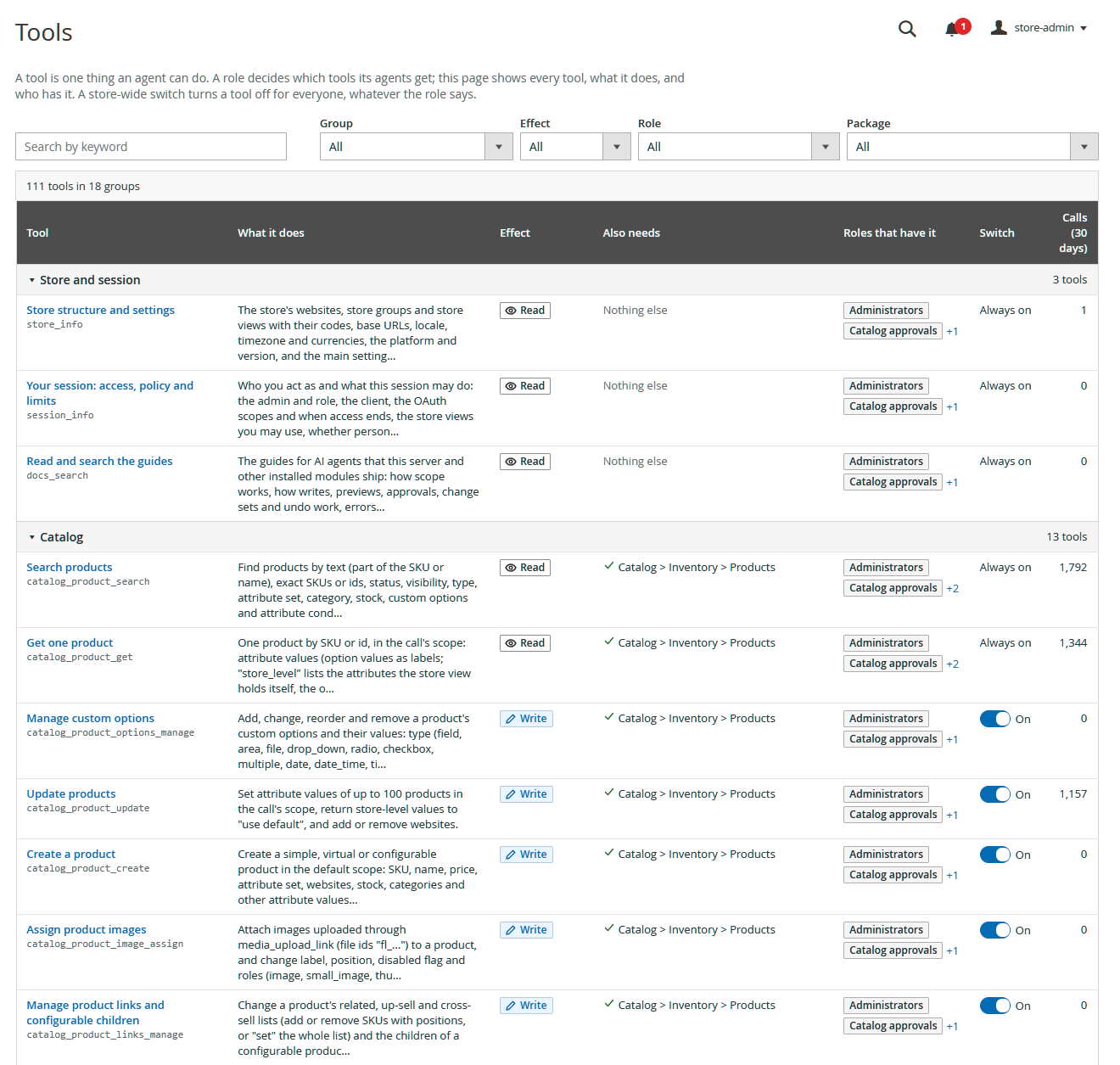
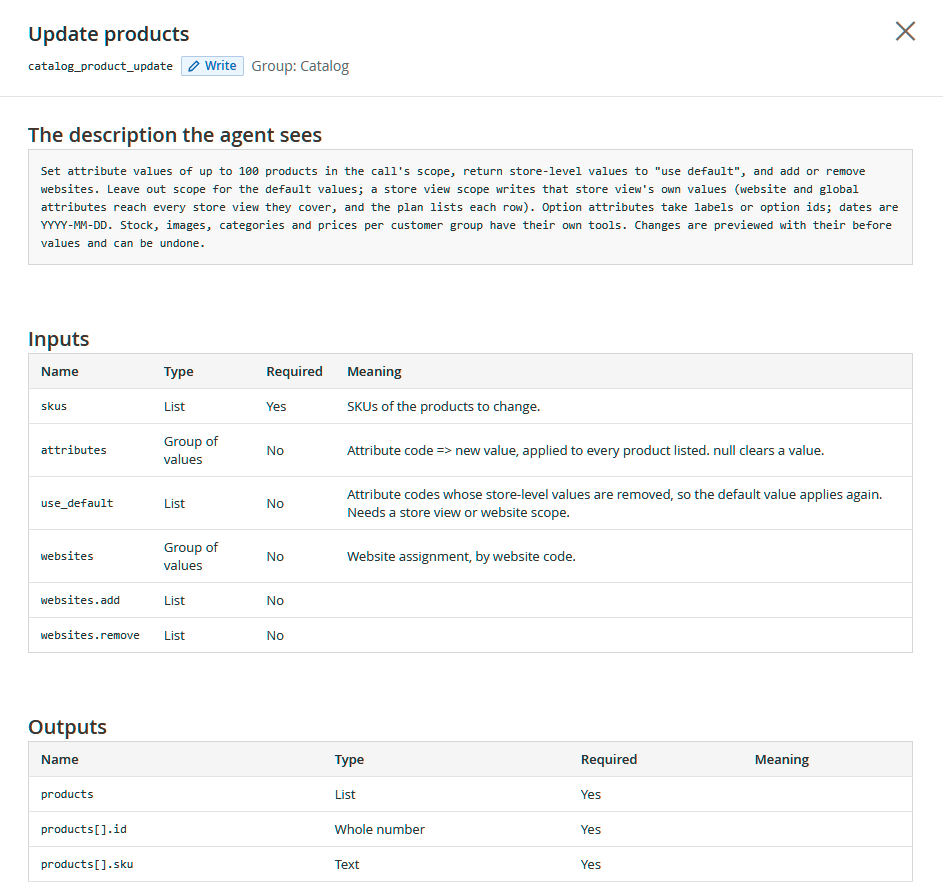
14.22 Resources and the agent guide
The guide agents read. The module ships a short guide written for agents: Start here, Scope and store views, Making changes, Change sets and bulk files, Reading data: pages, fields and size, Errors and what to do next, Safety rules, Uploading files, The playbook and prompts and Tool groups. An agent reads it with docs_search. Other installed modules can add pages of their own (section 21.2).
Resources. Apps that read MCP resources can read some data that way too. Each resource follows exactly the permissions, scope, masking and size cap of its tool, and the agent needs that tool to read it:
| Resource | Same as |
|---|---|
bce-mcp://store/structure | store_info |
bce-mcp://config/snapshot | config_get, masked |
bce-mcp://exceptions/recent | exception_triage |
bce-mcp://change-history/session | change_history_search |
bce-mcp://guide and bce-mcp://guide/ plus a page | docs_search |
bce-mcp://playbook and bce-mcp://playbook/ plus a section code | playbook_get |
15. Settings reference
Go to Stores > Configuration > Big Cart Energy > AI Agents, or Big Cart Energy > AI Agents > Settings. A link on another screen that names a settings group, such as Turn it on in Settings on the Overview or the links on a role's tab and in the Connect an AI client panel, opens that group. The section needs the permission Tools and settings. Every setting applies to the whole store: none can be set per website or store view. A role can tighten several of them for its own agents (section 7.2), never loosen them. A value outside its range is refused when you save, with the field and the reason, and nothing in that save is stored.
This chapter is the one place where each default and range is stated. Section 15.14 lists the limits that are not settings.
15.1 General
| Field | Default | What it does |
|---|---|---|
| Turn on the AI agent server | No | "While it is off, every address the server adds answers ‘not found’. The Overview and bin/magento bce:mcp:enable change the same switch." |
| Require HTTPS | Yes | "Sign-in details must never travel unencrypted. Turn this off only on a test store without HTTPS; the Overview then shows a warning and the self-test reports it." |
| External base address | Empty | "Leave it empty to publish each website's own base address. Set it only when clients reach the store through a proxy or CDN under another address, such as https://shop.example." |
| Server name shown to clients | Empty, which means the store's name | The name AI apps list this server under, up to 100 characters. The commands the Connect an AI client panel shows use a short form of it, or, while it is empty, the first part of the store's host name |
| First-run checklist | None | Who dismissed the checklist and when, and Show the checklist again |
15.2 Network
| Field | Default | What it does |
|---|---|---|
| Allowed addresses | Empty, which allows any address | One per row, up to 200: a single address or a range. "Only requests from these addresses reach the agent server." The approval page and upload links open in your own browser, so add your own address too. "The admin's own screens, these settings included, are never limited by this list." The field warns while you type when your current address is not on the list. With the list set, a sign-in started from a listed address goes on to the admin even without the admin's browser mark; a store whose admin runs on another host name than the agent address needs it (section 6.1). An app that runs on the internet calls from its own servers, so their addresses must be on the list too |
| Trusted proxies | Empty | "Your load balancer or CDN. The store believes the visitor address they pass on, and nobody else's." Up to 200 rows. Without it, every visitor behind one proxy shares that proxy's address and its per-address limits |
| Visitor address header | X-Forwarded-For | The header a trusted proxy passes the visitor's address in: X-Forwarded-For, CF-Connecting-IP, True-Client-IP or X-Real-IP. "Only read from the proxies above." |
| Allowed origins | Empty | Web pages that may call the server from a browser, one full address per row, such as https://claude.ai. "No origins added. Browser-based clients on other websites cannot call the agent server. Desktop apps and command-line clients are not affected." |
15.3 Sign-in
"Signing in sends the browser to this admin, so anyone who starts a sign-in learns the admin's address. If that matters, keep the allowed addresses and the registration limits tight." A browser without the admin's mark is shown Sign in to the store admin first instead, which names no admin address (section 6.1).
| Field | Default | Range | What it does |
|---|---|---|---|
| Access token lifetime (minutes) | 60 | 5 to 1,440 | "Clients renew their access token on their own when it runs out." |
| Refresh token lifetime (days) | 30 | 1 to 365 | "A client unused for this long must be approved again." |
| Sign-in code lifetime (minutes) | 10 | 1 to 60 | How long the one-time code from the consent screen stays valid |
| Approval page lifetime (minutes) | 10 | 1 to 60 | "A sign-in not approved within this time has to start again." The expired page names this number |
| Let clients register themselves | Yes | "Most AI clients register on their first sign-in. A client registered this way still needs an admin to approve it before it can connect." Switch it off once your clients are connected, and add further ones by hand | |
| Registrations per address an hour | 10 | 1 to 10,000 | Shown while self-registration is on. A range of IPv6 addresses that share their first 64 bits counts as one address |
| Registrations a day | 100 | 1 to 100,000 | "For the whole store." |
| Remove self-registered clients unused for (days) | 7 | 1 to 365 | |
| Accept clients that publish a metadata document | No | "Off as installed. While it is off, a client that only offers its published identity cannot sign in: set it to register automatically (in Claude, ‘Register automatically’). While it is on, the store's server reads the client's document from the client's address, for a sign-in started in a browser an admin of this store has signed in with." Claude with Use Claude's published identity cannot register while this is off (section 6.5, section 6.14). The store reads at most ten documents an hour for one address and for one admin, thirty a day for one admin and a hundred a day in all (section 18.10) | |
| Allow personal access tokens | No | "For scripts and clients that cannot sign in through the browser. Each token acts as one admin, within that admin's role." (section 6.4). A team's shared connector needs it (section 6.5). Switching it off also stops existing tokens until it is switched on again, and a change a token connection asked for cannot be approved meanwhile; nothing is revoked | |
| Longest personal access token (days) | 90 | 1 to 3,650 | "Bounds a new token, and each extension counted from the day it is made: not the whole life of a token that is extended. To cap that, set an access length on the admin's role (AI agent access tab of the role)." Shown while tokens are allowed (section 6.4) |
15.4 Safety
| Field | Default | Range | What it does |
|---|---|---|---|
| Store-wide write mode | Preview | Four cards: Read-only, Approval, Preview, Direct (section 3.2) | |
| Destructive tools always need approval | Yes | "Cancelling and refunding orders wait for a person, whatever the write mode." The expert tools' changes wait whatever this says | |
| Let an admin approve a change they asked for | No | "On: the admin whose AI connection asked for a held change may approve it too. Off: another admin must." Leave it off | |
| Mask personal data | Yes | "On: customers' names, emails, phones and addresses reach every agent masked, and no role can show them. Off: they are shown, and a role can still mask them on its AI agents tab." While on, no role can use sql_query, the GraphQL tools or log_read (section 7.7) | |
| Preview confirmation lifetime (minutes) | 5 | 1 to 60 | "How long an agent has to confirm a preview before it must ask again." |
| Approval requests expire after (hours) | 24 | 1 to 720 | An unanswered request expires, and nothing changes |
| Undo window (days) | 30 | 1 to 3,650 | "How long a change can be undone from the change history." |
| Unsubmitted change sets expire after (hours) | 24 | 1 to 720 | |
| Keep files agents deleted for (days) | 30 | 1 to 3,650 | "Deleted media files wait in a trash folder for this long and can be restored." |
| Run reads with a read-only database session | Yes | "A tool that tries to write while it reads or plans is refused. When a cache is kept in the database, reads run in a transaction that is rolled back instead, and a write to anything but the cache is still refused." |
15.5 Limits
"Per connection. A role can set lower limits on its AI agents tab, never higher ones."
| Field | Default | Range | What it does |
|---|---|---|---|
| Calls per minute | 60 | 1 to 100,000 | Tool calls of every kind |
| Changes per hour | 200 | 1 to 1,000,000 | Each call of a tool that changes something, whatever happens next: a change applied, a change filed for approval, a preview asked for and the call that confirms it (one each), an item staged into a change set, and each preparation call. A dry run does not count, and applying an approved change or a submitted set adds nothing |
| Rows read per hour | 50,000 | 1 to 100,000,000 | Records the tools return, and the records each dry run plans (at least one) |
| Largest answer (bytes) | 60,000 | 10,000 to 10,485,760 | "One tool answer as sent, everything included. Longer answers are cut and continue on the next page." A list continues on its next page; any other read larger than this comes as an outline whose parts read the rest (section 14.2), so no read is refused for its size and raising it is not needed to read large records. A lower value means more calls for a large record |
| Reports count as heavy above (days) | 92 | 1 to 3,650 | "A report over a longer period runs one at a time per connection." |
| Pause a connection after this many changes | 30 | 1 to 100,000 | Counted over the window below |
| Window for counting changes (minutes) | 2 | 1 to 1,440 | |
| Pause a connection after this many errors | 20 | 1 to 100,000 | Counted over the window below |
| Pause a connection after this many refusals | 20 | 1 to 100,000 | |
| Pause a connection after this many guardrail hits | 10 | 1 to 100,000 | |
| Window for errors, refusals and guardrail hits (minutes) | 5 | 1 to 1,440 |
A call over a limit is refused with the time to wait. Heavy calls run one at a time per connection: reports over the heavy limit, exception_triage, integrity_check, seo_audit_links, an indexer_manage reindex, changeset_submit, bulk_file_validate, and with the expert package sql_query and rest_bulk.
15.6 Guardrails
"Limits on what one change may do, for every role. Checked before the write mode applies."
| Field | Default | What it does |
|---|---|---|
| Store-wide guardrails | No limits | The guardrails editor of chapter 8, for every role. A role can only tighten them |
15.7 Tools
"Switch single tools on or off for everyone under AI Agents > Tools." (section 14.21)
| Field | Default | Range | What it does |
|---|---|---|---|
| Configuration settings agents may change | Empty | Up to 200 rows | "One path per row, or a pattern ending in * for a whole group. Empty: agents can read settings but change none. The AI Agents settings are never changed by an agent, whatever this list says." |
| Log files agents may read | system.log*, exception.log*, cron.log* | Up to 50 rows | "File-name patterns in var/log and var/report, such as exception.log*. Out of the box: core's general logs … The server's own log is never readable. Log text cannot be masked for names and addresses, so a role that masks personal data reads no log, whatever this list says." |
| Upload folders | wysiwyg | Up to 50 rows | "Folders inside pub/media that uploaded files may go to." |
| File types uploads may have | jpg, jpeg, png, gif, webp, pdf | Up to 20 types | "SVG, HTML and scripts are never accepted. WebP is accepted only where this store's image handling reads it." |
| Largest upload (MB) | 10 | 1 to 1,024 | "The upload page shows the lower of this and the server's PHP limits." |
| Upload link lifetime (minutes) | 30 | 1 to 1,440 | |
| Most rows in a bulk file | 5,000 | 1 to 1,000,000 | Also the most changes one change set may hold |
| Largest bulk file (MB) | 10 | 1 to 1,024 | |
| Keep uploaded files not yet used for (hours) | 24 | 1 to 720 | |
| Let agents fetch a file from a web address | No | "Off by default: fetching is a request from your server to another site. Only https addresses on the public internet are fetched." | |
| Let agents propose prompts | No | "A proposed prompt waits under AI Agents > Prompts until an admin with ‘Approve prompt drafts’ approves it." |
15.8 Expert
Shown only while bigcartenergy/module-mcp-expert is installed (section 14.19).
The group says: "A role that masks personal data gets no SQL or GraphQL tool, since their answers can carry personal data under any name, and the REST tools keep it away from routes about customers, orders and carts. Masking is on for the whole store by default, so no role can use the SQL and GraphQL tools until Mask personal data under Safety is set to No; then every role that keeps the store setting under Personal data, or chooses Show there, can use them." A masking role can use the REST tools on catalog, content and settings routes.
| Field | Default | Range | What it does |
|---|---|---|---|
| Read-only database user | None | The setup panel for the SQL tools (section 18.11) | |
| Tables the database tools may read | Every table, less the denied ones | Or Only the allowed tables, less the denied ones. "Credentials, sessions, payment data and this module's own tables are always closed." | |
| Allowed tables | Empty | Shown for the allowed list. "Table names without the store's table prefix; * matches any run of characters." | |
| Denied tables | Empty | "Closed to the database tools for every role. A copy of a closed core table is closed when its name holds the table's name or it keeps the table's own columns; deny any other backup copy here by pattern, for example *_bak." | |
| Denied columns for SQL | The built-in rows | "These columns are never returned by the expert database tool, for any role. Built-in rows cover passwords, keys and payment data and cannot be removed. Run the script above again after adding a column." | |
| Query time limit (seconds) | 30 | 1 to 300 | "The database stops a query that runs longer." |
| Most rows one query returns | 1,000 | 1 to 10,000 | |
| GraphQL query fields | *, every field | "Top-level query fields agents may ask for, as a guest of the storefront. A single * allows every field." | |
| GraphQL mutations | Empty | "Mutations agents may run, by name. Mutations that sign a customer in or create tokens are always refused." |
15.9 Rules for agents
| Field | Default | What it does |
|---|---|---|
| Rules for every agent | Empty | Short instructions sent to every agent, before its role's own (section 7.8). Up to 2,000 characters, with a count as you type |
15.10 Change History and activity
"Every change an agent makes is recorded in the change history; that cannot be switched off, because undo and approvals read it."
| Field | Default | Range | What it does |
|---|---|---|---|
| Keep change records for (days) | 90 | 0 to 36,500 | "0 keeps them for good." |
| Record reads of customers, orders and expert tools | No | "Each such read is added to the change history without its result." | |
| Activity log detail | Basic | Basic: one line per request, or Detailed: also the arguments, with secrets and personal data masked. No level stores answers | |
| Keep the activity log for (days) | 30 | 1 to 36,500 | |
| Keep usage figures for (days) | 90 | 1 to 36,500 | "The daily counts behind the charts and the Calls columns." |
15.11 Alerts
| Field | Default | What it does |
|---|---|---|
| Send alerts to | Empty | "Press Enter after each address. With no address here, no alert email is sent; the notices in the admin still appear." Up to 20 addresses |
| A new AI client connects | On | "When an admin approves a client that has not connected before." |
| A change is waiting for approval | On | "At most one email every 15 minutes, naming the newest change and how many others wait." |
| A connection is paused automatically or keeps hitting its limits | On | One switch for both emails. "The notice in the admin still appears." |
| An access token ends within 14 days | On | "One email per token and end date, so the token can be extended before everyone who uses it stops. The notice on the Overview and the Connections list still appears." |
| Send alerts from | General Contact | "One of the store's email senders (Stores > Configuration > General > Store Email Addresses)." |
| Email for a new AI client | The module's own | "The module's own email, or an edited copy made under Marketing > Email Templates." |
| Email for a change waiting for approval | The module's own | The same |
| Email for a connection paused automatically | The module's own | The same |
| Email for a connection that keeps hitting its limits | The module's own | The same |
| Email for an access token that ends soon | The module's own | The same |
15.12 Advanced
"Change these only when the self-test or support asks for it."
| Field | Default | Range | What it does |
|---|---|---|---|
| Change sets: seconds of work per cron run | 50 | 5 to 55 | "Where no queue consumer runs, the scheduled task applies large change sets this many seconds each minute." |
15.13 About
The last group lists the Big Cart Energy modules installed, each with its version and status: AI Agents, the expert package and the product-options add-on, Catalog Completeness, and the core module. When the expert package is missing, it shows Not installed, with Included in your license, a link to how to add it. The line below the list reads "AI Agents by Big Cart Energy", with License and updates, a link to the license and update terms, and our setup offer: "Want this set up for you? Talk to Big Cart Energy." The group checks neither for updates nor for a license, so it makes no call outside the store.
15.14 Limits that are not settings
These limits are built in. This table is their one home in this manual.
| What | Limit |
|---|---|
| Requests per connection | 300 a minute (not on the settings page; a request over it is answered "Too many requests on this connection") |
| Failed sign-in requests from one address | 20 a minute, then that address is answered "Too many failed requests" until the minute is over |
| Size of one request | 1 MB |
| Items per page of a list | 20 unless the tool says otherwise, at most 200 |
| Changes applied while you wait, before a change set moves to the background | 50, or 40 seconds |
| A change set without progress is picked up by cron after | 5 minutes |
| An approved expert change not applied by the scheduled task | Given up after 24 hours |
| Records an agent's undo puts back per call | 500 |
| Expired and data-changed requests stay on the Waiting tab for | 7 days |
| Rows approved or rejected at once from the Waiting tab | 50 |
| Prompt: title, description, text | 255, 1,000 and 8,000 characters |
| Prompt: inputs, needed tools, command | 10 inputs, 20 tools, a command of 3 to 64 characters |
| Prompt drafts from agents | 20 per connection, 100 in the store |
| Playbook section text | 4,000 characters |
| Playbook titles sent to an agent when it connects | 12 |
| Playbook proposals waiting | 20 per connection, 200 in the store; a reason of up to 500 characters |
| Rules for agents, store-wide and per role | 2,000 characters each |
| A role's longest access length | 1 to 365 days |
| Allowed addresses, trusted proxies, allowed origins, configuration paths | 200 rows each |
| Log file patterns, upload folders | 50 rows each |
| Upload file types | 20 |
| Alert recipients | 20 addresses |
| "A change is waiting" emails | At most one every 15 minutes, store-wide |
| "Keeps hitting its limits" emails | Once a connection was refused 3 times in the store's day; at most one an hour per connection |
| An access token's end announced | From 14 days before it: the notice on the Overview and the Connections list, and one email per token and end date |
| Extending an access token | A list of 7, 14, 30, 60, 90, 180 and 365 days from now, as far as allowed, and the longest end allowed |
| Alerts not sent in time | Dropped after a day. Sent, failed and dropped alerts are deleted 30 days after they were queued |
| A change record still pending after a crash | Marked as interrupted after 15 minutes |
| A self-registered client's name | 120 characters, a longer one cut with an ellipsis |
| Server name shown to clients | 100 characters |
| Self-test | Each check finishes within 5 seconds. Cron counts as running when one of the module's every-minute jobs ran within the last 10 minutes |
16. Self-test and troubleshooting
16.1 Running the self-test
The self-test checks, from the server itself, that AI apps can reach the store and sign in, and names the fix for each problem.
What you will need: the permission Tools and settings, or shell access for the command.
Steps
- Open Big Cart Energy > AI Agents > Self-test and choose Run self-test (Run again after the first run).
- While it runs, the screen says "Calling the agent address from the store's own server, as an AI client does." Each check runs in turn and shows Pass, Warning or Fail, with "To fix:" under anything that did not pass. Where the fix is a web-server line or a setting, the check shows it to copy.
- Copy report copies a plain-text summary, for example to send to your developer.
What success looks like: every check shows Pass, and the summary reads "Everything passed." with "The store's own requests reach the agent address and can sign in. Below is what this test cannot see." With warnings only, the summary counts them, such as "1 check needs attention.", and says "The store's own requests reach the agent address and can sign in. Read the notes below, and what this test cannot see."; with a failure, "Until the failures are fixed, AI clients may not be able to sign in or work." The Overview shows the last run, and a failed check raises an admin notice while the server is on. A test store without HTTPS cannot pass check 9, and check 10 warns until the read-only database user is set up, which only the expert SQL tools need (chapter 5 shows such a run).
What the self-test cannot see. Under the checks, whatever the result, the screen says: "The self-test calls the agent address from the store's own server, so it cannot see a rule of your CDN or web application firewall that blocks or challenges callers from elsewhere. Hosted AI apps call the store from their own servers, not from your computer. If a hosted app cannot connect while these checks pass:" and gives the rule of section 6.14.
From the command line:
bin/magento bce:mcp:self-testIt prints each check with [pass], [warning] or [fail], its message and, when it did not pass, Fix: with the fix and any line to copy, then a summary line such as Summary: 11 passed, 1 warning, 2 failed. Add --check= and a check's code to run one check, or --json for the results as JSON. The command ends with exit code 1 when a check failed, and 0 otherwise, warnings included, so a deploy script can stop on it.
The self-test sends its requests only to the store's own addresses, never through a proxy and never following a redirect, and it runs only when an admin or the command line starts it. While the server is off, the checks that call the store say "Not checked while the AI agent server is switched off." instead of reporting a failure.
16.2 The checks
| Check | What it looks at | When it does not pass |
|---|---|---|
The module is on and scheduled tasks are running (server_and_cron) | The server's switch, and whether one of the module's every-minute cron jobs (bce_mcp_frequent, bce_mcp_send_alerts) ran in the last 10 minutes | The server is off ("Switch the server on with bin/magento bce:mcp:enable …"), cron never runs ("Add the store's cron to the server's schedule (bin/magento cron:install), then wait a minute."), or cron runs but not the module's group ("Run bin/magento cron:run for every group (no --group option), then wait a minute.") |
The agent address answers (endpoint) | A request to /mcp reaches the module | The check names what answered instead: not found, a password prompt, a redirect, a server error, something in front of the store (its fix is the CDN or firewall rule), a time-out of 5 seconds or a bad certificate (section 6.14) |
No other module uses the agent address (front_name) | Another module, the admin path or a store view coded mcp (while store codes are added to URLs) on /mcp | Remove the other module, change the admin path, or rename that store view under Stores > All Stores |
It asks for sign-in correctly (sign_in_challenge) | A request without sign-in gets the answer that tells apps where to sign in | Something in front of the store removes, replaces or shortens the WWW-Authenticate header, or points it at another address |
Discovery documents are reachable and not cached (discovery) | The discovery documents, at every address apps look for them, and that no cache keeps them | A rule blocks /.well-known/, a cache keeps the documents, or, for a store in a subfolder, the documents do not load at the host root (a warning) (section 6.14) |
The sign-in header reaches the store (authorization_header) | A request with a made-up token is refused as a wrong token, not as a missing one | "The web server removes the Authorization header before it reaches the store, so every client is treated as signed out." The fix shows the line for your web server |
Nothing is in the way (nothing_in_way) | A password prompt, a firewall or bot filter, or a cache answering /mcp | A password prompt: let /mcp and /.well-known/ through it. A firewall, bot filter or CDN: the rule of section 6.14. A page cache: "Exclude /mcp from the page cache or CDN." Its pass says that no password prompt, firewall rule or page cache turned away the store's own requests, and that it cannot see a rule for callers from elsewhere |
Published addresses match every website (published_urls) | Each website's base address against the address the module publishes for it | A wrong base address, a store code in the published path, or an External base address on another host |
HTTPS is in force (https) | HTTPS on the published addresses, Require HTTPS, the certificate, and that plain HTTP is redirected or refused | "Use an https secure base URL with Use Secure URLs on Storefront switched on (Stores > Configuration > General > Web), or set an https External base address." |
Read-only database user for the SQL tools (expert_sql_user, expert package only) | That the read-only user connects with a password of its own, has a time limit and reads only the open tables and columns | A warning while it is not set up ("The read-only database user is not set up yet: app/etc/env.php has no connection named bce_mcp_readonly."); a failure when the user can write or reach too much, or its password is a placeholder (section 18.11) |
Every part of the server is installed (installed_parts) | That every part of the module is present and registered, and every registered tool loads | A part is missing (fail), or a tool or maintenance task was left out (warning, with the reason). Run setup:upgrade and setup:di:compile again, then look at the Tools screen |
Large change sets have their queue (changeset_queue) | That the message queue for large change sets exists | "The queue … does not exist yet: Magento creates it during setup:upgrade, so each large change set waits five minutes and is then finished by the scheduled task." Run setup:upgrade. A store without Magento's database queue, or one whose queue cannot take the module's topic, passes: the scheduled task finishes large sets there |
Admin sessions stay within their size limit (admin_session_size) | Where admin sessions keep Magento's whole permission list under Max Session Size in Admin, how large a session is and how many more roles fit | A failure when a session is already over the limit ("every new admin sign-in is lost"); a warning when fewer than three more roles with their own permissions fit. The fix names a limit with room to grow, and gives the commands to set it. Also a failure when the last setup:upgrade left the module's deny rules unwritten: "The last setup:upgrade did not write the … deny rules of AI Agents for … roles: with them every admin session would hold about … bytes, more than the … bytes core writes. None of these roles gains an AI Agents permission …", with the fix "Raise Max Session Size in Admin (Stores > Configuration > Advanced > System > Security) to … bytes, then run bin/magento setup:upgrade again." (section 7.9). Where sessions do not keep the list, it passes: "Admin sessions here do not keep the access list, so roles and permissions do not count against the session size limit." |
Uploads fit the PHP limits (upload_limits) | PHP's upload_max_filesize and post_max_size against the upload and bulk file settings | Raise PHP's limits (the fix gives the lines), or lower Largest upload and Largest bulk file (section 15.7) |
The command's fix for the admin session size reads, with the size the check computed:
bin/magento config:set system/security/max_session_size_admin <size>
bin/magento cache:clean config
The module never changes that setting itself.
16.3 Notices and warnings
The notices in Magento's message bar and the dashboard widget are in section 12.5. The Overview also warns:
| Warning | What it means | What to do |
|---|---|---|
| "The server accepts connections from any address, and the role … is in Direct mode." | Any address can reach the server, and some changes apply without a preview or approval | Fill in Allowed addresses (section 15.2), or give the role a stricter write mode |
| "Some changes from AI agents apply without a preview or an approval." | The same, said to an admin who may open neither the settings nor the user roles | Tell an admin who may change them |
| "An access token ends within 14 days:" | Everyone who uses the token stops at once on its end date | Extend it from its connection, or plan a new token (section 6.4) |
| "‘Require HTTPS’ is off, so sign-in codes and access tokens may travel unencrypted." | The store accepts sign-in over plain HTTP | Turn it on in Settings before real apps connect |
| "The overview could not be loaded." | A figure could not be read. "Agents are not affected and nothing was changed. ‘Pause all agents’ still works." | Try again; if it keeps happening, run the self-test and read var/log/bce_mcp.log |
| "Some figures are hidden. Your role does not include ‘…’." | Your role lacks the permission of a figure or card the Overview leaves out. A screen your role cannot open shows Magento's own "Sorry, you need permissions to view this content." instead (section 7.9) | Ask an administrator to add it under System > User Roles (section 7.1) |
16.4 Common problems
The app connects, but lists no tools, or fewer than expected. Ask the agent for session_info, which lists what it may call. Then check, in this order: the role's tools on its AI agents tab, and the warning Agents with this role will not see …, which names each ticked tool that lacks a permission it relies on, with that permission; the tool's switch on the Tools screen; whether the role is Read-only, which hides every change tool; whether the role masks personal data, which hides log_read, sql_query and the GraphQL tools; whether the access approved on the consent screen covers the tool; and whether the app caps how many tools it shows (section 6.8) or reads the list only when a chat starts (section 6.13).
A tool the role holds is refused as not allowed. The role lacks a Magento permission the tool also needs, or one this call needs, such as Hold for holding an order. The refusal names it; tick it under Role Resources.
log_read, sql_query or a GraphQL tool is refused with not_allowed. The role masks personal data (section 7.7).
Every call answers "Paused". Agents are paused store-wide, or this connection was paused, by an admin or by the server. Look at the Overview and the connection (chapter 12).
The agent says a change is waiting, but Approvals is empty. You see only requests for tools your role could run. A line under the list says how many others exist. A change set is one row, titled with its name. The request may also have expired.
Approve is missing on a request. It expired, its data changed since, its connection ended, you asked for it yourself, or it was asked through an access token while access tokens are switched off (section 10.2).
An approved change stays "Approved, waiting for the scheduled task". Cron does not run the module's group. Start cron, or apply it with bin/magento bce:mcp:approvals:apply (section 10.6).
A change set stays at Applying. Large sets apply through Magento's message queue. If no consumer runs, cron picks the set up after 5 minutes. On a store that has not run setup:upgrade since the module was installed, the queue may not exist yet; the self-test's Large change sets have their queue says so. A developer can also apply the set from the command line (chapter 17).
Undo is refused with a conflict. Someone changed the record after the agent did. Use Undo only the unchanged fields, or edit the record by hand (section 11.4).
The agent keeps hitting a limit. It asks for too much too fast, or a heavy call of the same connection is still running. Ask for less at once, or raise the limit (section 15.5).
An answer comes back as an outline, or reading one record takes many calls. The record was larger than Largest answer. Nothing is lost: the agent reads the rest with the calls the outline lists (section 14.2). To make it quicker, ask for fewer fields, a smaller page or a narrower filter, or, for product options, use the arguments of section 14.20. Raising Largest answer is not needed.
A hosted app cannot connect, but the self-test passes. A CDN or web application firewall in front of the store blocks or challenges the app's servers, which the self-test cannot see. Look in its event log for /mcp, and add the rule of section 6.14.
Claude cannot register with the store. Claude says “Couldn't register with connector name's sign-in service. You can try again, or add an OAuth Client ID in the connector settings.” Choose Register automatically in Claude's dialog, or switch on Accept clients that publish a metadata document (section 6.5).
A token stopped working on its end date. A token's end holds for everyone who uses it. Extend a token before its end; once its end has passed, make a new one (section 6.4).
A change set stopped part way by itself. Its page says why: a change's outcome is unknown, or the role of the admin who asked, or the permission of the admin who approved or applied it, changed while it applied (section 10.7).
A change shows Outcome unknown. The module cannot tell whether the store kept it, so it never applies it again. Check its record in the store, and have the agent stage it again only if it is still needed (section 10.7).
A change failed with "The store was busy with another write to the same record". Another write held the same record. Nothing was changed, and applying it again is safe: in a change set, Apply the remaining takes it up; otherwise the agent can send it again (section 10.7).
A change succeeded with a warning that the store reported an error. The store saved the change, and a step after the save failed, such as the stock index or another module's check. The change stands and can be undone; look at the step the warning and var/log/bce_mcp.log name (section 10.7).
"Apply the remaining" is refused. The answer gives the reason, such as a set that is still stopping, or one you asked for yourself (section 10.5).
A read is refused with "may have been kept". The read-only guard caught a tool writing while it read (section 18.12).
An admin's agents stopped working. Every request checks the admin. Their account may be locked, their AI agent access switched off, their role may have lost Use AI agents, their password may have expired while Magento forces password changes, the connection may have ended, or its app may be disabled. Saving the admin as inactive, or with a new password, ends their connections for good (section 3.1). Activity says which.
No alert emails arrive. Check that Send alerts to holds an address and the alert's switch is on, and that the store sends email at all. bin/magento bce:mcp:status counts the alerts sent, queued, held back and failed over the last 7 days; a failed send keeps its reason.
bce:mcp:enable or bce:mcp:disable says the switch is fixed elsewhere. "The switch is fixed in app/etc/env.php or app/etc/config.php (system/default/bce_mcp/general/enabled); change it there." When another source, such as the environment variable CONFIG__DEFAULT__BCE_MCP__GENERAL__ENABLED, still wins, the command says so too.
A text with an emoji is refused. The store's database tables use 3-byte utf8, as many Magento 2.3 stores do, and cannot keep the character. A screen says so at the field: "This store’s database cannot keep" the character, "nor other emoji and rare symbols. Remove it and save again.", and nothing is saved. A setting is refused the same way when you save the configuration, an access token name on the command line too, and an agent's change is refused naming the field. Remove the character: only tables in utf8mb4 keep emoji. A role's own Rules for agents box is refused the same way when you save the role.
Where are the logs? The module writes errors to var/log/bce_mcp.log, each with a request ID. The Change History and the Activity screen are in the admin, and exception.log keeps Magento's own errors.
16.5 Error codes an agent may report
When a call fails, the agent gets an error code, a message, a hint and whether trying again can help. Agents usually explain these in plain words; the codes help when you look a problem up.
| Code | Means | What to do |
|---|---|---|
not_found | The record does not exist, or the agent may not see it | Check the identifier and the scope |
invalid_argument | The request was wrong | The agent fixes it and asks again |
conflict | The record changed, the value is taken, or an undo found later edits | Read the record again before deciding |
not_allowed | The role lacks a permission, which the error names, or masks personal data for a tool that cannot be masked | An administrator can grant it (section 7.1) |
scope_not_allowed | Outside the agent's store limit, or the change would reach store views outside it | Section 7.6 |
read_only | The role is Read-only | Use a role that may change things, if it should |
guardrail | A guardrail refused the change; the error names it and its limit | Change the request, or have an admin make the change (chapter 8) |
limit_exceeded | A limit was reached; the error says when to try again | Wait, or ask for less (section 15.5) |
paused | Agents, or this connection, are paused | Resume when ready (chapter 12) |
tool_disabled | The tool is switched off for the store | Switch it on under Tools, if it should be |
stale_plan | The data changed after the preview or the approval request | The agent asks for a fresh preview |
unavailable | Something the tool needs is not installed or not working; the message says what | Install or fix what it names |
internal_error | The tool failed unexpectedly; the message gives a reference such as req_… | Find the reference in var/log/bce_mcp.log |
Read these with care: a conflict that says "The store was busy with another write to the same record" changed nothing, and trying again is safe. An internal_error whose details say the outcome is unknown may have changed the store, in part or in whole: check the record before anyone sends the change again (section 10.7).
Two refusals happen before any tool runs. When the connection has ended, or its admin may no longer connect, the app is asked to sign in again. When the access approved on the consent screen does not cover a tool, the app is told which access it needs, and you can connect again with wider access if the role allows it.
17. Command-line reference
Run these from the Magento root, as the user that owns the Magento files. Each one ends with exit code 0 when it is done, and 1 when it refused or failed, with the reason.
| Command | Does |
|---|---|
bin/magento bce:mcp:status | The server at a glance: the switch, the pause, connections, admins allowed to connect, waiting approvals, approved changes still to apply, open change sets, the last self-test, the scheduled tasks and the alerts of the last 7 days. Changes nothing, and always ends with exit code 0. --json prints the figures as JSON |
bin/magento bce:mcp:self-test | Runs the self-test (section 16.1). --check= and a code runs one check; --json prints JSON. Exit code 1 when a check failed |
bin/magento bce:mcp:enable | Switches the server on. Prints "The AI agent server is on." and the next steps |
bin/magento bce:mcp:disable | Switches the server off: "every address it adds now answers 404." Connections are kept, and work again when it is switched back on |
bin/magento bce:mcp:pause | Pauses every tool call at once. Sign-in keeps working and nothing is revoked. --connection= and an ID pauses one connection |
bin/magento bce:mcp:resume | Ends the pause: "AI agent tool calls are running again." --connection= and an ID resumes one connection, which carries on within the same limits |
bin/magento bce:mcp:user:enable and a username | Lets the admin user connect AI agents. Warns when the account is inactive or locked, or the role lacks Use AI agents |
bin/magento bce:mcp:user:disable and a username | Stops the admin user from connecting AI agents, and revokes every connection of theirs, tokens included |
bin/magento bce:mcp:revoke | Revokes connections. "Give exactly one of --connection, --user or --all." What they changed stays, and stays in the Change History |
bin/magento bce:mcp:token:create | Creates an access token and prints it once (section 6.4). --user, --name and --expires are required |
bin/magento bce:mcp:clean | Runs the clean-up tasks that cron runs: expired tokens, links, files and old rows. --schedule=all, frequent or daily runs one schedule, --task= a single task by code (it can be given several times), --list lists the tasks |
bin/magento bce:mcp:purge-customer and a customer ID | Removes one customer's personal data from the Change History (section 11.7). Asks first; --dry-run only counts, and --yes skips the question, which a script without a terminal needs |
bin/magento bce:mcp:changeset:apply and a set's ID | Runs an approved or submitted change set to its end in this process, as the admin named by --user=: the fallback when the queue and cron do not run. --remaining applies only what is left of a partly applied set, each record checked first. --max-seconds= stops after that many seconds ("The set is still applying: run the command again to go on.") |
bin/magento bce:mcp:approvals:apply | Applies one approved change now: the one given by its apr_… reference, or the one that has waited longest. For approved expert changes on a store whose cron does not run (section 10.6). While agents are paused it applies nothing, fails nothing, and ends with exit code 1 |
bin/magento bce:mcp:expert:sql-grants | Expert package only. Prints the script that creates the read-only database user (section 18.11). --host= (required) names the host the store's web server connects to the database from; --password-stdin (required) reads the new user's password from standard input; --user= names the user (bce_mcp_readonly unless you say otherwise). Changes nothing |
Connection IDs start with con_, change set IDs with cs_ and approval references with apr_. All three appear in the admin, and connections in bce:mcp:status --json.
Creating an access token:
bin/magento bce:mcp:token:create --user=catalog.editor --name="nightly stock export" --expires=30 --scopes="mcp:read inventory:write" --stores=en_us| Option | Takes |
|---|---|
--user | The admin user the token acts as. The user must be allowed to connect agents |
--name | A name that says what uses the token, up to 120 characters. It is only a label: --user decides whom the token acts as |
--expires | A number of days, or a date as YYYY-MM-DD (the end of that day, UTC), within the store's maximum |
--scopes | The access, separated by spaces: mcp:read, mcp:write, or a group's :read and :write, such as catalog:read. Leave it out for everything the role allows |
--stores, --websites | Store view or website codes, separated by commas, to limit the token to them |
The groups for --scopes are store, catalog, sales, customer, content, config, inventory, promo, report, ops, diag, dev, changeset, playbook, seo and completeness, plus expert with the expert package and apo with the product-options add-on. A group's :write includes its :read, and mcp:write includes mcp:read.
Switching the server on or off on a store that sets it elsewhere. bce:mcp:enable and bce:mcp:disable refuse when app/etc/env.php or app/etc/config.php fixes the switch, and say so when another source, such as the environment variable CONFIG__DEFAULT__BCE_MCP__GENERAL__ENABLED, still wins, so they never report a state the server is not in.
18. Security guide
18.1 First: a dedicated low-privilege role
Before you connect any AI app, create a role for agent work and an admin user that is used only for it. Never connect an agent as a full-access administrator: a role with Resource Access set to All holds every tool and every Magento permission, and an agent acting through it can do whatever that administrator can.
- Create a role with only the tools the job needs. Start with Read-only, and loosen the write mode only when a job needs changes (section 7.5 builds three such roles step by step).
- Keep personal-data masking on, unless the job needs customers' details.
- Give the role a store limit if the job concerns some websites only, and an access length maximum, so no connection lasts longer than you intend.
- Create an admin user for agent work, give it that role, and allow only that user to connect agents.
Then go through section 18.9, the checklist for the store as a whole.
18.2 What each tool group can expose
Everything an agent reads goes to the AI app. This table says what each group can reveal, so you can grant only what a job needs.
| Group | What an agent can read | Personal data |
|---|---|---|
| Store and session | The store's structure and main settings | None |
| Catalog | Products, categories, attributes and their options | None, unless your product data holds some |
| Orders | Orders with their customers' names, emails, addresses and phone numbers, items, totals, comments, and the payment method's title and amounts. Never card data | Yes; masked for roles that mask personal data |
| Customers | Accounts, addresses, newsletter state and order summaries | Yes; masked for roles that mask it |
| Content | CMS pages and blocks | Only what your content holds, which is never masked |
| Configuration | Setting values, in the sections the role may open. Values Magento marks as sensitive or encrypted are masked | Store contact details, if you count those |
| Inventory and pricing | Stock, prices, special and tier prices, and cost | None, but cost is commercial data |
| Promotions | Cart price rules and coupon codes | None, but a coupon code is worth money |
| Reports | Sales figures, bestsellers, refunds, abandoned carts with their shoppers, and what shoppers searched for | Abandoned carts name the shopper, masked by role; search terms are as typed |
| Operations | Log files and error reports the role may read, media files, URL rewrites, installed packages, cron and queue state | Log text can hold names and addresses, which masking cannot recognise; a masking role reads no log |
| Diagnostics | Health figures, grouped errors, integrity problems, and security findings such as admin accounts unused for a long time | Admin usernames; error messages, except for masking roles |
| Developer | How the store's code is put together | None |
| Change sets and bulk files | Staged changes, the uploaded CSV, the connection's own change records | Whatever the changes hold |
| Playbook | Your playbook | Whatever you wrote in it |
| SEO audit, Catalog Completeness | Content problems and scores | None |
| Expert | REST: whatever the admin's API permissions allow, customers and orders included, with keys and stored payloads masked. GraphQL: what a storefront guest sees. SQL: every open table and column | Yes. Roles that mask personal data cannot use SQL or GraphQL at all, and reach only catalog, content and settings routes through REST |
| Product-options add-on | Option templates and product options | None |
18.3 Sign-in, two-factor and access tokens
Signing in is signing in to your admin. The consent screen is a page of your own admin, so the app never sees your admin password, and your store's password rules, lockout and two-factor sign-in all apply. With Magento's two-factor module on, you enter your code after your password, and then land on the consent screen of the sign-in you started. Two-factor sign-in has been tried on one test store only, and admins who sign in through Adobe's own identity service have not been tried.
A stranger learns nothing from starting a sign-in. A browser that does not carry the admin's mark gets Sign in to the store admin first, a page on the agent address that names no admin address, sets no cookie and stores nothing (section 6.1). The page does confirm that the server is on, as the discovery documents do.
The consent screen is tied to your browser. A sign-in can only be approved in the browser that started it, so a link someone forwards to you cannot be approved elsewhere. Where your admin runs on another address than the store, the store cannot check that, and asks you to tick I started this connection myself (section 6.2).
What the app holds. A short-lived access token and a refresh token, bound to your store's address. The store keeps only fingerprints of them, never the tokens themselves. The one-time sign-in code works once, and only for the app that asked for it. Each refresh replaces the refresh token, and a code used twice, or a refresh token used again after a few seconds' grace, ends the whole connection, which the store treats as a sign of theft.
Your password guards access changes. Turning an admin's AI agent access on or off and creating an access token ask for your own admin password, with Magento's usual lockout after failed tries.
A new password ends connections. When an admin is given a new password, or saved as inactive, through the admin or any module that uses Magento's user model, all of their connections and access tokens end, and the apps must be approved again. A password written straight into the database ends nothing, so after such a change revoke the connections yourself (section 3.1).
Access tokens skip the browser. A token works without the consent screen and without two-factor sign-in: whoever holds it acts as its admin user, within the access chosen for it. That is why tokens are off from install, always have an end date, and are shown only once. Treat one like a password, and revoke it when it is no longer needed (section 6.4). A token in a connector that a team shares lets everyone who may use that connector act as its admin user, and the store cannot tell them apart: keep that admin user's role narrow, and keep the list of who may use the connector, in the team's Claude account, short (section 6.18).
Extending a token asks for no password. An extension shows no secret, makes none and widens no access, and the same permission can already pause, resume, end and change the end of any connection. Each extension is recorded with who made it (section 6.4).
18.4 What the safeguards do, and what they do not cover
| Safeguard | What it does | What it does not cover |
|---|---|---|
| Roles and tool permissions | An agent can use only the tools its role grants, and only with the Magento permissions each tool needs | It does not judge whether a granted action is wise |
| Write modes | Read-only blocks changes, Approval holds each one for a person, Preview makes the agent confirm the exact change | A preview appears in the app: the store cannot see whether the agent showed it to you, and an app that is not on your side can confirm its own preview. Direct applies at once |
| Destructive tools always need approval | Order cancellations and refunds wait for a person in every mode; every change through the expert tools waits whatever this switch says | Invoices, shipments, comments, emails and coupons cannot be undone either, but follow the role's write mode |
| Guardrails | Limit which attributes change, how far prices move (tier prices included), refund sizes, records per change, order actions and settings | They do not check the expert REST and GraphQL tools' changes. A limit per change can be met by several smaller changes |
| Store limits | Keep an agent to some websites or store views | Nothing further to note |
| Personal data masking | Masks customers' details in every answer and plan, and keeps the tools that cannot be masked away from masking roles | Masking goes by field name. Text inside your content is not masked. The Change History keeps changed values. What an app read before you switched masking on has already gone to it |
| Change History and undo | Record every change before it runs, and put most back | Irreversible and destructive actions; emails and money that have left the store; changes older than the undo window; fields someone edited since |
| Limits and automatic pause | Slow a runaway agent, and stop one that keeps making changes, errors or guardrail hits | They count, they do not judge content. If the store cannot read its own counters, it lets requests through rather than stop the server, and logs an error |
| Read-only database session for reads | Refuses a tool that tries to write while it only reads or plans | Where a cache is kept in the database, reads run in a transaction that is rolled back instead; a read that opens a second database connection is logged, not refused. It is a second line behind the tools' own limits, not a promise that no code can write |
| Store text marked as data | Helps the app treat product text, comments and addresses as data, not instructions | It cannot guarantee that a model never follows text it reads |
| Rules for agents and the playbook | Tell a careful agent what you want | They are advice, not enforcement |
| Consent screen | Shows what you are approving, and where the sign-in code goes | An app's name is its own claim; the address is what the store checks |
| Pause | Stops every tool call at once | Apps keep their sign-in while paused, so pausing never ends a connection. Revoke to end one |
What the read-only guard proves, and where it cannot, is in section 18.12.
18.5 What leaves the store
What agents read goes to the AI app. That is how the module works: the app sends your question to its company's AI service, under your subscription's terms, along with what the tools return. Choose roles and masking with that in mind.
The module itself sends nothing by itself, with these exceptions, each one listed:
- Alert emails, through the store's own email setup, to the addresses you list (section 12.4).
- The sign-in code, to the app's address shown on the consent screen, after you choose Approve.
- An app's metadata document, fetched from the app's address only while Accept clients that publish a metadata document is on. Off from install.
- A file from a web address, fetched only while Let agents fetch a file from a web address is on, and only from public
httpsaddresses, with no redirects and a size cap. Off from install. - The self-test, which calls the store's own addresses, only when an admin or the command line runs it.
- Calls to the payment provider for an online invoice, refund or cancellation, made by the store's own payment module exactly as the admin's buttons make them.
There is no license check, no update check, no usage reporting and no call to any AI company. The release and security data that upgrade readiness compares against ships inside the module, dated. The discovery documents are public by design and hold no secrets.
18.6 What the module does not do
- It never deletes a product, a customer or an order. Undo of a product, page, block or cart price rule an agent created disables it instead.
- It never sets or reads a password, and never returns card data, keys or secret settings.
- It never acts without an admin: every call runs as a named admin user, with that user's role.
- No tool of the module changes its own settings, a role or a permission, and the configuration tool can never write the AI Agents settings.
- It does not store the password of the SQL tools' database user. That stays in
app/etc/env.php. - It does not record the questions you type into your app, only the tool calls the agent makes.
- It adds no chat to the admin, and serves no shoppers.
18.7 When something goes wrong
If an agent did something it should not have, or you are not sure what it did:
- Pause all agents on the Overview, or run
bin/magento bce:mcp:pause. Every tool call stops at once, and nothing is revoked (section 12.1). - Find out what happened. On the Change History screen, filter by the connection, the admin user or the time. On Activity, look at the requests and sign-in events. A connection's detail shows its recent calls, changes and sign-in history.
- Undo what can be undone, record by record or a whole change set at once (section 11.3). Handle what cannot be undone in Magento itself, as you would after a person's mistake: a credit memo for a wrong invoice, a note to a customer who got the wrong email.
- End access. Revoke the connection. Disable the app under Clients if it should not connect again. Switch off the admin user's AI agent access, and revoke its access tokens.
- If an admin account may be compromised, save it as inactive in Magento, or give it a new password: either ends all of its connections and access tokens at once. Then check two-factor sign-in.
- Tighten the role's tools, write mode, guardrails, limits and store limit, and the allowed addresses.
- Keep the record. Export the Change History and the activity log before their retention removes old rows (section 11.7).
- Resume when you are ready.
18.8 How the server protects your store
What follows is what the code does for you without any setting. It is why the defaults are safe to start from, not a reason to skip section 18.9.
At the door
- The agent address runs in its own part of Magento, with a fixed list of routes. Nothing else answers there, and the only cookies it reads are the admin's two browser marks, signed by the store, so there is nothing for a forged cross-site request to ride on.
- The server switch, the address list, the trusted proxies and their header, Require HTTPS and the allowed origins are read from the saved settings and from the configuration cache, and the stricter of the two wins: an old cache cannot open a gate that a saved setting closed.
- The visitor's address is taken from a forwarding header only when the request comes from a trusted proxy.
- Request size, nesting and batches are limited before any work is done for a stranger, and an address that keeps failing to sign in is held back.
At sign-in
- Tokens, codes and client secrets are stored as fingerprints and compared in constant time: nothing in a table, a log, an email or a change record can be replayed as a credential.
- Sign-in uses the protected code exchange that hosted apps use (PKCE, S256 only), exact matching of where a code may go, codes that work once, refresh tokens that are replaced at each use, and tokens bound to your store's address.
- The consent screen is an admin page behind the admin session and its form key, tied to one stored sign-in request and to the browser that started it.
- Every request checks the admin behind the token again: active, allowed to connect, role still holding Use AI agents. A disabled app's tokens are refused until it is enabled again, and every token has an end date.
At every tool call
- The call passes the role's stored permission for the tool, read so that anything unreadable counts as "no"; then the scope and the store limit; then the input schema, which refuses unknown and malformed arguments; all before the tool sees an argument.
- Role settings can only narrow what the store allows. A low-privilege admin cannot give themselves more through the role tab: saving it needs Magento's own permission to manage roles.
- Limits are counted per connection before any work is done for the call, and a new connection needs an admin's consent, so an app cannot multiply its own limits.
When something changes
- A write mode that cannot be read counts as Read-only.
- An approval is tied to the stored request and to the plan as you saw it. When the change is applied, the approver's and the asker's permissions are checked again, the plan is rebuilt and compared, and one approval runs once.
- A preview's confirmation code works once, for that connection, tool, request and plan.
- A change set takes the strictest write mode of its changes, and guardrails run again for approved changes and for each change of a set.
- Twelve typed write tools whose every step is a database row (the catalog tools other than product creation and images,
pricing_update, the page and block tools,promo_rule_save,url_rewrite_manageandsales_order_hold) run each call in one database transaction, so a call that fails leaves nothing half done: "The change could not be saved, so nothing of it was kept." When the database saved a call but a step the store runs after saving then failed, such as another module's indexer, the change stands and the answer says so, with a reference to look into it. A tool that cannot roll back, such as one that stores a file, records what it kept so that undo can take it back. - Undo reaches only the connection's own change records, needs the permission of the tool that made the change, keeps to the store limit, never runs under a looser rule than the original, and never touches a record that held a secret.
- Reads run in a read-only database session; a read or a plan that tries to write is refused.
Against injected text and files
- Store text reaches the agent marked as data. Queries bind their values and take column names from fixed lists. No tool argument reaches a class name, an unserialize or an eval-like call.
- Uploads are checked by their content, never overwrite a file, and accept no markup or script. Media and log paths stay inside their folders. The web-address fetcher refuses private, loopback and cloud metadata addresses, pins the address it checked, and follows no redirect.
- Admin screens and the consent page escape every text that comes from an app or the store, and the module's CSV exports neutralise spreadsheet formulas.
- Page cursors are signed with your store's key and tied to the tool, the connection and the request, so an agent cannot forge one.
In the expert tools
- A REST call runs with exactly the admin's own Magento permissions, for that one call, through Magento's own REST handling. On top, the module refuses token, password, customer-account, guest, credit memo and whole-order routes, bulk operation records, integrations, admin accounts and access settings; masks keys, codes and stored payloads in every answer and refuses filters on them; and keeps a role that masks personal data away from routes about people.
- GraphQL runs as a storefront guest, one operation per document, mutations only from your allowed list.
- SQL accepts a single read statement, refuses a list of write, file, lock and timing constructs, quoted or not, and views, runs in a read-only transaction with a time limit, and refuses to run at all unless the database's own grants show a user that can only read the open tables and columns. A user made with an older version of the script is refused until it is made again.
18.9 What you must do yourself
The module cannot do these for you. Go through them before the first connection, and again after any change of hosting.
- Serve the store over HTTPS only, keep Require HTTPS on, and keep the origin server private: the edge in front of it must strip forwarded headers that come from outside, and only that edge is listed under Trusted proxies.
- Limit who can reach the agent address: fill in Allowed addresses, add a firewall rule, or both. With an empty list the server answers the whole internet. A rule that lets a hosted app through your CDN or firewall (section 6.14) skips its protections for the agent address and, if needed, the sign-in documents only; the module's own sign-in still guards every request to them. If your admin runs on another host name than the agent address, the list is required for anyone to connect (section 6.1).
- Switch self-registration off once your apps are connected, and add further clients by hand. While it is off, a person who has not connected yet cannot use Claude's Register automatically (section 6.5).
- Give each agent its own admin user in a narrow role: only the tools it needs, a store limit where that fits, and no log, configuration, developer or expert tool by habit. The module never grants more than the role's Magento permissions, so the role is the boundary. An admin user behind a team's shared connector acts for everyone who may use that connector (section 6.18).
- Put anything that matters under Approval. Preview stops mistakes, not an app that is not on your side. Leave Let an admin approve a change they asked for off.
- Treat guardrails as limits on the typed tools. They do not check the expert REST and GraphQL tools, whose changes always wait for a person instead.
- Leave the expert write tools off unless a task needs them, and switch them off again afterwards.
- For the SQL tool, create its own read-only database user with the module's script, a strong password of your own and a narrow host, never the store's main database user, and keep the database port closed to the outside (section 18.11).
- Give the SQL tool only to a role that may see all store data: it reads every table that is not denied, whatever else the role may do.
- Remember that the agent reads store text. It arrives marked as data, but do not let an agent with wide rights work through content that suppliers, imports or junior editors control without Approval.
- Know that an upload link works for whoever holds it, the agent included. Asking for one follows the role's write mode and store limit; give the tool only where an agent may add files to the media library.
- Read a playbook or prompt proposal as an instruction to every agent that will see it, before you accept it.
- Keep debug logging of payment and shipping modules off in production, and give the log tool to few roles: what those modules write to a log can reach an agent.
- Decide how long change records are kept (section 15.10). Their before and after values hold record data, personal data included, and so do database backups: protect and expire backups accordingly.
- Never approve a connection you did not start yourself, and read the consent screen: the app's name on it is the app's own claim.
- Review the Connections and Activity screens, end connections that are not in use, and keep token lifetimes short. A new password set through the admin ends an admin's connections; one written straight into the database does not, so revoke them yourself then.
- Test on staging first, with a copy of the data and a backup, and remove the module with the removal that deletes its data when it is no longer wanted (chapter 20).
18.10 Known security limits
- Guardrails do not see expert writes. Changes through
rest_call,rest_bulkandgraphql_writeare held to the admin's Magento permissions and always wait for a person, but no attribute, price or records guardrail checks them. - Preview is not a security boundary. The before-and-after appears in the app, and the app sends the confirmation. A careless agent is caught by it; an app that is not on your side can confirm its own preview. Use Approval where a person must decide.
- Masking goes by field name. A field a third-party module stores under another name is not masked. Log text and SQL answers are masked by best effort only, which is why masking roles read no log and get no SQL.
- Network addresses are stored in clear in the activity log, the sign-in events, the client and connection records, and the new-connection email.
- Change records keep record data, personal data included, for as long as you keep them.
- Require HTTPS holds only behind a private origin: if the origin server is reachable directly and does not strip forwarded headers, a request can claim to be secure.
- Without trusted proxies, everyone behind one proxy shares its per-address limits.
- The content tools have the editor's power, Magento's content directives included, and the URL rewrite tool can redirect to an outside address, as the admin's own screens can.
- The order comment tool can email the customer. Put it under Approval if that matters.
- Preparation tools run without approval in every mode but Read-only. They write only the module's own records: change sets, proposals and bulk-file links.
- The admin's mark lives 8 hours after the admin's last admin page. A sign-out, a new password, the account made inactive or the role losing Use AI agents ends it, copies included. Whoever holds a browser with a live mark learns the admin's address from a sign-in, nothing more. The page a stranger gets confirms that the server is on.
- The discovery documents are storefront pages, so, like every storefront page, they set the storefront's session cookie.
- With Accept clients that publish a metadata document on, the browser of an admin who may use AI agents can make the store fetch a document. The store reads a client's document only for a sign-in started in a browser that carries such an admin's mark, so for 8 hours after that admin's last admin page, or from an address on the allowed list: public
httpsaddresses only, at most 64 KB, within 5 seconds, no redirects. It reads at most ten documents an hour for one address and for one admin, thirty a day for one admin and a hundred a day for the store; a day used up stops document sign-ins until the next. The host asked sees your server's outbound address. A stranger's sign-in start gets Sign in to the store admin first, and the store makes no request. A document client can change its own name and redirect addresses whenever its kept copy runs out (5 minutes to a day), so read the consent screen each time. A document client that no admin approved is removed once its sign-in is over. Keep the setting off unless an app you use needs it. - A failed GraphQL document is logged by Magento, query text included, to
exception.log. - The database user's host may be a wide pattern. The script refuses a host made only of wildcards, such as
%, but accepts any pattern with one letter or digit in it: choose the narrowest host that works. - An account change written straight into the database ends no connection. A new password or an inactive flag saved through Magento's user model ends them; one written by SQL does not. An admin made inactive that way is still refused while the account stays inactive.
- Marking store text as data cannot guarantee that a model never follows text it reads.
18.11 The read-only database user for the SQL tools
What you will need
- The expert package installed (section 4.1), and the SQL tools switched on under Big Cart Energy > AI Agents > Tools.
- MySQL 5.7.8 or later, or MariaDB 10.1.3 or later: no script is made for older servers.
- Someone who can run SQL as a database administrator.
- The host the store's web server connects to the database from, such as
localhost. - A password of the user's own: at least 16 characters, letters, digits and punctuation, without spaces, quotes, backslashes or backticks.
Steps
-
Create the user. Either copy the script from the panel Set up the read-only database user under Stores > Configuration > Big Cart Energy > AI Agents > Expert, where you must replace the markers
<password>and<host>before it runs ("Until both are replaced, the script stops with an error."), or print it ready to run on the server:bashprintf '%s' "$PASSWORD" | bin/magento bce:mcp:expert:sql-grants --host=localhost --password-stdin > readonly-user.sql--hostis required, and a host made only of wildcards, such as%, is refused.--password-stdinis required: the password comes on standard input, so it never stands in the command line or the shell history.--usernames the user,bce_mcp_readonlyunless you say otherwise. The script is generated from your database as it is now, grantsSELECTon the open tables and columns only, and changes nothing by itself. Have your database administrator run it. Run it again after an extension adds tables, after the table or column settings change, and after an update of the module: a newer version can close more tables and columns, and the SQL tools then refuse the old user until it is made again, saying "The read-only database user can do more than read the tables and columns open to SQL, so the SQL tools do not run" with the reason. -
Add the connection to
app/etc/env.php, inside'db' => ['connection' => [ ... ]], next to the store's own connection. The panel shows the block:php'bce_mcp_readonly' => [ 'host' => '(the same host as the default connection, or a read replica)', 'dbname' => 'magento', 'username' => 'bce_mcp_readonly', 'password' => '(the password chosen in step 1)', 'active' => '1', ],"A read replica is best, so heavy queries do not slow the store. The main database also works." The store never keeps this password anywhere else.
-
Choose Test connection in the panel. "The store connects as this user, checks what it may do, and refuses a user that can change data."
What success looks like: "It works, and it is read-only.", and the self-test check Read-only database user for the SQL tools passes.
When it goes wrong
- "The read-only database user is not set up yet: app/etc/env.php has no connection named bce_mcp_readonly." Step 2 is missing.
- "The store refuses to use this connection." with a reason: the user can write, can read more than the open tables, or its password is empty or one of the placeholders. Run the script again, or narrow the user's grants. A user made before an update of the module is refused the same way when the new version closes more ("the user may read the denied column …"): make it again with the new script.
- The command refuses the host or the password. "A host made only of wildcards lets the user sign in from any address", or the password is too short or holds a character the script cannot quote. Its message says which.
- No script for your server. Your MySQL or MariaDB version is older than the script supports.
18.12 The read-only guard
While Run reads with a read-only database session is on, as installed (section 15.4), every read tool, and every plan of a change, runs under the module's read-only guard. It is a second line behind the tools' own limits: no agent tool sends a statement of the agent's choosing to the database, except the expert sql_query, which accepts only SELECT and WITH, refuses every comment form, and reads through a database user of its own (section 18.11). The statements the guard watches can only come from code installed in the store. It is there for tools that are wrong about themselves, and its answer can be wrong about code that is not.
What it does.
- It holds a read in a read-only database session and a read-only transaction (where it must, in a transaction it takes back), and reads the statements the read sends.
- It fails closed on what it cannot read: a statement with an executable comment (
/*! */,/*M! */), a second statement after a semicolon, or an unterminated quote or comment counts as a write that cannot be undone. - It tells the agent "The tool tried to write during a read. Nothing was changed." only where it can prove it: the database refused the write in the read-only transaction, or the transaction it rolled back took the write back. That holds when every table the store's database user can see has transactions, or when every table the write names was found, read in full (up to 16 tables and 4,000 characters), has transactions and no trigger, the read did not change its default database, and it called no stored function.
- Where it cannot prove that, it says so: "The tool tried to write during a read, and the guard cannot prove that the database undid the write, so it may have been kept." It refuses a read as one whose writes may have been kept too when its hold did not last to the end: the session set back to read-write, a server-wide setting,
PREPARE,EXECUTE,CALL, a file written by the database server, the transaction ended, or the guard's savepoint named. - It sets back what a read changes in its database session: its default database, autocommit, table locks, a named lock it took and kept in a statement the guard sees (named by a literal or a bound value), and these settings: the character sets and collation, time zone, SQL mode, isolation level, access mode, foreign and unique checks, select limit, statement time limit, lock wait and auto-increment step. It refuses the read when one of these cannot be set back, and when the read released a named lock in a statement the guard sees (the request may have held it), took one the guard cannot name, or changed autocommit inside the caller's transaction: "The read changed its database session in a way the guard could not set back (a lock it took or released, a session setting, its autocommit or its default database), so later writes of this request may fail or be lost."
What it does not promise.
- Its proof covers the tables the store's database user can see. A view, trigger or routine whose definer is another account can write a table the store's user cannot see, and a MariaDB sequence is not rolled back. There the guard can say that nothing was changed when something was.
- On MySQL, which compares savepoint names without regard to accents, a read inside a transaction of the caller that sets a savepoint under the guard's name, spelled with an accented letter, moves the guard's savepoint unseen. The guard can then say that nothing was changed while what the read wrote before that stays in the caller's transaction.
- A read that puts its session in a state the guard cannot read back, such as a select limit of 0 or a UTF-16 result character set, is refused, but the guard cannot set back what it cannot read: the change lasts for the rest of the request, or of the process in the queue consumer and cron, and what later reads of that process change in their session may then be neither set back nor refused.
- Every other session setting a read changes is neither set back nor refused, and lasts for the rest of the request, or of the process in the queue consumer and cron; so does a temporary table a read left under a real table's name. Such a change can make later writes of the request fail, or be lost or written wrongly.
- Code can open a database connection of its own. A read that opens one the guard did not hold is logged, not refused.
- Inside a transaction (on a store that keeps its cache in the database, or for a read called inside another transaction), the statements a stored function runs are not seen, and a write it makes to a table without transactions is not taken back. Where the session can see such a table, a read whose recorded statements call a stored function is refused as one whose writes may have been kept. The guard reads the list of stored functions in the session as the read left it, so after a read that first set a small select limit or a UTF-16 result character set, it can miss such a call and answer the read, or refuse it as one that changed nothing or only its session, while such a write is kept. A call inside a
SELECTis recorded only where the store profiles its statements, so otherwise such a write is kept and not reported. - Unless the store profiles its own statements, the guard does not see a second statement after a
SELECT(Magento switches stacked statements off), aSELECT … INTO OUTFILE(it needs the database's FILE privilege, which a store's database user should not have), or a named lock taken or released in aSELECT(GET_LOCK,RELEASE_LOCK,RELEASE_ALL_LOCKS): a lock taken so outlives the read, and one the request held is lost.
None of these limits can be reached by an agent through the module's tools: each needs code installed in the store.
When you see "may have been kept". The agent gets the refusal with the hint "This is a fault in the tool, not in the request: tell the store's developer. The AI agent log names the statement; check the table it writes." The call's line on the Activity screen shows the refusal, the Change History keeps an entry for the read with the result Error and the same sentence, and var/log/bce_mcp.log has the line "a tool wrote during a read and the guard cannot prove the write was undone; check the table it writes", with the statement and the tool. The Change History entry records an event, not a change, so there is nothing in it to undo.
- Look in
var/log/bce_mcp.logfor that line and its statement, and check, in the store, the table the statement writes: whether a row changed, and whether that matters. - Tell your developer which tool it was. A tool of another module can be switched off for every role under Big Cart Energy > AI Agents > Tools until it is fixed; a read tool of the module itself can be unticked on the roles that have it (section 14.21).
When the refusal names no write, only that the read's transaction ended or its session was set back to read-write, the hint is "An admin can look at the AI agent log. After a deadlock or a lost connection the read can be run again; anything else is a fault in the tool."
19. Questions, known limits and what's new
19.1 Questions merchants ask
Does it send my data anywhere? Not by itself. What an agent reads goes to the AI app that asked for it, under your subscription with that app's company: that is how the module works. Apart from that, the store sends only alert emails, the sign-in code, and two fetches you would have to switch on yourself. Section 18.5 lists every one.
Where are the logs? Errors go to var/log/bce_mcp.log, each with a request ID. Every change is in the Change History and every request on the Activity screen, both in the admin. Magento's own errors stay in exception.log, as before.
Can I export the Change History? Yes. The Change History, Activity and Approvals screens export to CSV, with the filters you chose (section 11.7).
How big can an answer be? One answer is capped by Largest answer (section 15.5). Lists come a page at a time (section 15.14), and a larger record comes as an outline whose parts the agent reads in further calls, so no read is refused for its size (section 14.2).
What are the rate limits? Per connection: calls per minute, changes per hour and rows read per hour, which you set store-wide and a role can lower (section 15.5), plus a fixed cap on requests per minute (section 15.14). A call over a limit is refused with the time to wait.
What does removing the module leave behind? Admin roles, including the recommended ones, and the files agents put in your media library. Everything else goes, its log file included (chapter 20).
What happens on a multi-store install? Every tool works in a scope you name: a store view, a website or the default (section 7.6). A role or token can keep an agent to some websites or store views. Each domain publishes its own sign-in addresses, and the self-test checks them for every website (section 6.14).
What happens when my admin user is deactivated? Saving the user as inactive ends every connection and access token of theirs for good, and making the user active again brings none back: the apps must be approved again. A new password does the same. A locked account only pauses its agents until the lock ends. Deleting the admin user removes its connections and tokens with it (section 3.1).
Can an agent approve its own change? No. Agents have no tool for approvals, and the admin user an agent acts as cannot approve that agent's requests unless you switch on Let an admin approve a change they asked for: another admin must.
Can an agent see card numbers or passwords? No. Payment card data, passwords, password hashes, reset tokens, keys and secret settings never leave the server (section 7.7).
Why can no role read logs, or use the SQL and GraphQL tools? Personal-data masking is on for the whole store from install, and those tools' answers cannot be masked by field. Switch masking off for a trusted role to give it those tools (section 7.7).
Can an agent charge a customer or move money? Only through the order tools your role grants: an online invoice charges the customer through the payment provider, an online refund sends money back the same way, and a cancellation voids an open authorization, as the admin's own buttons do. Invoices and refunds are offline unless the agent asks otherwise, and refunds and cancellations wait for a person while Destructive tools always need approval is on, as it is from install. No typed tool places an order (section 14.5).
Can I connect more than one app? Yes. Each app is its own connection, with its own access and end date, and each admin user can connect several.
Can my team share Claude without each person signing in to Magento? Yes. Make one admin user per agent profile, each with its own role, and one shared connector per profile in the team's Claude account, carrying that admin user's access token. Everyone who uses a connector acts as its admin user, and the team's Claude account decides who may use which (section 6.5). Section 6.18 says what the store can and cannot tell apart then.
What happens when a shared token reaches its end date? Everyone who uses it stops at once. From 14 days before, the Overview and the Connections screen say so, and an admin who may manage the token can give it a later end without any change in the AI app (section 6.4).
Does it slow my store down? Storefront pages are not changed: the module only adds a small router that answers its own discovery addresses. Agent requests run like admin work, within the limits you set, and heavy calls run one at a time per connection.
Is it safe to install on production? Install it on staging first. It is installed switched off, and nothing connects until you allow it (section 2.4).
What happens when my year of updates ends? Nothing changes in your store. The versions released within your update year keep working, for good. Versions released after it need a renewal, in your account on bigcartenergy.com (section 2.5).
Can I get a refund? Yes, in full, if you ask within 30 days of your purchase date. Ask by email at hello@bigcartenergy.com: we confirm by email with the address on your order before we refund, and make no refund on a call or a letter alone. A refunded license ends with the refund: from then on the module may no longer be used or downloaded (section 2.5).
Is the product-options add-on included? No. It is a separate purchase, with its own license and update year, for a store that has AI Agents. The expert tools are part of AI Agents (section 2.3).
Can I use it without HTTPS? On a test store only, with Require HTTPS switched off (section 15.1).
19.2 Known limits
- Versions. Only the versions in section 2.2 are tested.
- Hosted AI apps. The Claude app has connected through a shared connector with an access token. Its two sign-in ways, and the other hosted apps, have not been run end to end, and the steps the panel gives for the other apps in chapter 6 have not been run against them (section 6.5).
- A CDN or firewall in front of the store can block or challenge hosted apps while the self-test passes, because the self-test calls from the store's own server (section 6.14).
- A shared connector names one admin user. Everyone who uses a team's shared connector acts as its admin user, so the Change History and Activity cannot tell who in the team asked, the team shares the connection's limits, and the store cannot check that the person who approves a change is not the one who asked (section 6.18).
- Other modules' admin reactions. Agents change records through Magento's own service layer, as Magento's REST API does, not through the admin's screens. A third-party module that reacts only to saves made in the admin does not see an agent's changes.
- Two-factor sign-in has been tried on one test store only (section 18.3). Adobe's own admin sign-in service has not been tried.
- An admin on another host name than the agent address needs Allowed addresses filled in before anyone can connect (section 6.1).
- Magento 2.3 with the admin on another host: an admin who is not signed in lands on the dashboard after signing in, and starts connecting again from the app (section 6.14).
- A store in a subfolder: some apps look for the discovery documents only at the root of the host.
- Installing reserves
/mcpunder every base address of the store, even while the server is off. - A web server with a smaller request limit than the module's 1 MB answers large requests itself, before the module sees them (section 15.14).
- The discovery documents are storefront pages, so, like every storefront page, they set the storefront's session cookie.
- Alert emails are HTML only, without a plain-text part.
- Emoji cannot be stored where the store's tables use 3-byte
utf8: a text that holds one is refused, with the character named. Nothing is cut or replaced. - Store text marked as data helps the app, but cannot guarantee that a model never follows text it reads.
- If the store cannot read its own rate counters, it lets requests through and logs an error, rather than stop the server.
- A store that keeps a cache in the database runs reads in a transaction that is rolled back, instead of a read-only database session.
- Undo cannot take back irreversible or destructive actions, and created products, pages, blocks and cart price rules are disabled, never deleted (section 11.5).
- The Change History records tool calls, not the questions typed into the app.
- Reports: Magento records no structured refund reason, and search term counts are the running totals Magento keeps per term.
- WebP is accepted as an uploaded image only where the store's image handling reads it.
- Adobe Commerce-only features, such as content staging, B2B company accounts and shared catalogs, are not covered.
- Expert tools: approved changes wait for the store's scheduled task, one a minute; on Magento 2.3,
rest_bulksubmissions need a message broker; roles that mask personal data cannot use the SQL and GraphQL tools, and reach only catalog, content and settings routes through REST; after an update of the module that closes more tables or columns, the read-only database user must be made again (section 14.19). - Product-options add-on: an option value whose SKU is a catalog product keeps the price, cost and weight given in the template; the extension copies the product's own only when the template is saved in the admin. The plan warns about it.
- Removal on Magento 2.3.0 removes the module's data but leaves its code in
vendor/until Composer removes it (chapter 20). - Language. The admin screens ship in English, and their texts go through Magento's translation layer. What agents receive, tool descriptions and the connection guide included, is always English.
- The token endpoint's per-address limit is shared by everyone behind a proxy that is not in the trusted list (section 15.2).
- Coupons on Magento 2.3. Where Magento lets an error of a step it runs after saving reach the caller, as on 2.3, coupon codes the database saved are returned with a sentence that gives a reference to the module log. On 2.4, Magento catches such an error and the codes come back as saved.
- One database transaction per write. A write runs in one database transaction and rolls back to the level it began at. A third-party indexer that creates a table inside it fails closed: the write is rolled back, with an internal error. On MariaDB 11.6 and later with
innodb_snapshot_isolationon, a write whose rows another session changed in between fails with error 1020 and is rolled back. An observer that a third-party module registers for a*_save_commit_afterevent only in its admin or storefrontevents.xmldoes not run for an agent's write. A tool that runs Magento code in the admin area loads the admin area's plugins for the rest of the request, the change set run or the command. If another module ends the store's transaction inside a write, the agent is told that the module cannot tell what was kept and to read the record back, and the change record keeps the values before and after. A scheduled run that finds a transaction left open stops and says so in its log. - A deadlock that other code catches. On PHP 7 (the 2.3 lines), code installed in the store that catches a database deadlock inside a change and keeps writing can leave writes the module cannot see: if it passes the error on, the change is answered as not applied while those writes stay (on PHP 8 the module sees this and answers that the outcome is unknown). Code that swallows the deadlock and lets the change finish leaves the module no error to see: on PHP 7 the change is answered as applied although the writes made before the deadlock are gone, and on PHP 8 as not saved although the writes made after it stay.
- Two saves of one setting at once. When another admin or process saves the same configuration setting at the moment a
config_setcall's own save fails, the module can take that value for the call's: the call is answered as done with a warning, and undoing it puts the earlier value back over the other one. - Requests are JSON in UTF-8. Sign-in and agent requests may send text beyond ASCII as it is or as
\uescapes. A body in ISO-8859-1 is refused, with a sentence saying so. - Large answers. No read is refused for its size: an answer larger than Largest answer comes as an outline whose parts list the calls that read the rest (section 14.2). A read by parts runs the tool on the whole record for every part, which the store pays for, and its rows count about once against Rows read per hour. A part of a record that changed since the outline is refused, and the read starts again. The names of members in an answer, and the paths in its
nextandparts, are not marked as data. - Activity keeps facts, not requests. The Activity screens keep the module's own facts about a line at every Activity log detail level: the limit that refused a call and its value, an answer sent as an outline or a part. What the caller sent is kept only at the Detailed level (section 11.6).
The security limits are in section 18.10.
19.3 What's new in this version
Version 1.0.0 is the first release of AI Agents. It includes the server and its sign-in, the safety layer (write modes, guardrails, limits, pause, the Change History and undo), the admin screens, the tool groups of chapter 14, the shipped prompts and the agent guide, with the expert package and the product-options add-on as optional packages.
20. Removing the module
What you will need
- A staging copy, with a backup. Test the removal there first, as for the installation.
- An export of the Change History and the activity log, if you want a record: removing the module with its data deletes both for good (section 11.7). Copy
var/log/bce_mcp.logtoo, which the removal deletes.
Once the module is gone, every app that was connected gets "not found" from the store.
Remove the module and its data. Name the optional packages you have first, because Magento refuses to remove the server while a package that depends on it is installed:
bin/magento module:uninstall BigCartEnergy_McpApo BigCartEnergy_McpExpert BigCartEnergy_Mcp --remove-dataLeave out the modules you never installed. Magento puts the store in maintenance mode while the command runs, runs each module's removal routine, removes the packages with Composer, and switches maintenance mode off again.
The key pair for the uninstall. With the private Composer repository, module:uninstall needs the key pair as well. It runs Magento's own copy of Composer, which reads the pair from COMPOSER_AUTH and from the auth.json in the Magento root, and may not read the auth.json in your Composer home folder. Without the pair, the code removal can stop after the data is gone: it fails, and Magento sets maintenance mode back to what it was before the command, or, in a terminal, it waits for input without showing a prompt (stop it with Ctrl+C), with the store in maintenance mode. If Composer saved the pair in your Composer home folder, put COMPOSER_AUTH="$(cat "$(composer config --global home)/auth.json")" in front of the command. Run it in a shell of the user that owns the store's files and saved the pair (with sudo, start that shell first), never with sudo or su -c in front of the line itself and never in a script that prints its commands (set -x): those put every credential in that file on a command line, where other users of the server can see it, or in a log. Where COMPOSER_AUTH already holds the pair, as on a build server, run the command without the COMPOSER_AUTH= part.
The way out of a stopped uninstall. If the uninstall stops after removing the data, or waits and you stop it with Ctrl+C, the modules' code is still in vendor/. Remove it with composer remove --no-update-with-dependencies followed by the packages you were uninstalling, for example composer remove --no-update-with-dependencies bigcartenergy/module-mcp bigcartenergy/module-mcp-expert. With --no-update-with-dependencies, Composer removes them without updating any other package, as Magento's own module:uninstall does. Composer may say that a package is not required in your composer.json, and removes it all the same. Then run bin/magento setup:di:compile in production mode, bin/magento cache:clean and bin/magento maintenance:disable.
What the removal deletes:
- the module's 24 tables (section 2.4), with the Change History, the activity log, connections, clients, approvals, change sets and the playbook in them;
- every
bce_mcp/setting, and the permission rows of all three packages on every role; - the change-set queue's messages and its queue rows, the cron history of its jobs, its flags, its admin notices and copies of its email templates;
- the folder
var/bce_mcp/, with uploaded files waiting to be used and the trash, staged or trashed copies underpub/media, and its log files; - the cached plugin lists that still name the module in
generated/staticcache, which Mage-OS 1.1.0 to 2.2.2 keep outside the folders Magento's own clean-up empties.
What stays:
- admin roles, the recommended ones included, with Magento's own permissions on them;
- files agents put in your media library, which are your store's files now;
bigcartenergy/module-core, while something else requires it, such as another Big Cart Energy module.
On Magento 2.3.0, module:uninstall with --remove-data removes every table, setting and row of the module and takes the packages' requirement out of the store's composer.json, but leaves the code in vendor/ and the packages in composer.lock, so the classes still load. That holds however the packages were installed. On 2.3.0 the code stays until Composer itself removes it; we have not tested the Composer command for that step, so try it on staging first. Magento 2.3.5-p2 and 2.3.7-p4 remove the code with the uninstall.
Remove one optional package only. For example, the expert package:
bin/magento module:uninstall BigCartEnergy_McpExpert --remove-dataIt removes that package's permission rows, settings and tool switches, and its section on every role. The server, its tables and the rest of each role's settings stay. The product-options add-on (BigCartEnergy_McpApo) is removed the same way; the extension it works with, and its tables, are not touched.
Remove the code and keep the data. Removing the package with Composer and then running setup:upgrade leaves the module's tables and settings in place. We have not run this path for this module: the steps follow Magento's own rules for a module whose code is removed, explained in the warning below. Try it on staging first. Run these steps in this order:
bin/magento module:disable BigCartEnergy_Mcp
composer remove --no-update-with-dependencies bigcartenergy/module-mcp
bin/magento setup:upgrade
bin/magento setup:di:compile   # production mode
bin/magento cache:clean
Run the lines one at a time, as for an update: if composer remove asks for the key pair, a line pasted after it would go into its prompt. With --no-update-with-dependencies, Composer removes the module without updating any other package, as Magento's own module:uninstall does.
Do not run setup:upgrade between disabling the module and removing its package.
While the package is still installed, Magento's own schema step knows the module's tables from every installed module but reads their definitions only from enabled ones, so setup:upgrade would drop the tables, with the Change History in them. Removing the package with Composer first, as above, avoids that. Name the optional packages in the first two steps too, if you have them.
Composer's entry and your key pair. With zip files, the folder can go once no Big Cart Energy package installs from it. Remove Composer's entry for it first, since Composer stops when an artifact folder it reads is missing: composer config --unset repositories.bigcartenergy. With the private Composer repository, revoke the store's key pair in your account once no package of ours installs from it, and delete any copy of the pair a build server or auth.json still holds.
What success looks like: bin/magento runs, the storefront and the admin open, and /mcp answers "not found".
When it goes wrong
- Magento refuses to remove
BigCartEnergy_Mcp. A module that depends on it is still installed: nameBigCartEnergy_McpExpertandBigCartEnergy_McpApoin the same command. - The packages are still in
vendor/after the command on Magento 2.3.0. Magento 2.3.0 leaves the code there until Composer removes it, as above; the module's data is gone. - The uninstall stops after removing the data, or waits without showing a prompt. Stop it with Ctrl+C if it waits, then follow the way out of a stopped uninstall above.
21. For developers
21.1 Adding your own tool
Any module can add tools. The server then does the work around each call for it: argument checks, permissions, scope, the write mode, guardrails, limits, the Change History, masking, the untrusted-text marker and the size cap. A tool from another module appears on the Tools screen switched off, reads included, until an administrator switches it on.
-
Depend on the server. Require
bigcartenergy/module-mcpin yourcomposer.json, and load your module afterBigCartEnergy_Mcpinmodule.xml. -
Declare the permissions. In
etc/acl.xml, add a group node and one node per tool underMagento_Backend::admin>BigCartEnergy_Core::bce>BigCartEnergy_Mcp::mcp>BigCartEnergy_Mcp::tools. -
Register the group and the tool in
etc/di.xml. The tool's name is the item's key, and its class is a string, so nothing is built until the tool is used:xml<type name="BigCartEnergy\Mcp\Model\Tool\GroupRegistry"> <arguments> <argument name="groups" xsi:type="array"> <item name="stockfeed" xsi:type="array"> <item name="label" xsi:type="string">Stock feed</item> <item name="acl" xsi:type="string">Example_StockFeed::mcp_group</item> <item name="sort_order" xsi:type="number">500</item> </item> </argument> </arguments> </type> <type name="BigCartEnergy\Mcp\Model\Tool\ToolPool"> <arguments> <argument name="tools" xsi:type="array"> <item name="stockfeed_status" xsi:type="string">Example\StockFeed\Mcp\StatusTool</item> </argument> </arguments> </type>The group's code also becomes its access scopes,
stockfeed:readandstockfeed:write. -
Write the class. Implement
BigCartEnergy\Mcp\Api\Tool\ToolInterface: the name (lower case with underscores, equal to the item's key, at most 63 characters), the title, the description the agent reads (English, at most 1,024 characters), the group, the effect class, the tool's own permission, the Magento permissions it also needs, the input and output schemas, and its hints. A tool that changes something also implementsPlannableToolInterface, so the server can preview it, and a Write tool implementsUndoableToolInterfaceas well, so the Change History can put its changes back. A changing tool without them is refused when it registers.
Hints tell the server more about a tool: for example own_words when everything the tool answers is your module's own words (its answers are then not marked as untrusted text), atomic when every step of its writes is a database row (each call then runs in one transaction), and always_approval when every change must wait for a person. The docblock of ToolInterface lists them all.
A module that adds tools does not contain AI Agents, so you may share it under your own terms. Each store that runs it needs its own AI Agents license, and Composer finds bigcartenergy/module-mcp only where the store reaches the packages of its license, through its key pair for our private Composer repository or its zip files.
A tool the server cannot accept is left out, never silently: the Tools screen and the self-test name it with the reason, and var/log/bce_mcp.log records it. A tool that registers a built-in name from another module is shown as "Served by" that module, and is off until an admin switches it on for that class.
Trying a tool. In developer mode only, run one call through the full pipeline as an admin user:
bin/magento bce:mcp:dev:call stockfeed_status --user=catalog.editor --args='{"feed": "main"}'--plan asks for the plan instead of running the call, --undo-last undoes the tool's last recorded call, --scopes sets the access the call holds (mcp:read mcp:write unless you say otherwise), --class runs a class under the tool's name before you register it, and --json prints everything the pipeline recorded.
21.2 Shipping prompts and guide pages
Prompts. A module ships prompts in etc/mcp_prompts.json, read at every setup:upgrade: an object with "format": 1 and a list prompts. Each prompt has a code, a title, a description, its arguments (name, description, required, and optionally complete, one of store_code, website_code or period, and a default), its tools_needed, and the template as a list of lines with placeholders in double square brackets. An upgrade adds new prompts and refreshes changed ones, and keeps each store's Active and Visible to choices. When two modules ship the same code, the first in load order keeps it, and a code the store already uses for its own prompt is never overwritten.
Guide pages. A module ships pages for agents as Markdown files under docs/mcp/. docs_search and the guide resources find the pages of every enabled module. A comment on the first line sets a page's place in the list (1,000 when there is none), as the module's own pages do:
<!-- order: 50 -->
# Our stock feed

How the feed works, and what agents should leave alone.
21.3 The developer guide
The developer guide, with a full worked example, ships inside the package at docs/guide/developer.md. The module's own tools are a further reference: each group's classes are under Tool/ in the package.
The full source of every package is in the packages of your license, from our private Composer repository or the zip files in your account. There is no public repository.
22. Support
- Email: hello@bigcartenergy.com
- Documentation, license terms, and our installation and configuration service: bigcartenergy.com/tools/ai-agents
- Your license, its update year, downloads, key pairs and renewals: your account on bigcartenergy.com
- Bug reports and security reports: by email to hello@bigcartenergy.com. For a security report, put "Security" in the subject, and please do not post the details anywhere public until we have answered.
Support for your license is by email. We do not offer a response-time guarantee. When you report a problem, include the module version, your Magento, PHP and database versions, and the request ID from the change record or the Activity line, or the report the self-test copies.
We make no license, key, address, account or refund change on a call or a letter alone: we confirm by email with the address on your order first.
AI Agents comes with no warranty, as its license says (section 2.5). Test every change on staging first.
Getting help with setup. If you'd rather not set it up yourself, we install and configure AI Agents for you, roles and guardrails included. This service is separate from the license. Tell us about your store at hello@bigcartenergy.com, on (888) 860-8299 or through Talk shop.
23. Quick reference
Where things are
| Screen | Path |
|---|---|
| Overview, Connections, Clients, Approvals, Change History, Activity, Tools, Prompts, Playbook, Self-test | Big Cart Energy > AI Agents > the screen's name |
| Settings | Big Cart Energy > AI Agents > Settings, which opens Stores > Configuration > Big Cart Energy > AI Agents |
| A role's agent settings | System > Permissions > User Roles > a role > AI agents |
| The module's permissions | System > Permissions > User Roles > a role > Role Resources > Big Cart Energy > AI Agents |
| An admin user's agent access | System > Permissions > All Users > a user > AI agent access |
| Your own connections and tokens | My Account > AI agents |
| The agent address | The store's base address followed by /mcp |
Write modes: Read-only · Approval · Preview · Direct. The stricter of the store's and the role's applies.
Effect classes: Read · Write (can be undone) · Irreversible · Destructive (waits for a person).
Always wait for a person: order cancellations and refunds (while the store switch is on), every change through the expert tools, every change of the product-options add-on.
Guardrails: Product attributes · Price changes · Refunds · Records per change · Order actions · Configuration settings.
Permissions: Use AI agents · Manage own connections and tokens · Manage other admins' connections · Manage clients · View Change History and activity · Undo from Change History · Approve changes · Manage prompts · Approve prompt drafts · Manage the playbook · Pause and resume · Tools and settings.
References: connections con_… · change records chg_… · approvals apr_… · change sets cs_… · requests req_… · access tokens bcemcp_pat_….
Defaults and limits: every setting with its default in chapter 15; the built-in limits in section 15.14.
Commands
bin/magento bce:mcp:status [--json]
bin/magento bce:mcp:self-test [--check=CODE] [--json]
bin/magento bce:mcp:enable
bin/magento bce:mcp:disable
bin/magento bce:mcp:pause [--connection=con_...]
bin/magento bce:mcp:resume [--connection=con_...]
bin/magento bce:mcp:user:enable USERNAME
bin/magento bce:mcp:user:disable USERNAME
bin/magento bce:mcp:revoke --connection=con_... | --user=USERNAME | --all
bin/magento bce:mcp:token:create --user=USERNAME --name=NAME --expires=DAYS [--scopes="..."]
    [--stores=CODES] [--websites=CODES]
bin/magento bce:mcp:clean [--schedule=all|frequent|daily] [--task=CODE] [--list]
bin/magento bce:mcp:purge-customer CUSTOMER_ID [--dry-run] [--yes]
bin/magento bce:mcp:changeset:apply cs_... --user=USERNAME [--remaining] [--max-seconds=SECONDS]
bin/magento bce:mcp:approvals:apply [apr_...]
bin/magento bce:mcp:expert:sql-grants --host=HOST --password-stdin [--user=NAME]
It never deletes a product, a customer or an order, sets or reads a password, returns card data, or calls an AI company.
24. Glossary
Access token. A secret that lets a script, an app or a team's shared connector act as one admin user, the one it was made for, without the consent screen. Its name is only a label. Off from install, always with an end date that an admin who may manage it can move later, shown once (section 6.4).
Admin browser mark. A small cookie the admin gives the browser of a signed-in admin who may use AI agents, for 8 hours after the last admin page, so that a sign-in started in that browser can go on to the consent screen (section 2.4, section 6.1).
Agent. An AI model working through your AI app, calling the store's tools on your behalf.
Agent profile. An admin user made for agent work, with the role one kind of job needs, that a team's shared connector acts as (section 6.5).
AI app, client. The application you talk to, such as Claude, ChatGPT or Cursor. The store calls it a client, and lists the ones it knows under Clients (section 6.16).
Approval. A write mode in which each change waits until a person approves it, and the request that waits under Approvals (chapter 10).
Change History, change record. The record of every change agents made or asked for, written before each change runs, with the values before and after; one row of it is a change record (chapter 11).
Change set. A named batch of staged changes that is reviewed once, applied together and can be undone together (section 10.3).
Connection. One AI app acting for one admin user. It starts with an approval on the consent screen, or with an access token, and ends when it runs out or is revoked (section 3.1).
Consent, consent screen. The page in your admin where you approve or deny an app's request to connect, after reading what it will be able to read and change (section 6.2).
Dry run. A request for the plan of a change without making it.
Effect, effect class. What a tool does to your store: Read, Write, Irreversible or Destructive (section 14.1).
Guardrail. A limit on what one change may do, even with the right tool, such as how far a price may move (chapter 8).
MCP, Model Context Protocol. The standard AI apps use to reach tools outside themselves. AI Agents makes your store an MCP server.
Masking. Hiding customers' personal data from agents, field by field. On for the whole store from install (section 7.7).
Outcome unknown. A change the module cannot tell whether the store kept, such as one whose run stopped answering half way. It is counted apart from the failed changes, and never applied again: a person checks its record in the store (section 10.7).
Pause. Stopping every agent, or one connection, at once without revoking anything. The server also pauses a connection by itself when it passes a threshold (chapter 12).
Playbook. Short notes your admins write for every agent, read on demand (section 13.4).
Preparation tool. A tool that only sets up work a person or a later call decides on, such as opening a change set or creating an upload link for a spreadsheet. It runs at once in every mode except Read-only.
Preview. A write mode in which the agent must confirm a before-and-after plan before a change applies.
Prompt. A ready-made task your AI app offers, which the agent receives written out (chapter 13).
Request ID. The reference, starting with req_, that ties together an agent's call, its line on the Activity screen, its change record and any line in the module's log.
Role. Magento's user role. Its permissions decide which tools an agent may use, and its AI agents tab sets the write mode, store limit, masking, limits and guardrails (section 7.2).
Scope. Where a value applies in Magento: the default scope, a website or a store view. Every tool takes a scope and says which one it ran in.
Store limit. The websites and store views an agent may reach (section 7.6).
Tool. One job an agent can do in your store, such as finding products or creating an invoice (chapter 14).
Undo window. How long a change can be undone from the Change History (section 15.4).
Untrusted text. Text from the store that reaches an agent wrapped so that the agent reads it as data, never as instructions (section 3.5).
Write mode. What happens when an agent asks to change something: Read-only, Approval, Preview or Direct (section 3.2).
25. Appendix: tool reference by group
Every tool of the three packages, read from the tool classes at the release this manual documents: its name, its title as the Tools screen shows it, whether it reads or writes, and its risk class (section 14.1). "Write (preparation)" marks a tool that only prepares work and runs at once in every mode except Read-only. Tools of the Catalog Completeness group appear only with that module; tools of the last two groups only with their optional packages.
25.1 Store and session
Group code store, 3 tools.
| Tool | What it does | Read or write | Risk class |
|---|---|---|---|
store_info | Store structure and settings | Read | Read |
session_info | Your session: access, policy and limits | Read | Read |
docs_search | Read and search the guides | Read | Read |
25.2 Catalog
Group code catalog, 13 tools.
| Tool | What it does | Read or write | Risk class |
|---|---|---|---|
catalog_product_search | Search products | Read | Read |
catalog_product_get | Get one product | Read | Read |
catalog_product_options_manage | Manage custom options | Write | Write (can be undone) |
catalog_product_update | Update products | Write | Write (can be undone) |
catalog_product_create | Create a product | Write | Write (can be undone) |
catalog_product_image_assign | Assign product images | Write | Write (can be undone) |
catalog_product_links_manage | Manage product links and configurable children | Write | Write (can be undone) |
catalog_category_tree | Category tree | Read | Read |
catalog_category_get | Get one category | Read | Read |
catalog_category_update | Update categories | Write | Write (can be undone) |
catalog_category_products_manage | Manage products in a category | Write | Write (can be undone) |
catalog_attribute_get | Attributes, options and attribute sets | Read | Read |
catalog_attribute_option_manage | Add and rename attribute options | Write | Write (can be undone) |
25.3 Orders
Group code sales, 8 tools.
| Tool | What it does | Read or write | Risk class |
|---|---|---|---|
sales_order_search | Search orders | Read | Read |
sales_order_get | Get an order | Read | Read |
sales_order_comment | Comment on an order | Write | Irreversible |
sales_order_hold | Hold or release an order | Write | Write (can be undone) |
sales_order_cancel | Cancel an order | Write | Destructive; waits for approval while the store switch is on |
sales_order_invoice | Invoice an order | Write | Irreversible |
sales_order_ship | Ship an order | Write | Irreversible |
sales_order_refund | Refund an order | Write | Destructive; waits for approval while the store switch is on |
25.4 Customers
Group code customer, 5 tools.
| Tool | What it does | Read or write | Risk class |
|---|---|---|---|
customer_search | Search customers | Read | Read |
customer_get | Get a customer | Read | Read |
customer_update | Update a customer | Write | Write (can be undone) |
customer_send_password_reset | Send a password reset email | Write | Irreversible |
customer_group_list | List customer groups | Read | Read |
25.5 Content
Group code content, 6 tools.
| Tool | What it does | Read or write | Risk class |
|---|---|---|---|
cms_page_search | Search CMS pages | Read | Read |
cms_page_get | Get a CMS page | Read | Read |
cms_page_save | Create or change a CMS page | Write | Write (can be undone) |
cms_block_search | Search CMS blocks | Read | Read |
cms_block_get | Get a CMS block | Read | Read |
cms_block_save | Create or change a CMS block | Write | Write (can be undone) |
25.6 Configuration
Group code config, 3 tools.
| Tool | What it does | Read or write | Risk class |
|---|---|---|---|
config_get | Read configuration values | Read | Read |
config_search | Find configuration settings | Read | Read |
config_set | Change configuration values | Write | Write (can be undone) |
25.7 Inventory and pricing
Group code inventory, 5 tools.
| Tool | What it does | Read or write | Risk class |
|---|---|---|---|
inventory_get | Read stock | Read | Read |
inventory_update | Change stock | Write | Write (can be undone) |
pricing_get | Read prices | Read | Read |
pricing_update | Change prices | Write | Write (can be undone) |
catalog_rule_list | List catalog price rules | Read | Read |
25.8 Promotions
Group code promo, 4 tools.
| Tool | What it does | Read or write | Risk class |
|---|---|---|---|
promo_rule_search | Search cart price rules | Read | Read |
promo_rule_get | Get a cart price rule | Read | Read |
promo_rule_save | Create or change a cart price rule | Write | Write (can be undone) |
promo_coupon_generate | Generate coupon codes | Write | Irreversible |
25.9 Reports
Group code report, 8 tools.
| Tool | What it does | Read or write | Risk class |
|---|---|---|---|
report_sales | Sales report | Read | Read |
report_bestsellers | Bestsellers report | Read | Read |
report_low_stock | Low stock report | Read | Read |
report_fulfilment | Fulfilment report | Read | Read |
report_refunds | Refunds report | Read | Read |
report_abandoned_carts | Abandoned carts report | Read | Read |
report_search_terms | Search terms report | Read | Read |
report_stale_products | Stale products report | Read | Read |
25.10 Operations
Group code ops, 18 tools.
| Tool | What it does | Read or write | Risk class |
|---|---|---|---|
cache_status | Cache status | Read | Read |
cache_manage | Manage caches | Write | Irreversible |
indexer_status | Indexer status | Read | Read |
indexer_manage | Manage indexers | Write | Irreversible |
cron_status | Cron status | Read | Read |
queue_status | Queue status | Read | Read |
log_read | Read log files | Read | Read |
url_rewrite_search | Search URL rewrites | Read | Read |
url_rewrite_manage | Manage URL rewrites | Write | Write (can be undone) |
media_upload_link | Get an upload link for a file | Write | Write (can be undone) |
media_upload_from_url | Fetch a file from a URL | Write | Write (can be undone) |
media_upload_status | Upload link status | Read | Read |
media_list | List media files | Read | Read |
media_delete | Delete a media file | Write | Write (can be undone) |
packages_list | Installed packages | Read | Read |
change_history_search | Search your change history | Read | Read |
change_history_undo | Undo a change record | Write | Write (an undo is not undone in turn) |
approval_status | Approval status | Read | Read |
25.11 Diagnostics
Group code diag, 5 tools.
| Tool | What it does | Read or write | Risk class |
|---|---|---|---|
health_check | Store health check | Read | Read |
exception_triage | Exception triage | Read | Read |
integrity_check | Data integrity check | Read | Read |
upgrade_readiness | Upgrade readiness | Read | Read |
security_posture | Security posture | Read | Read |
25.12 Developer
Group code dev, 4 tools.
| Tool | What it does | Read or write | Risk class |
|---|---|---|---|
dev_class_info | Class plugins and preferences | Read | Read |
dev_route_info | Route of a URL | Read | Read |
dev_module_list | Module list | Read | Read |
dev_event_info | Event observers | Read | Read |
25.13 Change sets and bulk files
Group code changeset, 6 tools.
| Tool | What it does | Read or write | Risk class |
|---|---|---|---|
changeset_begin | Begin a change set | Write (preparation) | Write (prepares work only; nothing to undo) |
changeset_status | Change set status | Read | Read |
changeset_submit | Submit a change set | Write | Write (can be undone) |
changeset_discard | Discard a change set | Write (preparation) | Write (prepares work only; nothing to undo) |
bulk_file_link | Get an upload link for a bulk CSV | Write (preparation) | Write (prepares work only; nothing to undo) |
bulk_file_validate | Validate a bulk CSV into a change set | Write (preparation) | Write (prepares work only; nothing to undo) |
25.14 Playbook
Group code playbook, 3 tools.
| Tool | What it does | Read or write | Risk class |
|---|---|---|---|
playbook_get | Read the store playbook | Read | Read |
playbook_propose | Propose a playbook change | Write (preparation) | Write (can be undone) |
prompt_propose | Propose a prompt | Write (preparation) | Write (can be undone) |
25.15 SEO audit
Group code seo, 3 tools.
| Tool | What it does | Read or write | Risk class |
|---|---|---|---|
seo_audit_meta | SEO audit: meta titles and descriptions | Read | Read |
seo_audit_content | SEO audit: content | Read | Read |
seo_audit_links | SEO audit: internal links | Read | Read |
25.16 Catalog Completeness
Group code completeness, 3 tools.
| Tool | What it does | Read or write | Risk class |
|---|---|---|---|
completeness_summary | Catalog Completeness summary | Read | Read |
completeness_product | Catalog Completeness score of one product | Read | Read |
completeness_worklist | Catalog Completeness work list | Read | Read |
25.17 Expert (optional package)
Group code expert, 8 tools.
| Tool | What it does | Read or write | Risk class |
|---|---|---|---|
rest_search | Find REST endpoints | Read | Read |
rest_schema | Describe one REST endpoint | Read | Read |
rest_call | Call the store's REST API | Write | Destructive; always waits for approval; a GET is a read |
rest_bulk | Queue REST calls in bulk, or check a bulk | Write | Destructive; always waits for approval; a status check is a read |
graphql_read | Run a GraphQL query as a guest | Read | Read |
graphql_write | Run an allowed GraphQL mutation as a guest | Write | Destructive; always waits for approval |
sql_query | Run a read-only SQL query | Read | Read |
sql_schema | List the SQL tables and columns you may read | Read | Read |
25.18 Advanced product options (optional package)
Group code apo, 6 tools.
| Tool | What it does | Read or write | Risk class |
|---|---|---|---|
apo_template_search | Search option templates | Read | Read |
apo_template_get | Get an option template | Read | Read |
apo_product_options_get | Get a product's advanced options | Read | Read |
apo_template_save | Save an option template | Write | Write (can be undone); always waits for approval; only in a change set |
apo_template_assign | Assign an option template | Write | Write (can be undone); always waits for approval; only in a change set |
apo_dependency_save | Save option dependencies | Write | Write (can be undone); always waits for approval; only in a change set |